


4 Ways To Check System Uptime in Windows 11
By selma čitakovićon 05/11/2026 |
![{$insert['content_title']](/content/file/5945_image1.png
)
Your system's uptime shows how long your PC has been running since the last shutdown or restart. Tracking it is a good way to measure your system's reliability and how long it can go on without crashing.
However, if you have Fast Startup enabled, you may see unusually high uptime. That's because when you turn off your PC with Fast Startup on, it's more like entering hibernation than a real shutdown. The uptime timer won't reset, and it will continue ticking like your computer is still on. You'll have to restart for it to reset and start from zero again.
With that out of the way, let's see how you can check your uptime, step-by-step.
Via Task Manager
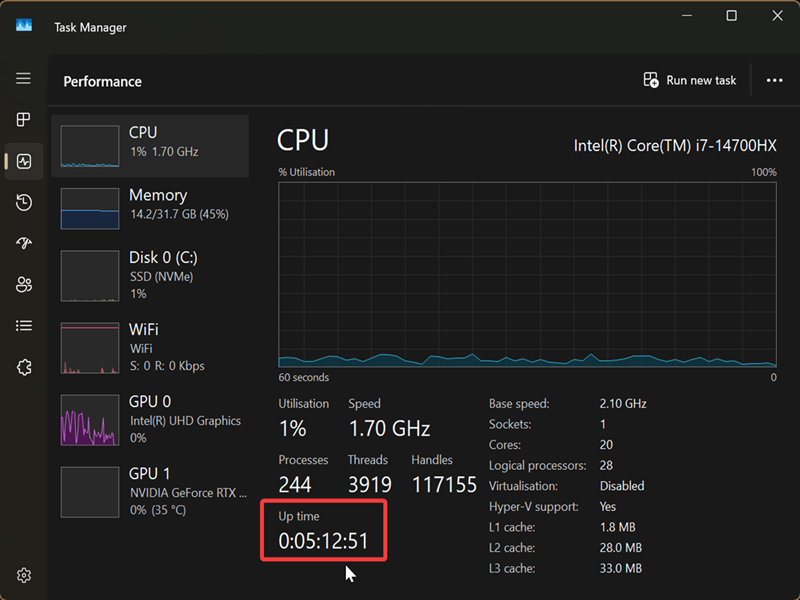
Task Manager keeps track of your uptime in the Performance tab. To find it:
- Press Ctrl + Shift + Esc, or right-click the Start button on your taskbar, and select Task Manager.
- Click on Performance on the left side.
- Select CPU.
- You can see your Up Time formatted as [days]:[hours]:[minutes]:[seconds].
Via get-date command
Alternatively, you can use Windows Terminal to check the system uptime. Here's how:
- Right-click the Start button and select Terminal.
- Open either Command Prompt or PowerShell. It doesn't matter which you choose, since the command is the same.
- Type the following command and press Enter: powershell "(get-date) - (gcim Win32_OperatingSystem).LastBootUpTime"
You'll see the time in a simple list.
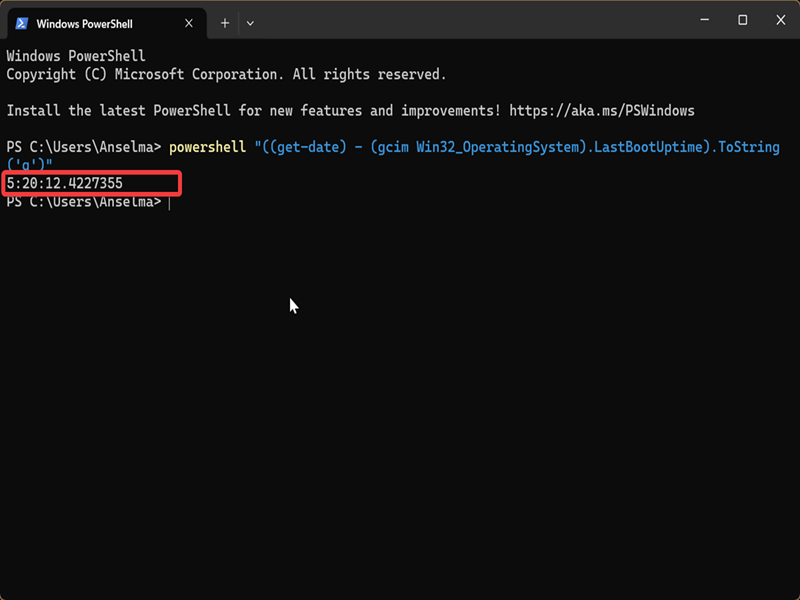
If you want to format it as [days]:[hours]:[minutes]:[seconds]:[milliseconds], type this command and press Enter:
powershell "((get-date) - (gcim Win32_OperatingSystem).LastBootUptime).ToString('g')"
Via systeminfo command
Systeminfo is helpful for general diagnostics. It displays configuration details about your computer and operating system, including its boot time. To use it:
- Right-click the Start button, select Terminal, and open PowerShell or Command Prompt.
- Type the following command and press Enter: systeminfo | find "System Boot Time"
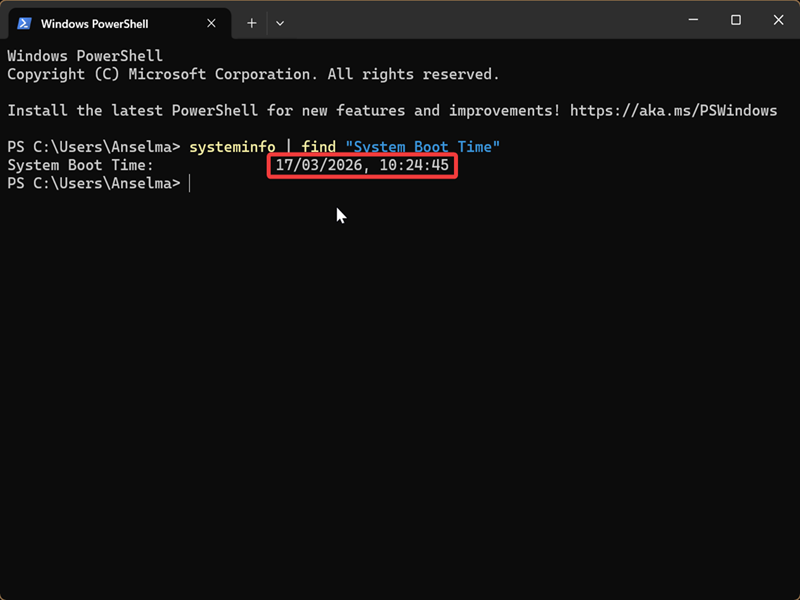
This will show the last time your PC booted. The difference between that and the current time is your uptime.
Via WMIC command
The WMIC (Windows Management Instrumentation Command-line) tool provides a command-line interface for the underlying WMI framework. It's useful for querying system, hardware, and software data.
However, it's being deprecated and is supposed to be removed by default in Windows 11 24H2 and 25H2. It still works on my 25H2 machine, though! Additionally, the WMI infrastructure isn't affected by this change. You can use Windows PowerShell cmdlets instead.
Anyway, you can try this command, and see if it still runs for you:
- Right-click the Start button, select Terminal, and open PowerShell or Command Prompt.
- Type the following command and press Enter: wmic os get LastBootUpTime
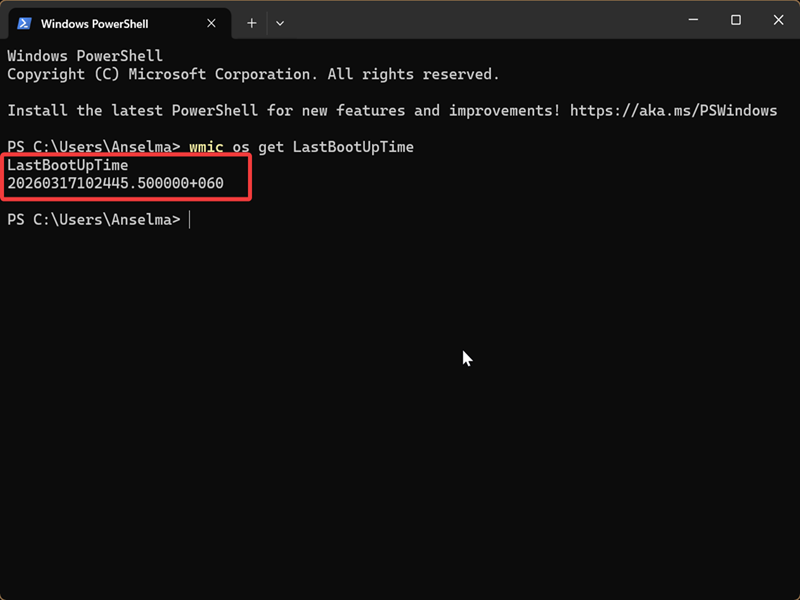
You'll see a string of numbers (e.g., 20260317102445.500000+060) where:
- The first four digits are the year (2026)
- The fifth and sixth digits are the month (03)
- The seventh and eighth digits are the day (17)
- The ninth and tenth digits are the hour (10)
- The eleventh and twelfth digits are the minutes (24)
- The thirteenth and fourteenth digits are the seconds (45)
- The six digits after the period are the milliseconds (500000)
- The last digits after the plus represent the timezone (+060).
Since this outputs your last boot time, you can then calculate your uptime.

|
selma citakovic
Selma is a gamer, geek and gremlin hunter with a passion for cyber security and smashing Windows bugs before they bite. She’s IBM-certified, loves real freeware, despises bloatware, and powers most of her troubleshooting with an unhealthy amount of coffee. |
comments powered by Disqus
