


Here's How to Check Your Effective Permissions in Windows 11
By selma čitakovićon 10/11/2026 |
![{$insert['content_title']](/content/file/6464_image2.jpg
)
Effective permissions are all about the interplay of different types of permissions and security rules. To understand this, we'll need to take a crash course in access control in Windows.
So, let's start from the basics:
File and folder permissions are security settings that determine who can access, read, modify, and otherwise interact with files and folders. Standard permissions include Full Control, Modify, Read & Execute, List Folder Contents, Read, and Write. You can see them listed as soon as you select a file or folder and go to Properties > Security. However, there are also special or advanced permissions, which are more granular and useful for specific situations where the standard rules don't fit.
On top of that, permissions can also be explicit (applied directly to a file or folder) or inherited (automatically passed down from the parent folder). Moreover, share permissions are applied to folders shared over a network, and group permissions are collectively assigned to users who are members of groups.
Effective permissions combine all these elements (minus share permissions) and represent your actual access rights when everything else is taken into account. They're layered, complex, and calculated to prioritize certain permissions over others.
Below, I'll show you where to find them.
How to view effective permissions
First, you'll need to have at least Read permissions to be able to see the effective permissions for a file, folder, drive, or registry key. You won't be able to view this info otherwise.
In any case, find the file, folder, or drive you want to check out in File Explorer. If you want to check out a registry key instead, find it in the registry (regedit.exe). Then, do the following:
- Right-click it and select Properties in File Explorer. Or, right-click the registry key and select Permissions.
- Go to the Security tab.
- Click the Advanced button.
- In the new window that opens, go to the Effective Access tab.
- Click the Select a user link next to User/Group.
- Hit the Advanced button.
- In the Select User or Group (Advanced) menu, click the Find Now button.
- Under Search results, select the name you want to check out effective permissions for, and click OK.
- The name you picked will now be displayed in the Select User or Group window. Click OK.
- Now, back in the Effective Access tab, click the View effective access button.
- You'll now see all effective permissions for the selected user or group for that file, folder, drive, or registry key.
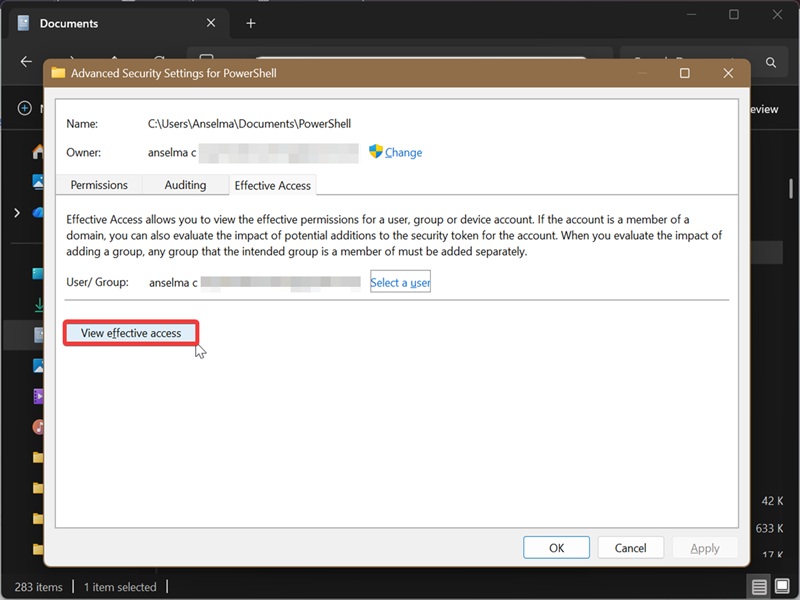
If you're curious about other users/groups, you can click the Select a user link again (step 5) and check out their effective permissions. That's it!

|
selma citakovic
Selma is a gamer, geek and gremlin hunter with a passion for cyber security and smashing Windows bugs before they bite. She’s IBM-certified, loves real freeware, despises bloatware, and powers most of her troubleshooting with an unhealthy amount of coffee. |
comments powered by Disqus
