


Folder Keeps Reverting to Read-Only? Here's How to Fix It
By selma čitakovićon 12/18/2025 |
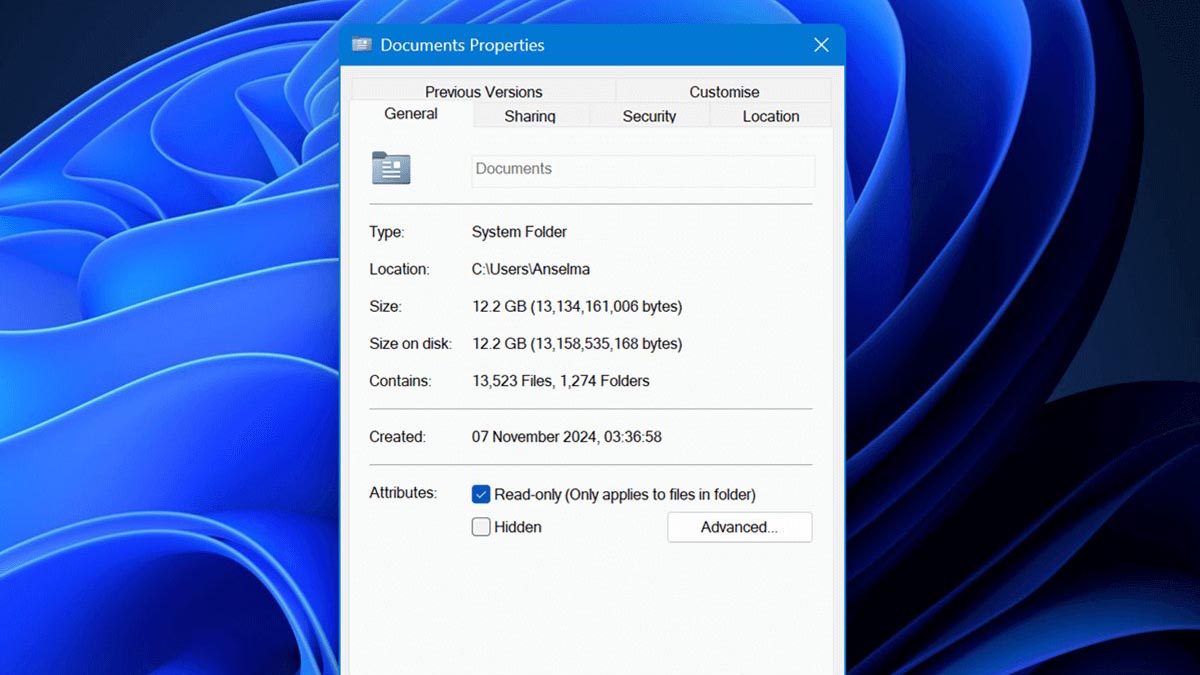
Check folder properties
Let's clear something up first:
Many users go to the affected folder's properties, see the little checkbox for Read-only filled in, and assume that the folder is now read-only. Wrong! Windows is to blame for this because the UI design is misleading. First off, this checkbox only applies to the files within, not the folder itself. Second, the checkbox has to be both filled in and checked for the files to be actually read-only.
You can see the difference here:
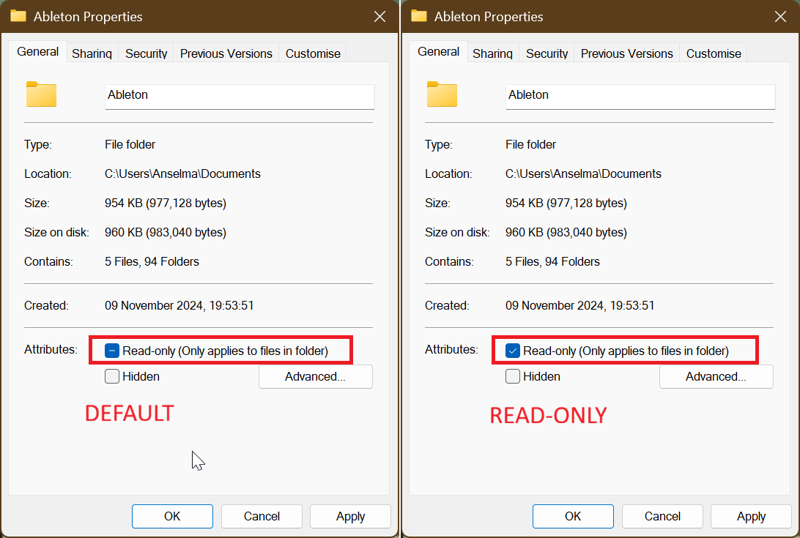
The first screenshot just shows how the checkbox looks by default, which may confuse some users. That doesn't mean the folder is read-only.
To make sure all files within a specific folder aren't read-only, do this:
- Right-click the folder and go to Properties.
- In the General tab, uncheck the box for Read-only.
- Click OK, and confirm you want to apply changes to that folder, subfolders, and files.
Unfortunately, this method won't work if the problem cause is tied to account or folder permissions.
Check your permissions
You might not have the right permissions to modify or write in the folder. In that case, you won't be allowed to make changes or save files. Here's how to fix that:
- Right-click the folder and select Properties.
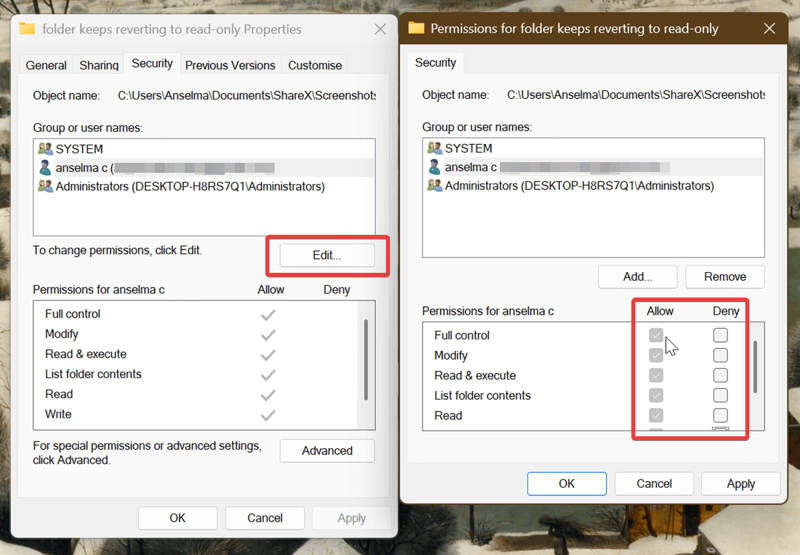
- In the Security tab, select your account name under Group or user names and look at your permissions. If you notice you're missing permissions to edit the folder, proceed with these steps.
- Click on Edit, and select your account again.
- You can Allow or Deny yourself permissions (to protect the folder from being deleted, for example). You should allow Full control. That should automatically tick the Modify and Write options as well.
- Click Apply and OK.
Log in as admin
An administrator account has elevated rights and can grant you ultimate control over your system. It has higher privileges than standard user accounts, so it can bypass folder permission restrictions.
You can switch to an existing admin account at the sign-in screen. Or if you don't have one, do this instead:
- Type CMD in Windows Search, and click Run as administrator.
- Type net user administrator /active:yes in Command Prompt. Wait for it to confirm the command completed successfully.
- Restart your computer, and you should see a new admin account on the sign-in screen.
While logged in as administrator, try making changes to the read-only folder.
Disable Controlled folder access
You may find that Controlled folder access is automatically turned on after a Windows update. This setting is supposed to prevent unauthorized changes to your files by unfriendly applications. But in my experience, it's mostly a nuisance because it's badly implemented. I've had trouble with it while gaming, since it prevents save files from being written in the Documents folder.
You can find Controlled folder access in Windows Security, under Ransomware protection. Here's how to disable it:
- Open Windows Search and type Controlled folder access.
- If the setting is turned on, toggle it off.
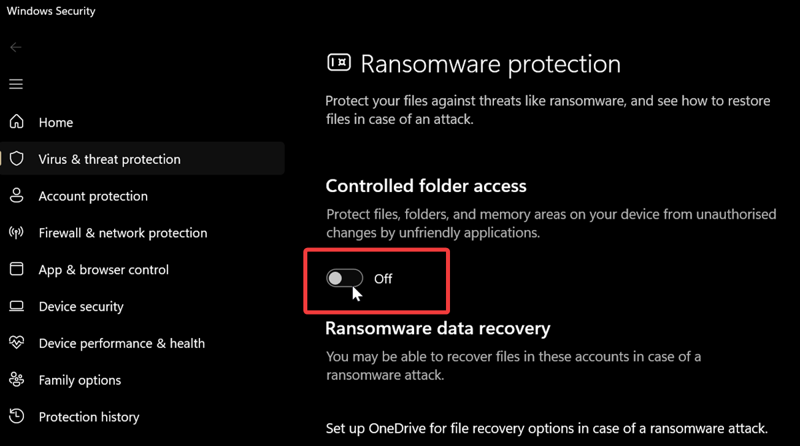
If, for whatever reason, you'd prefer to keep it on, you can limit its access and tell it to ignore specific folders. Here's how:
- Toggle on Controlled folder access.
- Click on Protected folders right under it.
- Select Remove next to the folder you want off the list.
You can also whitelist specific apps with Allow an app through Controlled folder access.
Disable antivirus and cloud syncing
If you're using an antivirus other than Windows Defender, it might overwrite some of your security settings and prevent changes to folders. To fix this, disable the antivirus, reboot, follow the previous steps for Controlled Folder Access, turn on your antivirus again, and reboot. You can also try just disabling the antivirus and modifying the folder.
Moreover, cloud services like OneDrive and Google Drive can temporarily turn files read-only while syncing. Try disabling them or pausing synchronization, and then make changes to the folder.
Hopefully, that takes care of the problem. It's a challenge to figure out what's causing it in the first place, but that's Windows for ya!

|
selma citakovic
Selma is a gamer, geek and gremlin hunter with a passion for cyber security and smashing Windows bugs before they bite. She’s IBM-certified, loves real freeware, despises bloatware, and powers most of her troubleshooting with an unhealthy amount of coffee. |
comments powered by Disqus
