


How To Assign Keyboard Shortcuts to Desktop, Taskbar, and Start Menu Shortcuts
By selma čitakovićon 04/05/2026 |
![{$insert['content_title']](/content/file/5902_image3.jpg
)
Shortcuts are quick and convenient links to apps, files, and folders. You can usually find them on your desktop, taskbar, or Start menu. But if you want to make them even easier to use, you can set up keyboard shortcuts for them. You press a key combo, and it opens the relevant app without you having to double-click it on your desktop, for example.
So, if you like the idea of shortcuts for shortcuts, read on.
On Desktop
Here's how to assign a hotkey to an existing shortcut on your desktop:
- Right-click the shortcut and select Properties.
- While in the Shortcut tab, click the empty Shortcut key field.
- Press the key you want to assign, and click OK.
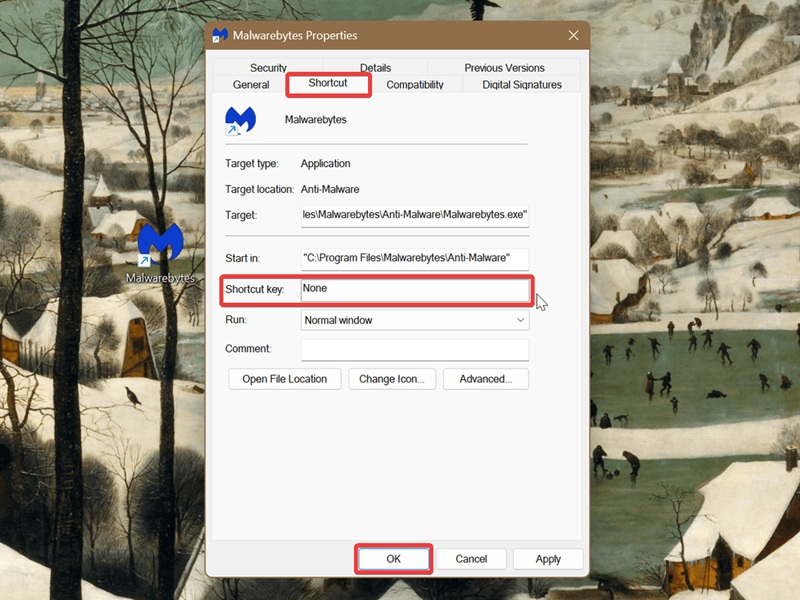
It will usually be Ctrl + Alt + your input. This applies to the numbers on the top row of your keyboard, the letters A-Z, the arrow keys, and characters.
On Taskbar
If you have any shortcuts pinned to your taskbar, do this:
- Right-click the shortcut (for example, Firefox) on the taskbar, then right-click its name in the menu that appears.
- Select Properties.
- In the Shortcut tab, click the empty Shortcut key field.
- Press the key you want to assign, and click OK.
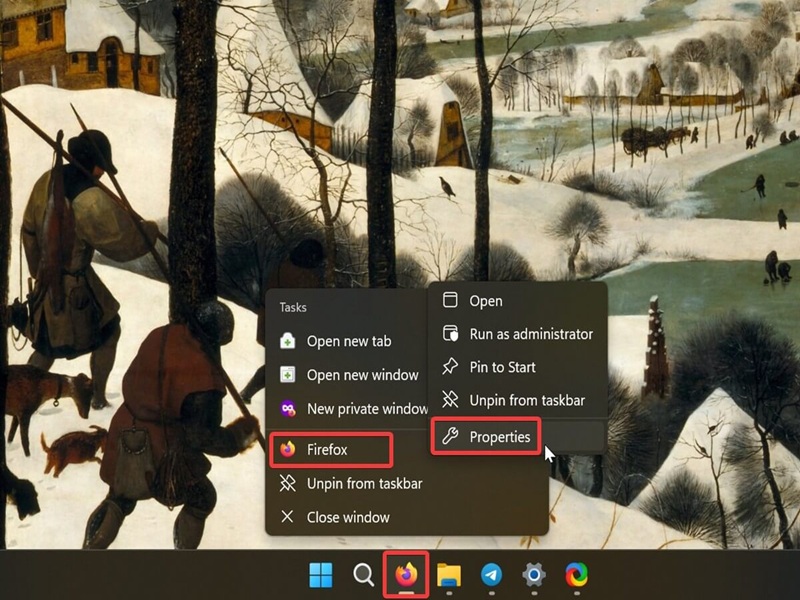
You will see your key combo appear in the field. Keep in mind that you can't apply these steps to Microsoft Store apps, though.
On the Start menu
Similarly, if you have pinned any shortcuts to your Start menu, here's what you should do:
- Open the Start menu and right-click the pinned item.
- Select Open file location.
- This will lead you to the shortcut's location in File Explorer. Right-click it and select Properties.
- In the Shortcut tab, click the empty Shortcut key field.
- Press the key you want to assign, and click OK.
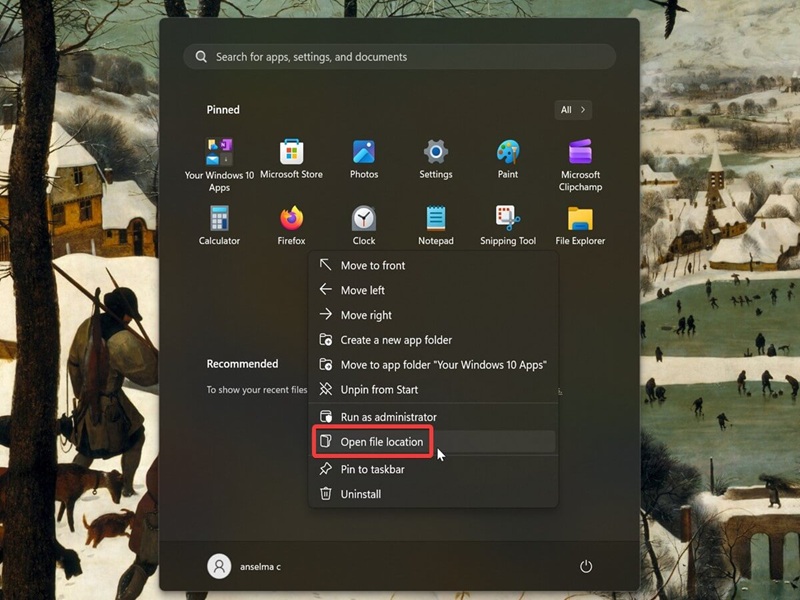
These steps should work on both the old Start menu (like in my screenshot) and the new updated one. However, as with pinned taskbar shortcuts, this doesn't apply to Microsoft Store apps.
Alternatively, you can try this method:
- Open the Start menu and go to All apps.
- Right-click the shortcut you want, and select More > Open file location.
- While in File Explorer, right-click the shortcut and select Properties.
- Then it's the same as before: Go to the Shortcut tab, click the Shortcut key field, input the key you want to set up, and click OK.
Lastly, you should know that if you move the shortcut to another location, the keybind will no longer work. To undo any of these, just click the Shortcut key field and press Delete, then OK.
Anyway, I hope these tips prove useful to you!

|
selma citakovic
Selma is a gamer, geek and gremlin hunter with a passion for cyber security and smashing Windows bugs before they bite. She’s IBM-certified, loves real freeware, despises bloatware, and powers most of her troubleshooting with an unhealthy amount of coffee. |
comments powered by Disqus
