


How to Auto-Switch Between Light and Dark Mode With PowerToys
By selma čitakovićon 03/01/2026 |
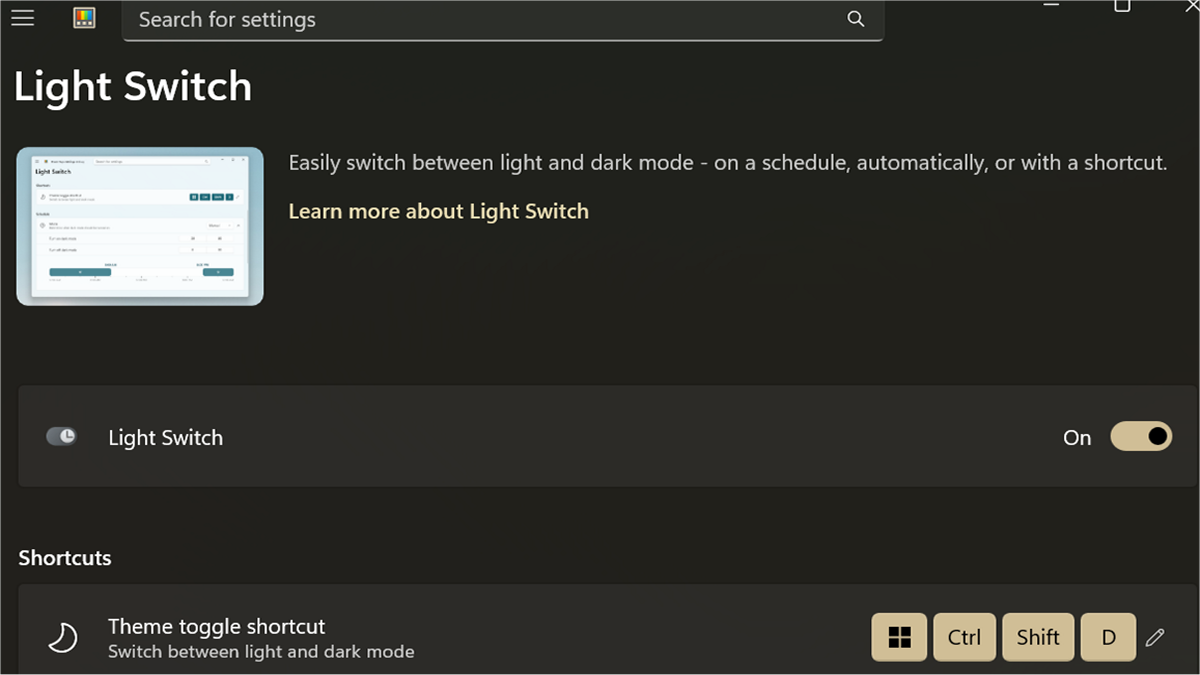
Did you know you can auto-switch between light and dark mode with Light Switch in PowerToys? I can't believe this still isn't a native feature in Windows. If you're unfamiliar with PowerToys, it's a free and open-source collection of tools for customizing and enhancing Windows. Once you enable Light Switch, it will flip between themes based on your daily schedule.
So, if you're firmly in the "dark mode only" camp, this feature isn't for you. But depending on your type of screen and the lighting situation in your workspace, you might prefer light mode during the day and dark mode for the evenings. If you want to reduce eye strain and like being able to automatically switch between themes, give it a try.
How to set up and use Light Switch
After downloading and installing PowerToys, make sure the app is running in the background. First, let's turn on the Light Switch:
- Double-click the PowerToys icon in the system tray. That should take you to the Home screen.
- In the Utilities list, find Light Switch and toggle it on.
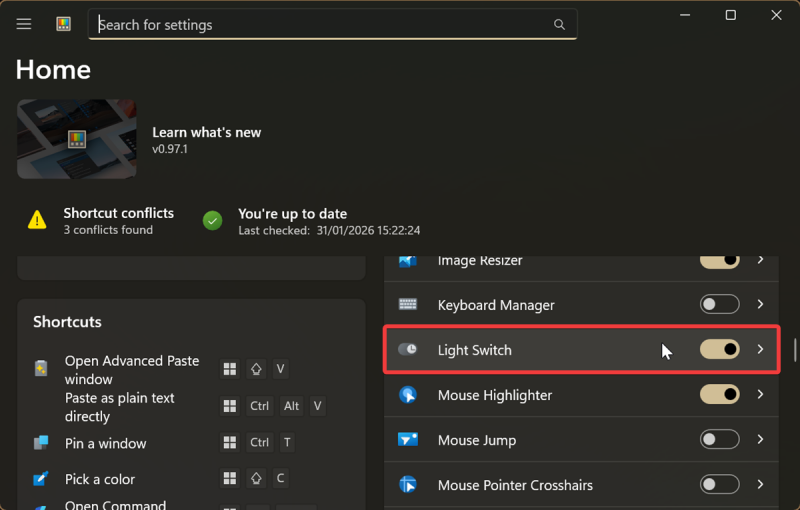
To configure it, click on the Light Switch option (not the toggle) to get to its settings.
The first thing you can change is the theme toggle shortcut. The default keyboard shortcut for manually switching between light and dark mode is Win + Ctrl + Shift +D.
Click the pencil icon next to it to edit it. Press the keys you want, and click on Save. Still, keep in mind that the new shortcut has to start with the Win, Ctrl, Alt, or Shift key. You can also click on Reset to restore the default combination.
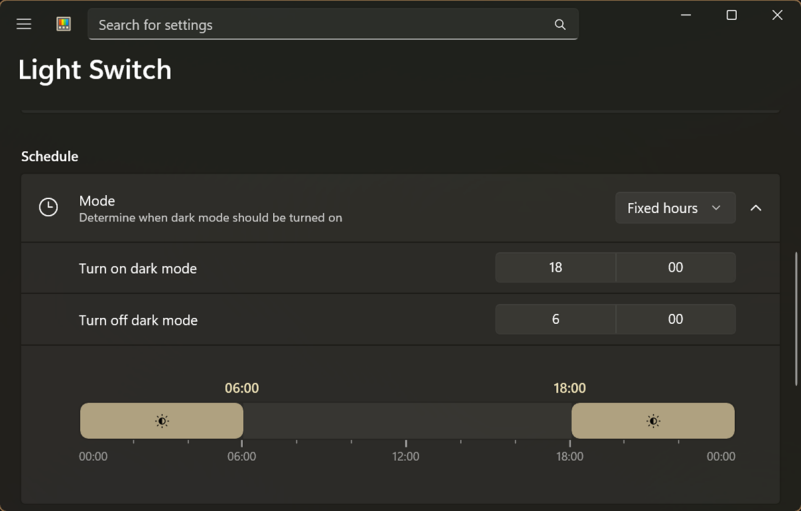
The next option is Schedule. This is where you can set up a custom fixed or adaptive schedule for switching themes.
Click the Mode button, and you should see:
- Fixed hours - fairly self-explanatory. You can configure on a timeline when to turn on/off dark mode.
- Sunset to sunrise - Click the Set Location button to sync your location, so the app can calculate accurate sunrise and sunset times. You can also set up an offset in minutes.
- Follow Night Light - Windows has a built-in display setting that subtly dims your screen and shows warmer colors as the day progresses. You can find it in Settings > System > Display > Night Light, and create a schedule there. Light Switch can then follow this setup and complement it.
Finally, you can adjust the feature's behavior. You can choose to apply dark mode to:
- System (Taskbar, Start, and other system UI)
- Apps (supported ones).
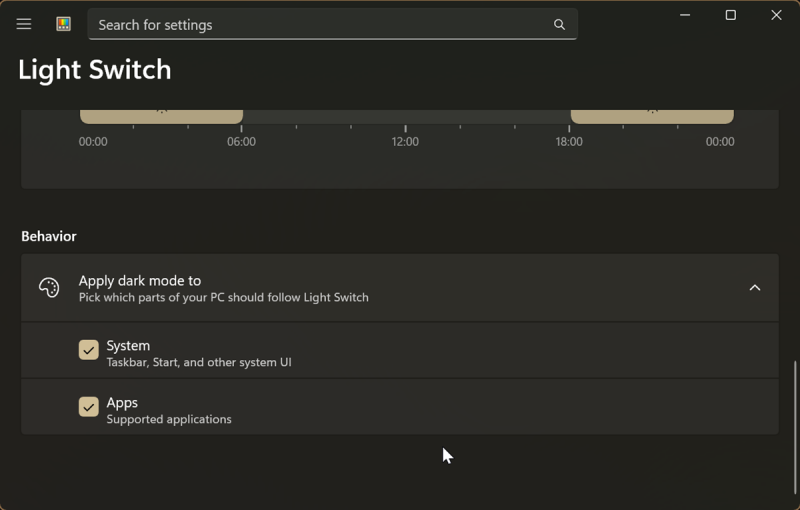
Just toggle it on/off for what you want.
And that's all there is to it! It's a simple tool, but your eyes will thank you for it. If you want to see more of some of our favorite Windows programs, we've got you covered.

|
selma citakovic
Selma is a gamer, geek and gremlin hunter with a passion for cyber security and smashing Windows bugs before they bite. She’s IBM-certified, loves real freeware, despises bloatware, and powers most of her troubleshooting with an unhealthy amount of coffee. |
comments powered by Disqus
