


How to Pause or Delay Windows 10 Feature or Quality Updates
By Timothy Tibbettson 06/15/2023 |
Windows 10 has two different Windows Updates. The first is Feature updates, also known as semi-annual releases, about twice a year. The second is Quality updates or cumulative updates and download on Tuesdays, usually once a month. This tutorial explains the differences between the two and how you can pause or delay these updates.
Feature updates, also known as semi-annual releases, are considered new releases of Windows 10 because they offer new features, visual improvements, and other features to improve security and provide a better end-user experience.
Quality updates, also known as cumulative updates or cumulative quality updates, are mandatory updates that fix bugs, security problems, and more. Quality updates are released on the second Tuesday of every month, also known as Patch Tuesday. You might receive these updates on other days if there's a problem that needs to be addressed immediately.
1: Pause or Delay Windows 10 Feature or Quality Updates in Settings
Note: Some versions of Windows 10 (Enterprise) will offer the option to pause Feature and Quality updates separately, allowing you to pause either for up to 365 days. The rest of us will need to edit the registry below.
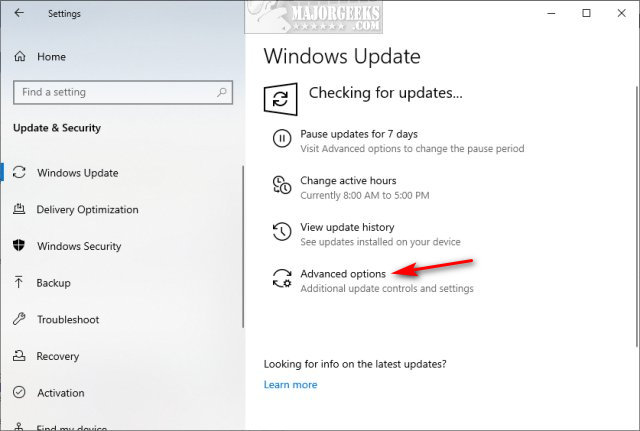
Click on Start > Settings > Update & security.
Click on Advanced options.
 updates 1.jpg)
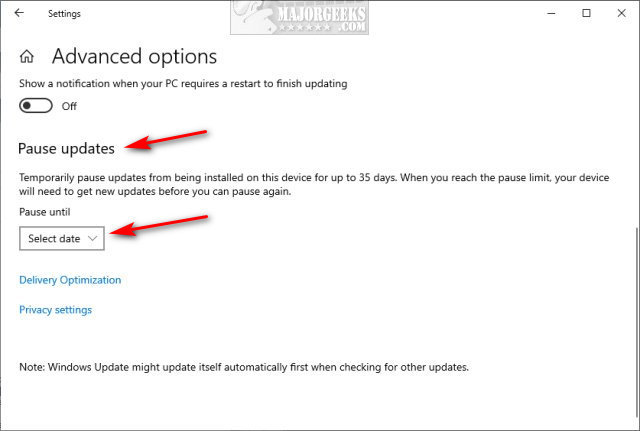
Scroll down to Pause until and click on Select date.
 updates 2.jpg)
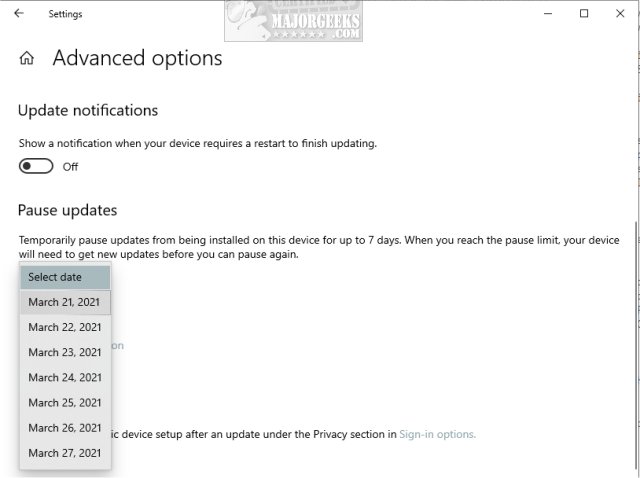
Click on a date to delay Windows Updates.
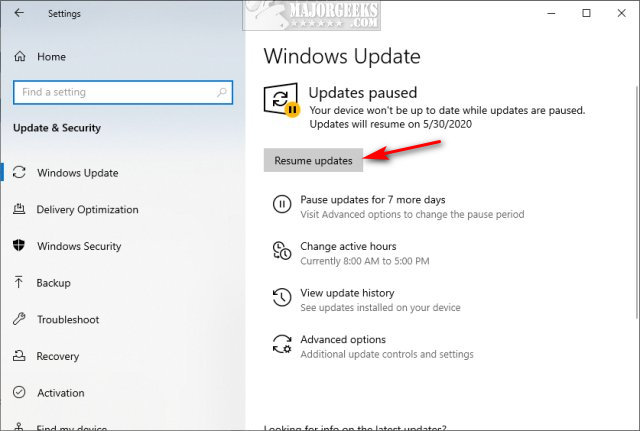
If you decide your ready for updates before the date you selected, go back to Start > Settings > Update & security.
Click on Resume updates.
 updates 4.jpg)
2: Pause or Delay Windows 10 Feature or Quality Updates With a Third-Party App
As you might have noticed, Microsoft only allows you to pause updates for 7 days, and that's often not long enough. Luckily, we have some third-party freeware apps that can pause updates for you.
StopWinUpdates
StopUpdates10
Wu10Man
3: Pause or Delay Windows 10 Feature or Quality Updates in the Registry
Open the Registry Editor and go to HKEY_LOCAL_MACHINE\SOFTWARE\Microsoft\WindowsUpdate\UX\Settings
Right-click on the right and click New > DWORD (32-bit value) and name it BranchReadinessLevel.
Change the Value data to 10 for Semi-Annual Channel (Targeted) or 20 for Semi-Annual Channel.
Click on Decimal. Click on OK.
Right-click on the right and click New > DWORD (32-bit value) and name it DeferFeatureUpdatesPeriodInDays.
Change the Value data to 0-365 for the number of days to pause updates.
Click on Decimal. Click on OK.
Once you've made all your changes, restart your computer.
Similar:
Microsoft Patch Tuesday Explained
How-To Delete Pending Windows Updates
Configure When and How Windows Updates Are Delivered
How-to Change Rollback Days for Windows 10 Feature Upgrades
Will Windows 10 Receive Windows Updates if It's Not Activated?
comments powered by Disqus
1: Pause or Delay Windows 10 Feature or Quality Updates in Settings
Note: Some versions of Windows 10 (Enterprise) will offer the option to pause Feature and Quality updates separately, allowing you to pause either for up to 365 days. The rest of us will need to edit the registry below.
Click on Start > Settings > Update & security.
Click on Advanced options.
Scroll down to Pause until and click on Select date.
Click on a date to delay Windows Updates.
If you decide your ready for updates before the date you selected, go back to Start > Settings > Update & security.
Click on Resume updates.
2: Pause or Delay Windows 10 Feature or Quality Updates With a Third-Party App
As you might have noticed, Microsoft only allows you to pause updates for 7 days, and that's often not long enough. Luckily, we have some third-party freeware apps that can pause updates for you.
3: Pause or Delay Windows 10 Feature or Quality Updates in the Registry
Open the Registry Editor and go to HKEY_LOCAL_MACHINE\SOFTWARE\Microsoft\WindowsUpdate\UX\Settings
Right-click on the right and click New > DWORD (32-bit value) and name it BranchReadinessLevel.
Change the Value data to 10 for Semi-Annual Channel (Targeted) or 20 for Semi-Annual Channel.
Click on Decimal. Click on OK.
Right-click on the right and click New > DWORD (32-bit value) and name it DeferFeatureUpdatesPeriodInDays.
Change the Value data to 0-365 for the number of days to pause updates.
Click on Decimal. Click on OK.
Once you've made all your changes, restart your computer.
Similar:
comments powered by Disqus
