


How To Clean Up File History In Windows
By selma čitakovićon 03/22/2026 |
If your File History backup is taking up too much space on your drive, you can manually delete older versions of files you no longer need. You can clean up all but the latest version, or older than the selected age (older than six months, for example).
Here's how File History works, in short:
This backup feature relies on an NTFS file system called the change journal to track all modifications to specific folders and files. The journal automatically updates with descriptions of the changes, and File History saves a copy of that file version. That way, you can "go back" in time and restore previous versions. It's handy if you need to recover things you've accidentally lost or damaged, but it can take up quite a bit of storage if you leave it unattended.
Cleaning up the history is fairly simple, once you know where to look. Unfortunately, Windows has kinda swept the feature under the rug for the sake of prioritizing OneDrive. You can now only find File History in the place where legacy features go to die: the Control Panel.
Let's get into it!
Use File History Cleanup in Control Panel
You can find the cleanup option in the same section where you can set up File History:
- In Windows Search, type Control Panel and click on Open.
- Select View by > Small icons/Large icons in the upper right corner, so you can see all the options. Category view hides a lot of them, so it's harder to navigate.
- Click on File History.
- Select Advanced settings on the left side.
- You should see a Versions section. Select Clean up versions, right under the Keep saved versions option.
- Select how far into the past you want to go in the dropdown menu, and click Clean up. The default option is Older than one year.
- You should see a message confirming that the cleanup has completed successfully. Click OK.
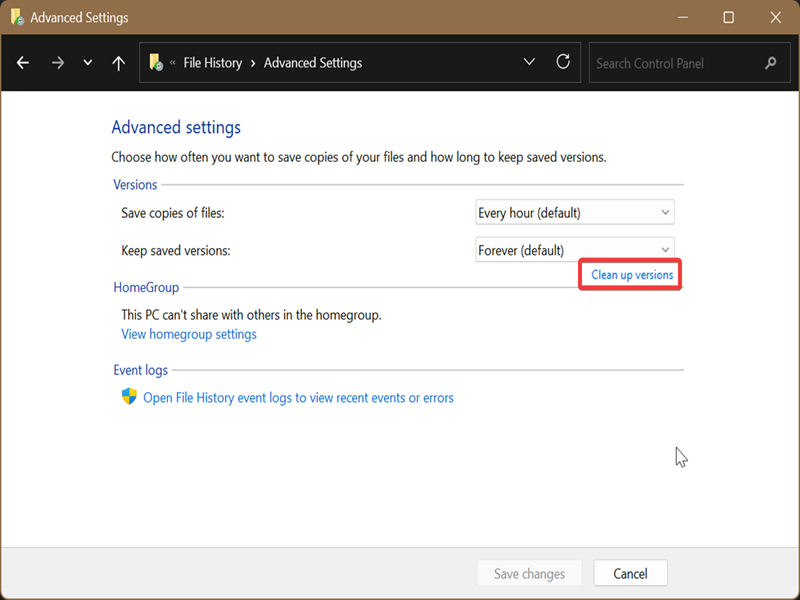
If File History Cleanup couldn't find any files in your specified time range, you can choose a shorter period and try again.
Use File History Cleanup in Command Prompt/PowerShell
Alternatively, you can achieve the same with a terminal. Here's how:
- Search for Command Prompt or PowerShell and click Open.
- To delete everything but the latest one, type the following command and press Enter: FhManagew.exe -cleanup 0
- Older than one month: FhManagew.exe -cleanup 30
- Older than three months: FhManagew.exe -cleanup 90
- Older than six months: FhManagew.exe -cleanup 180
- Older than nine months: FhManagew.exe -cleanup 270
- Older than one year: FhManagew.exe -cleanup 360
- Older than two years: FhManagew.exe -cleanup 720
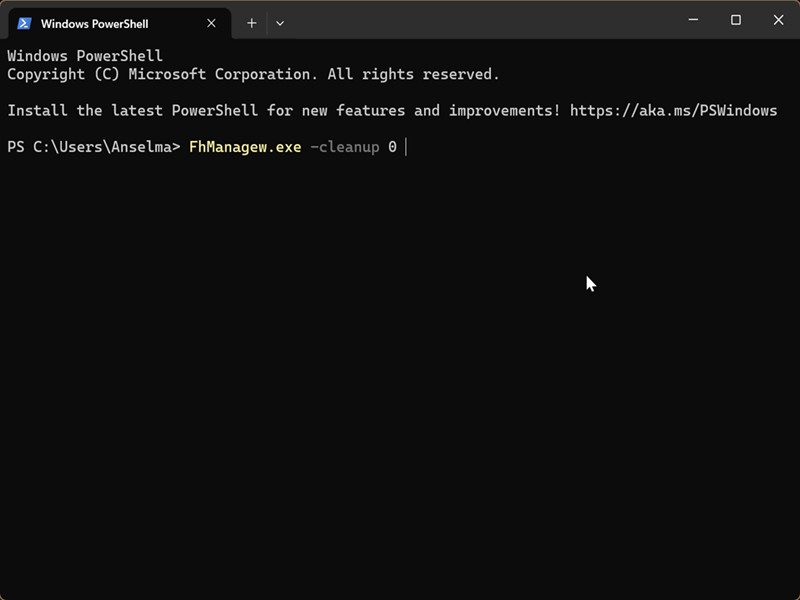
You can also add -quiet at the end of each command if you don't want to see message pop-ups after executing them.
Additionally, if you want to stop using File History for good, you can easily disable it. There are plenty of third-party backup alternatives, so you don't have to commit to the built-in ones.
Here are the steps:
- Open Control Panel again, in icons view.
- Select File History.
- Click the Turn off button right under the drive you're currently using for backup.
Hopefully, you'll be able to free up enough storage by deleting old file versions.
If you're still itching for more space, you can use dedicated drive cleaners like PrivaZer or Wise Disk Cleaner. They're both designed for in-depth cleaning, including temporary files, old downloads, system logs, and other junk files. PrivaZer is more privacy-oriented and can remove traces in $LogFile, MFT, and free space, while Wise is a more "traditional" declutterer with additional disk defrag features.

|
selma citakovic
Selma is a gamer, geek and gremlin hunter with a passion for cyber security and smashing Windows bugs before they bite. She’s IBM-certified, loves real freeware, despises bloatware, and powers most of her troubleshooting with an unhealthy amount of coffee. |
comments powered by Disqus
