


How to Create and Restore a Windows 10 Recovery or System Image
By Timothy Tibbettson 07/18/2023 |
One feature we appreciate in Windows 10 is the ability to create a system image. Once you have an image saved, you can recover your Windows 10 installation or upgrade to an SSD hard drive. Here's how.
We're will first show you how to create, then restore from the image. If your computer is running fine, and you want a clean backup, be sure to clean temporary files and remove unwanted programs before you begin to save space.
1: Create a System Image
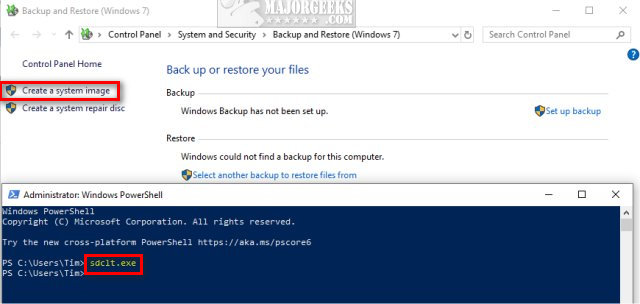
Press the Windows Key + X and click on Windows PowerShell.
Type in sdclt.exe and press the Enter key.
Click on Create a System Image.
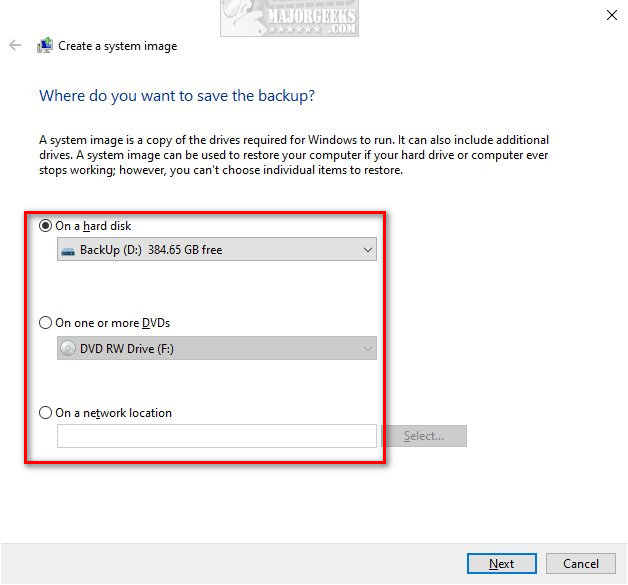
You can now select where to store your image. Options include a second hard drive, thumb drive, one or more DVDs, or even a network location. Windows 10 backups can be over 100GB, so DVDs are rarely an option. You can't save the image to the same drive you're imaging.
Windows 10 will now confirm your settings before the backup begins. Click on Start backup when you're ready to proceed.
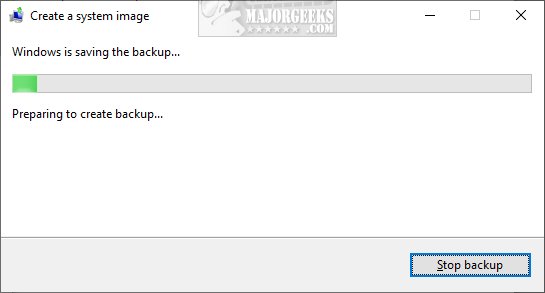
You will see a progress bar, and your time will vary depending on your hard drive space and computer speed. Count on a minimum of at least 15 minutes to create the image.
Once completed, you will be notified that the backup is complete and then asked if you would like to create a system repair disk.
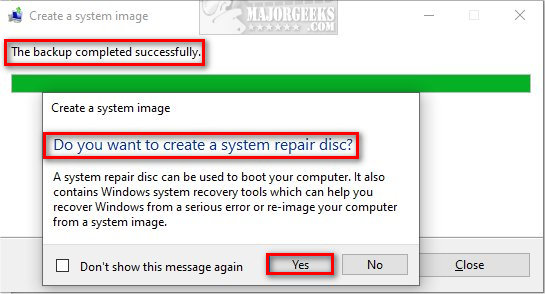
We recommend everyone create a system repair disk. If your computer doesn't boot, you'll be glad you did. Insert a CD or DVD and click on Yes.
If you lack a CD or DVD, you can create a bootable thumb drive.
To create a bootable thumb drive, press the Windows Key + S, type in and click on Create a recovery drive. If the thumb drive is plugged in, then Windows 10 should automatically recognize it. Click Yes and wait a few minutes. All data on your thumb drive will be deleted during this process.
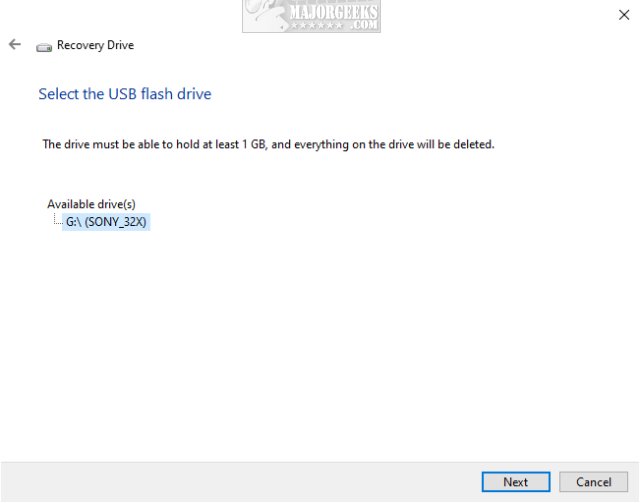
The entire process should only take a few minutes, and again, you'll be notified when the system repair disc is finished.
2: Restore a System Image
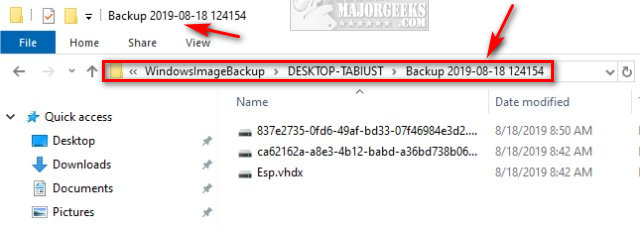
Before we recover, you'll need to know that the files created from your image can be found in WindowsImageBackup, and you might also see a temporary folder names FileHistory. If you have multiple images backed up, you can manually delete them from the WindowsImageBackup folders. Each backup will have the date as part of the subfolder name.
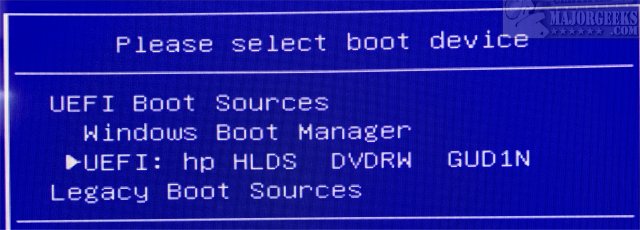
Insert your thumb drive or DVD and reboot. The Windows recovery should boot. If your DVD does not boot, please search for your computer manufacturer and find the key you need to hold down that allows you to tell your BIOS which drive to boot from and select your DVD drive.
If you didn't create a boot disk, Press the Windows Key + X now and click on Windows PowerShell. Type in sdclt.exe and press the Enter key. Click on Create a system repair disk.
Once your computer boots, you may be asked your keyboard layout. Next, select Troubleshoot then System Image Recovery and follow the prompts to recover and reboot. Recovery should automatically find your image.
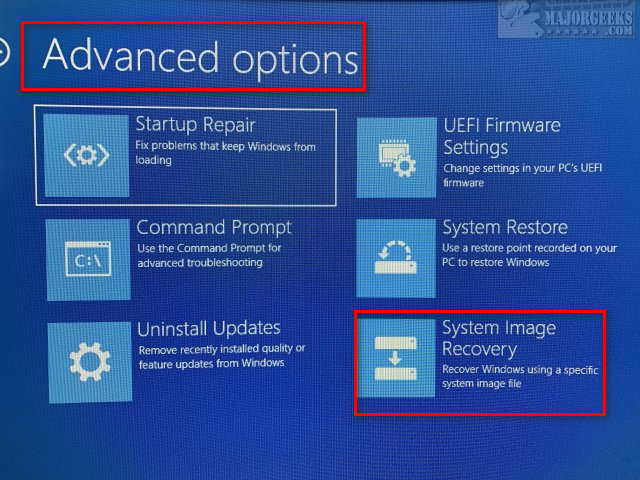
Remove the bootable media when completed and reboot.
Similar:
Enable, Disable, Manage, Delete or Create a System Restore Point
How to Run Windows 10 Troubleshooters Automatically
Windows 10 Problems You Can Fix Yourself With Included Troubleshooters
comments powered by Disqus
We're will first show you how to create, then restore from the image. If your computer is running fine, and you want a clean backup, be sure to clean temporary files and remove unwanted programs before you begin to save space.
1: Create a System Image
Press the Windows Key + X and click on Windows PowerShell.
Type in sdclt.exe and press the Enter key.
Click on Create a System Image.
You can now select where to store your image. Options include a second hard drive, thumb drive, one or more DVDs, or even a network location. Windows 10 backups can be over 100GB, so DVDs are rarely an option. You can't save the image to the same drive you're imaging.
Windows 10 will now confirm your settings before the backup begins. Click on Start backup when you're ready to proceed.
You will see a progress bar, and your time will vary depending on your hard drive space and computer speed. Count on a minimum of at least 15 minutes to create the image.
Once completed, you will be notified that the backup is complete and then asked if you would like to create a system repair disk.
We recommend everyone create a system repair disk. If your computer doesn't boot, you'll be glad you did. Insert a CD or DVD and click on Yes.
If you lack a CD or DVD, you can create a bootable thumb drive.
To create a bootable thumb drive, press the Windows Key + S, type in and click on Create a recovery drive. If the thumb drive is plugged in, then Windows 10 should automatically recognize it. Click Yes and wait a few minutes. All data on your thumb drive will be deleted during this process.
The entire process should only take a few minutes, and again, you'll be notified when the system repair disc is finished.
2: Restore a System Image
Before we recover, you'll need to know that the files created from your image can be found in WindowsImageBackup, and you might also see a temporary folder names FileHistory. If you have multiple images backed up, you can manually delete them from the WindowsImageBackup folders. Each backup will have the date as part of the subfolder name.
Insert your thumb drive or DVD and reboot. The Windows recovery should boot. If your DVD does not boot, please search for your computer manufacturer and find the key you need to hold down that allows you to tell your BIOS which drive to boot from and select your DVD drive.
If you didn't create a boot disk, Press the Windows Key + X now and click on Windows PowerShell. Type in sdclt.exe and press the Enter key. Click on Create a system repair disk.
Once your computer boots, you may be asked your keyboard layout. Next, select Troubleshoot then System Image Recovery and follow the prompts to recover and reboot. Recovery should automatically find your image.
Remove the bootable media when completed and reboot.
Similar:
comments powered by Disqus
