


How To Easily Backup and Import Windows Defender Firewall Rules
By selma čitakovićon 05/09/2026 |
![{$insert['content_title']](/content/file/5988_image1.png
)
If you put in a lot of effort in setting up your Windows Defender Firewall rules, you'll probably want to back them up. You can then quickly import and restore all of your settings at once when needed. It will only take a couple of minutes.
But before we get into it, make sure you've signed in as an administrator first. You'll need elevated privileges to export and import your firewall policy.
Via Windows Security
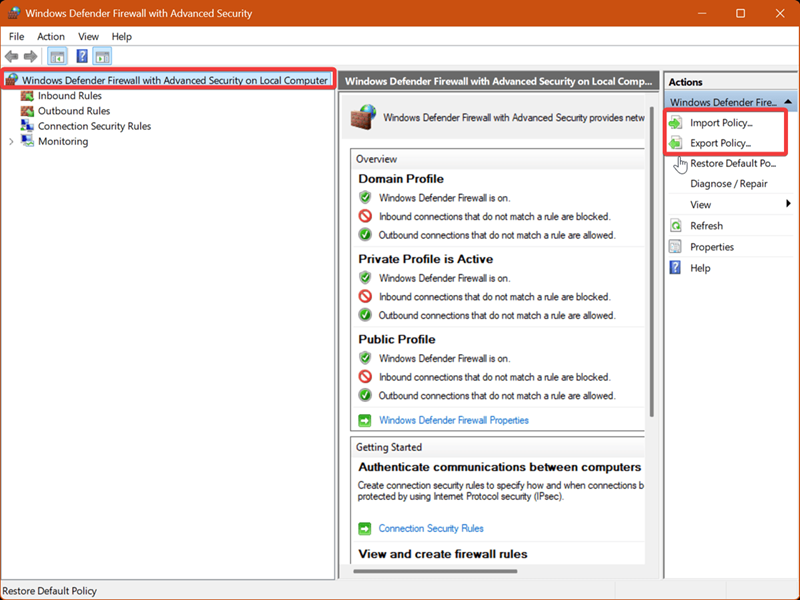
First, let's access the legacy tool for configuring your firewall - Windows Firewall with Advanced Security. You can find it by opening Windows Security and going to Firewall & network protection > Advanced settings.
Or, you can use this shortcut:
- Press Win + R, type wf.msc, and press Enter.
- To back up your settings and rules: Select Windows Defender Firewall with Advanced Security on Local Computer on the left side, then click on Export Policy on the right, under Actions. Pick a location where you want to save the .wfw file, name it, and save it.
- You should see a message saying "Policy successfully exported." Click OK.
- To import the firewall settings and rules: Select Windows Defender Firewall with Advanced Security on Local Computer on the left side, then click on Import Policy on the right, under Actions. Confirm your decision by clicking Yes, find the .wfw file you want to import, and hit Open.
- Like before, you should see a message saying "Policy successfully imported." Click OK.
Via Command
Alternatively, you can achieve the same results with Command Prompt or PowerShell. First, let me show you how to export your rules:
- Press Win + X, select Terminal (Admin), and pick either Command Prompt or PowerShell. Both work, as long as they're elevated.
- Type the following command in Command Prompt, and press Enter: netsh advfirewall export "%userprofile%\Desktop\WindowsFirewallSettingsBackup.wfw"
- Or, type this one in PowerShell, and press Enter: netsh advfirewall export "$Env:USERPROFILE\Desktop\WindowsFirewallSettingsBackup.wfw"
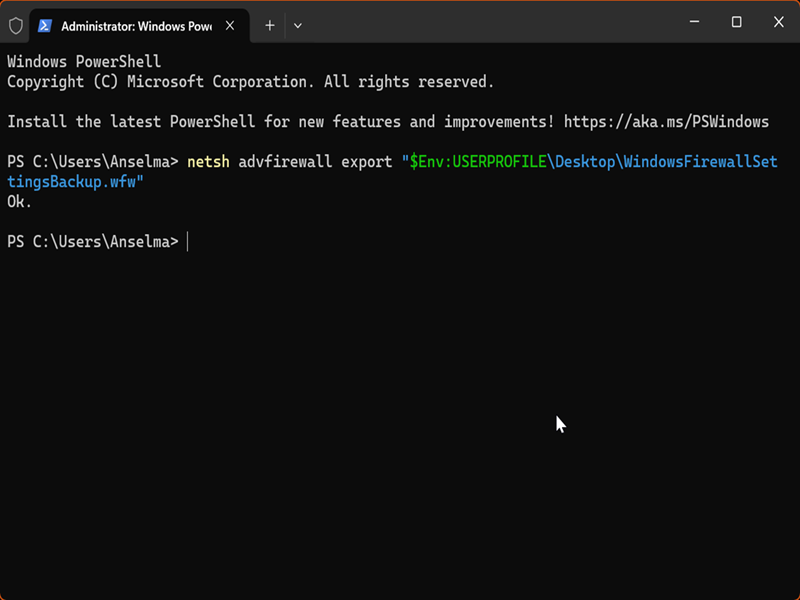
This will save a backup .wfw file on your desktop. You can keep it there, or move it somewhere else and get it ready for the next steps.
Now, to import it:
- Right-click the .wfw file and select Copy as path. You'll need it in a bit.
- Type the following command in elevated Command Prompt or PowerShell: netsh advfirewall import ".wfw file path"
- Replace ".wfw file path" with the one you just copied, and hit Enter.
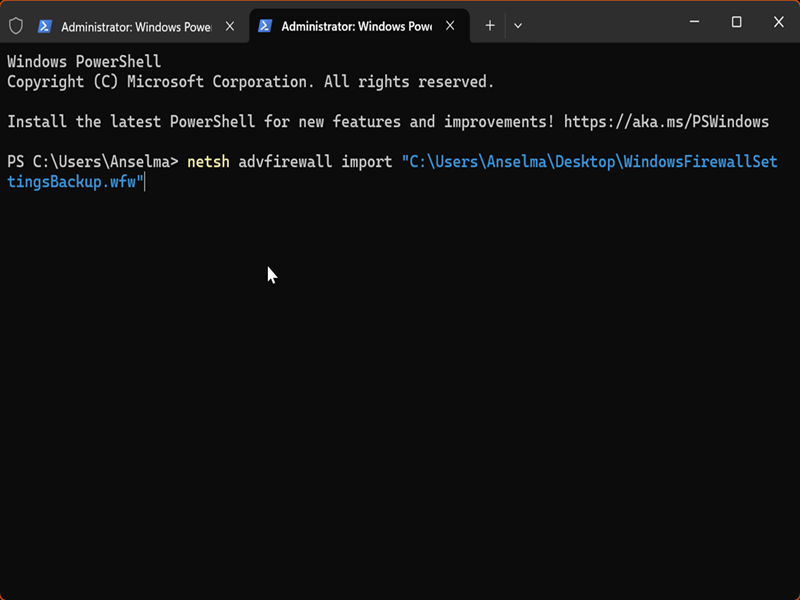
That should restore your Windows Defender Firewall settings. Just make sure you import the right policy, as it will overwrite your current settings. You can also always restore the defaults and start from there.

|
selma citakovic
Selma is a gamer, geek and gremlin hunter with a passion for cyber security and smashing Windows bugs before they bite. She’s IBM-certified, loves real freeware, despises bloatware, and powers most of her troubleshooting with an unhealthy amount of coffee. |
comments powered by Disqus
