


How To Enable or Disable Apps Access to Your Microphone
By selma čitakovićon 06/06/2026 |
![{$insert['content_title']](/content/file/6067_image2.png
)
Many apps and services may request access to your microphone in Windows 11, but not all deserve it. If you value your privacy, you should keep a close eye on app permissions and only allow access to safe and familiar services. The same goes for your camera!
Here's how to control which ones can use your microphone.
Via Settings
First, there's the global setting that enables/disables microphone access for every user. You'll have to be signed in as an administrator to change it. Here's where to find it:
- Go to Settings > Privacy & security > Microphone (under App permissions).
- Toggle on or off Microphone access.
When that option is enabled, you can configure the settings directly under it. So, you can toggle on/off Let apps access your microphone, and specify which ones can use your mic. Additionally, you can do the same for Let desktop apps access your microphone. These settings apply to the current user.
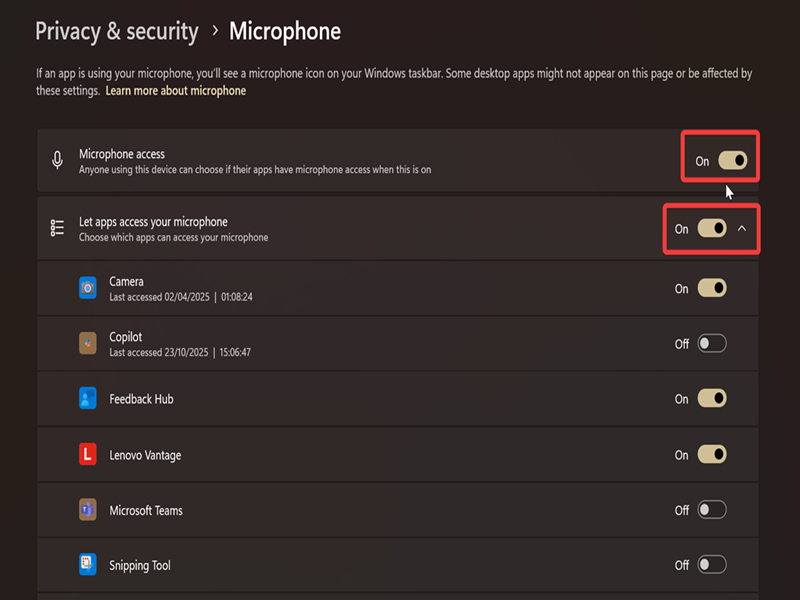
But if you've disabled Microphone access altogether, Let apps access your microphone and Let desktop apps access your microphone will be grayed out.
Via Command Prompt/PowerShell
You can also turn on/off general camera access with a command. You'll need to sign in as an administrator first, though. Here are the steps:
- Press Win + X, select Terminal (Admin), and open either PowerShell or Command Prompt.
- Type the following command and hit Enter to turn on microphone access: SystemSettingsAdminFlows.exe SetCamSystemGlobal microphone 1
- Or to turn it off: SystemSettingsAdminFlows.exe SetCamSystemGlobal microphone 0
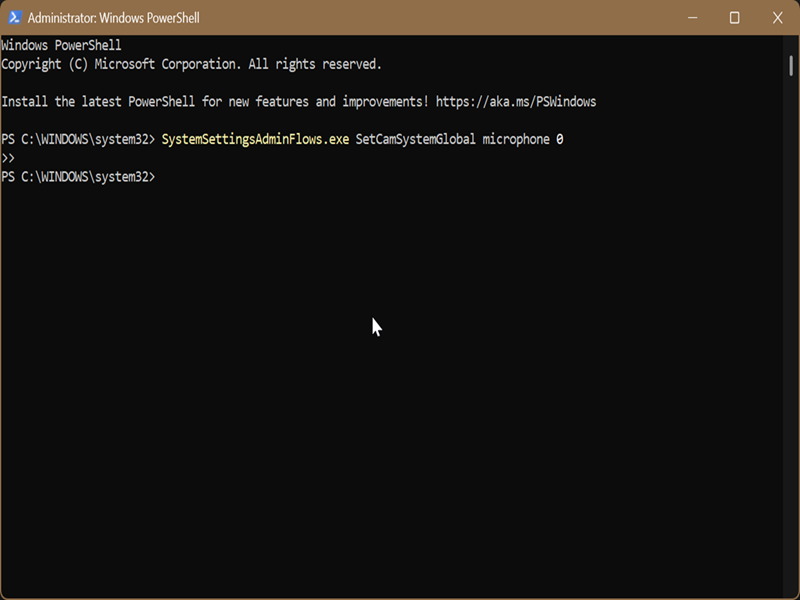
There won't be any confirmation message in the terminal after executing the command.
Via Local Group Policy Editor
Finally, you can use the built-in policy editor and allow or deny apps access to your mic. However, this option is only available to certain Windows editions - namely, Pro, Education, and Enterprise. (If you're on Home edition, you'll have to enable it first.)
To use it, sign in as an admin and do the following:
- Press Win + R, type gpedit.msc, and hit Enter.
- Go to Computer Configuration > Administrative Templates > Windows Components > App Privacy on the left side.
- Double-click Let Windows apps access the microphone on the right.
- To disable mic access: Select Enabled, then Force Deny in the drop menu next to Default for all apps. Click OK.
- To always enable mic access: Select Enabled, then Force Allow in the Default for all apps menu. Click OK.

These apply to all users.
Once you change this policy, it will override all previous options. So, you won't be able to enable/disable mic access in Settings without restoring it to the default first. The default value for Let Windows apps access the microphone is Not Configured.

|
selma citakovic
Selma is a gamer, geek and gremlin hunter with a passion for cyber security and smashing Windows bugs before they bite. She’s IBM-certified, loves real freeware, despises bloatware, and powers most of her troubleshooting with an unhealthy amount of coffee. |
comments powered by Disqus
