


How to Enable the Windows Defender Sandbox in Windows 10 & 11
By Timothy Tibbettson 06/15/2023 |
Microsoft has made it possible to run Windows Defender, part of Security Essentials, in a sandbox.
Microsoft describes the Sandbox as "Running Windows Defender Antivirus in a sandbox ensures that in the unlikely event of a compromise, malicious actions are limited to the isolated environment, protecting the rest of the system from harm. The goal for the sandboxed components was to ensure that they encompassed the highest risk functionality like scanning untrusted input, expanding containers, and so on. At the same time, we had to minimize the number of interactions between the two layers to avoid a substantial performance cost."
Sandbox is disabled by default and only available for builds 1709 and newer.
To enable Sandbox, open an elevated command prompt and type in copy and paste setx /M MP_FORCE_USE_SANDBOX 1. Press enter, then reboot and Sandbox is enabled.
To disable Sandbox, we need to go through a few steps and delete it.
Open your Control panel > System or press the Windows Key + S and type in system until you see System - Control Panel and click on that.
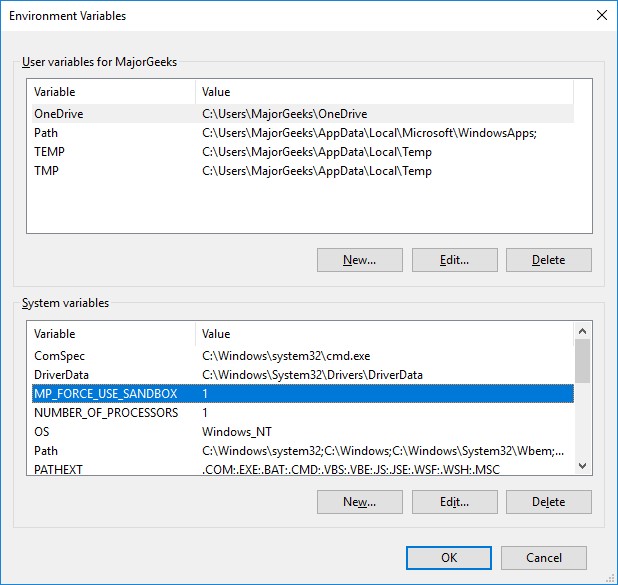
Now click on Advanced System Settings on the left. Now click on Environment Variables. At the bottom, you should see System Variables. Look for MP_FORCE_USE_SANDBOX, click that, then delete. Once again, you'll need to restart.
We also think you could just enter setx /M MP_FORCE_USE_SANDBOX 0 in the command-prompt.
comments powered by Disqus
Microsoft describes the Sandbox as "Running Windows Defender Antivirus in a sandbox ensures that in the unlikely event of a compromise, malicious actions are limited to the isolated environment, protecting the rest of the system from harm. The goal for the sandboxed components was to ensure that they encompassed the highest risk functionality like scanning untrusted input, expanding containers, and so on. At the same time, we had to minimize the number of interactions between the two layers to avoid a substantial performance cost."
Sandbox is disabled by default and only available for builds 1709 and newer.
To enable Sandbox, open an elevated command prompt and type in copy and paste setx /M MP_FORCE_USE_SANDBOX 1. Press enter, then reboot and Sandbox is enabled.
To disable Sandbox, we need to go through a few steps and delete it.
Open your Control panel > System or press the Windows Key + S and type in system until you see System - Control Panel and click on that.
Now click on Advanced System Settings on the left. Now click on Environment Variables. At the bottom, you should see System Variables. Look for MP_FORCE_USE_SANDBOX, click that, then delete. Once again, you'll need to restart.
We also think you could just enter setx /M MP_FORCE_USE_SANDBOX 0 in the command-prompt.
comments powered by Disqus
