


How To Find a Drive's File System Type
By selma čitakovićon 04/25/2026 |
![{$insert['content_title']](/content/file/5928_image1.png
)
A file system determines how your device organizes and tracks data. Without it, your operating system wouldn't be able to tell one file from another. It basically serves as an index for all the data on your storage device. It's like a filing cabinet keeping everything tidy and easy to find.
Additionally, there are different types of file systems, such as NTFS, FAT, FAT32, exFAT, and ReFS. Here's how to find out what specific type your drive has been formatted with in Windows 11.
Via File Explorer
You can quickly check it like this:
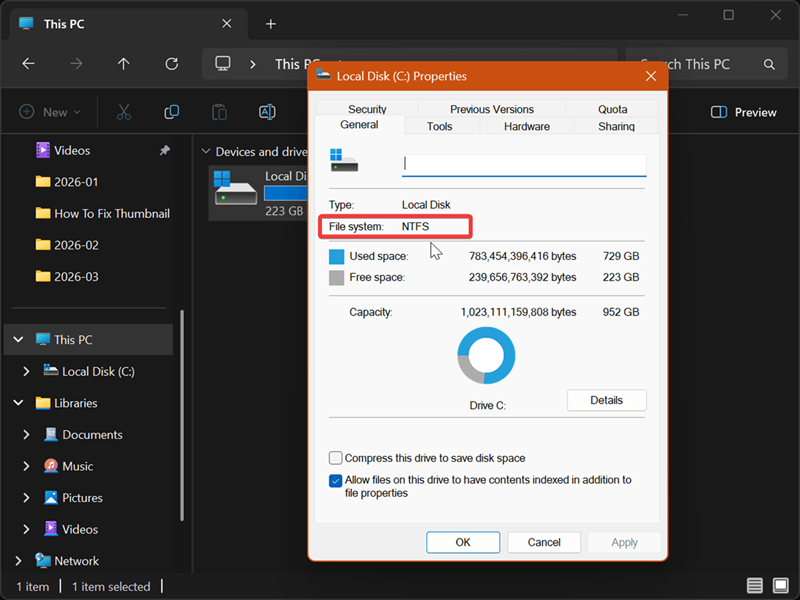
- Open File Explorer (Win + E) and go to This PC.
- Right-click the drive you're interested in, and select Properties.
- This should open the General tab, where you can see the file system.
Via Settings
Or you can dig through the Settings to find it:
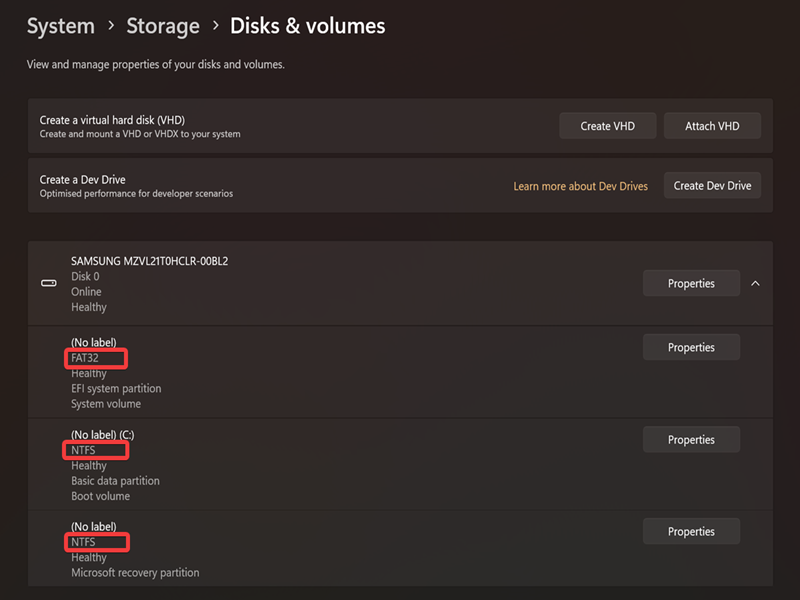
- Open Settings (Win + I) and go to System > Storage > Advanced storage settings > Disks & volumes.
- You may be prompted by User Account Control while navigating, so just click on Yes to continue.
- You can see your target drive's file system type on the list, for each partition.
Via Disk Management
Alternatively, you can use the built-in tool for managing disks and partitions. Here's how:
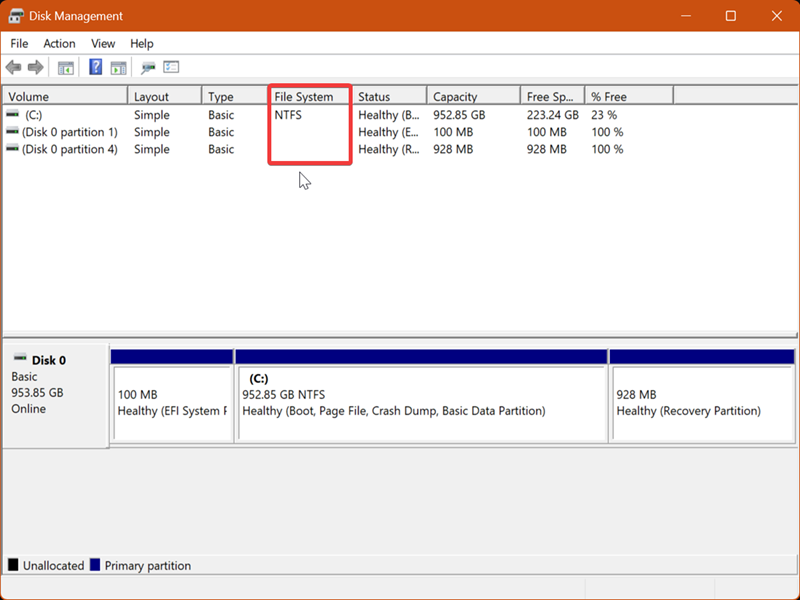
- Press Win + R, type diskmgmt.msc, and then press Enter.
- Look for the File System column. It displays information for each disk and its drive partitions or volumes.
Via System Information
You can also rely on msinfo32. This tool provides you with a summary of your hardware, system, and software configuration. Naturally, it includes information about your drives.
Here's how to use it:
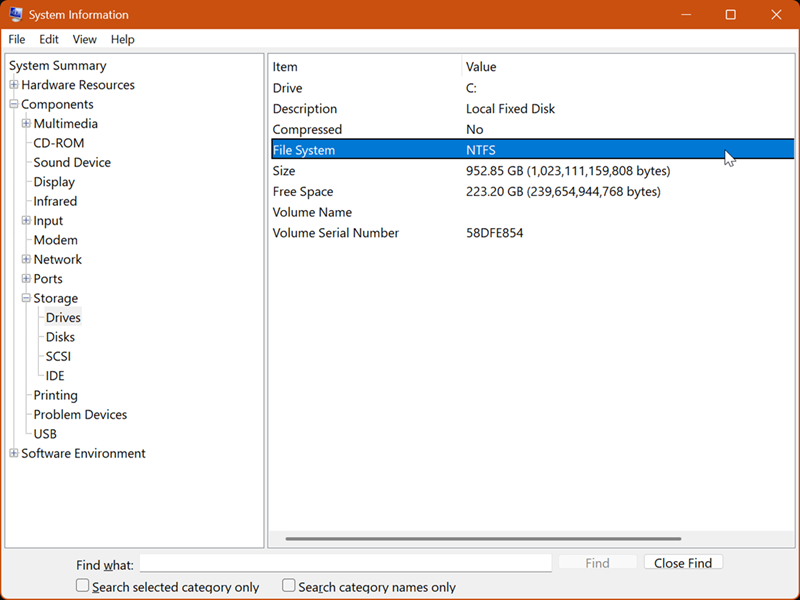
- Press Win + R, type msinfo32.exe, and hit Enter.
- Go to Components > Storage > Drives on the left side.
- You should see the File System for each drive you own on the right.
Via Command Prompt
If you prefer using commands, try this method. You'll first have to sign in as an administrator, though.
Here are the steps:
- Type CMD in Windows Search and select Run as administrator.
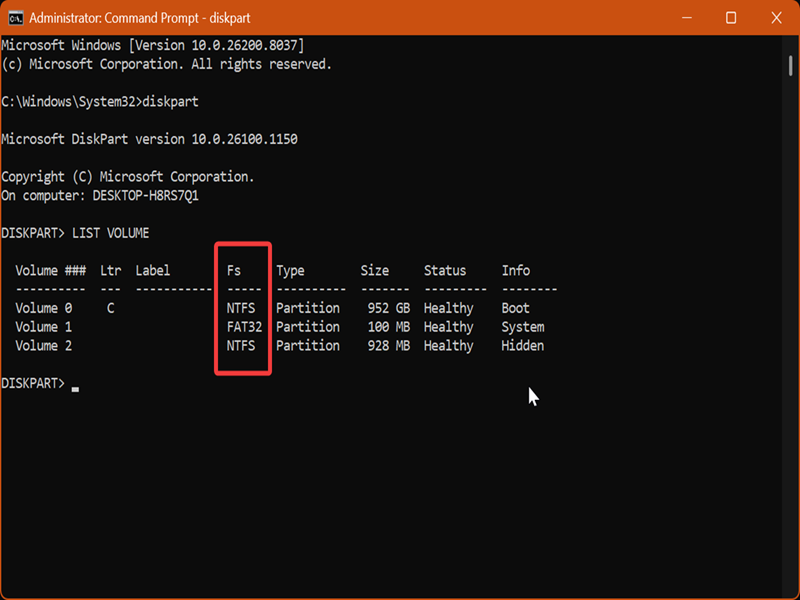
- First, type this command and hit Enter: diskpart
- Then, type this one and press Enter: LIST VOLUME
- You can see the file system type in the Fs column.
Via PowerShell
Finally, you can achieve the same results with PowerShell instead:
- Press Win + R, type powershell, and hit Enter.
- Type the following command and press Enter: get-volume
- You'll find the info you need in the FileSystemType column.
All in all, knowing your drive's file system will help you avoid compatibility and storage issues down the road. For example, NTFS is suitable for Windows-only environments, while FAT32 is almost universally compatible. However, FAT32 doesn't support single files larger than 4GB. So, it's a good idea to brush up on each file system type's pros and cons.

|
selma citakovic
Selma is a gamer, geek and gremlin hunter with a passion for cyber security and smashing Windows bugs before they bite. She’s IBM-certified, loves real freeware, despises bloatware, and powers most of her troubleshooting with an unhealthy amount of coffee. |
comments powered by Disqus
