


How To Hide Multiple Drives in Windows 11
By selma čitakovićon 06/27/2026 |
![{$insert['content_title']](/content/file/6140_image1.png
)
Ever wanted to hide a whole drive, or multiple ones? You can remove them from the This PC section and navigation pane in File Explorer. It's a neat trick if you want to keep your things more private or organized, but don't count on it as a security measure. Anyone will still be able to access the hidden drive(s), as long as they know the path. They're just not visible in their usual spots in Explorer.
Anyway, if you want to keep your drives out of sight, read on. Make sure you've signed in as an administrator first, though.
Use the Registry Editor
You can hide specific disks via the registry. If you're feeling a bit nervous about making these changes, I recommend creating a system restore point just in case. That way, even if you do make a mistake, you can easily revert it. Still, as long as you closely follow our instructions, you should be fine.
Here are the steps:
- Press Win + R, type regedit.exe, and hit Enter.
- Navigate to Computer\HKEY_LOCAL_MACHINE\SOFTWARE\Microsoft\Windows\CurrentVersion\Policies\Explorer on the left side. You can also paste this in the address bar at the top to quickly find it.
- While in the Explorer key, right-click an empty spot and select New > DWORD (32-bit) Value. Name it NoDrives. If it already exists, ignore this step.
- Double-click NoDrives. Select Decimal and enter the corresponding number for a single drive from the list below. If you want to hide multiple drives, add up their values and enter the total in the Value data field. (I'll provide examples below, so no worries if this sounds confusing at first.)
- Click OK, and then either reboot your PC or restart the Explorer process. To do that, open Task Manager, find Windows Explorer in the Processes tab, right-click it, and select Restart.
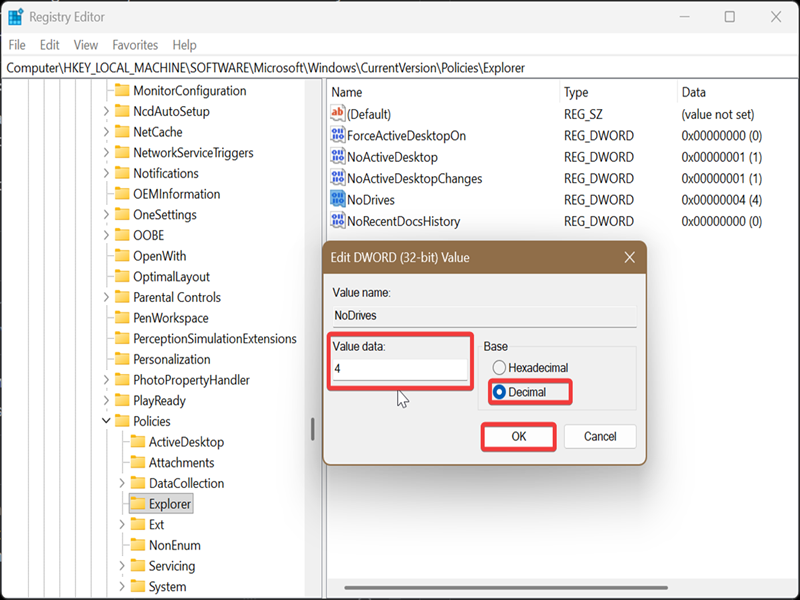
Now, about that list I mentioned! It shows you all the drive letters, together with their corresponding decimal values. So, for example, if you want to hide the C drive, you'll type in 4 in the Value data field in step 4. Or, if you want to hide the drives C and D, you'll type in 12. C (4) + D (8) equals 12.
Here it is:
- A - 1
- B - 2
- C - 4
- D - 8
- E - 16
- F - 32
- G - 64
- H - 128
- I - 256
- J - 512
- K - 1024
- L - 2048
- M - 4096
- N - 8192
- O - 16384
- P - 32768
- Q - 65536
- R - 131072
- S - 262144
- T - 524288
- U - 1048576
- V - 2097152
- W - 4194304
- X - 8388608
- Y - 16777216
- Z - 33554432.
The default value is 0. If you want to hide all drives at once, type in 67108863.
To undo these changes and unhide your drive(s), right-click the NoDrives value and select Delete. Again, restart the Explorer process or reboot to finalize it. You can also unhide certain system files and folders if you know where to look.

|
selma citakovic
Selma is a gamer, geek and gremlin hunter with a passion for cyber security and smashing Windows bugs before they bite. She’s IBM-certified, loves real freeware, despises bloatware, and powers most of her troubleshooting with an unhealthy amount of coffee. |
comments powered by Disqus
