


How To Remove Metadata From Photos in Windows
By selma čitakovićon 05/30/2026 |
![{$insert['content_title']](/content/file/6049_image2.png
)
Photo metadata often includes potentially revealing information, including GPS location data, date and time, device details, editing history, and more. It's also known as EXIF (Exchangeable Image File Format) metadata. Although useful for organizing photos and displaying them correctly, it can be a privacy risk. After all, it can reveal your exact location (coordinates and all!) and personal/team details.
On the bright side, it's pretty easy to delete it and keep your personal data safe.
You can use a built-in Windows option in the Properties or a dedicated metadata remover. The former is quick and convenient, but it only handles common EXIF data fields. It won't clean up everything.
If you want a truly clean file copy, you're better off using a dedicated tool. We recommend ExifTool, a free and open-source program that's the gold standard for editing tags and removing metadata.
We'll explain both methods below.
Via Properties
Find the photo(s) you want to clean up, and select them. You can delete the metadata of multiple pics at once. Then do the following:
- Right-click and select Properties.
- Go to the Details tab and click on the Remove Properties and Personal Information link near the bottom.
- In the new window that opens, select Remove the following properties from this file, and then Select All. Or, you can go down the list and check the ones you want manually.
- Click OK.
- Alternatively, you can select Create a copy with all possible properties removed if you want to keep the original file with all its properties and metadata. Click OK.
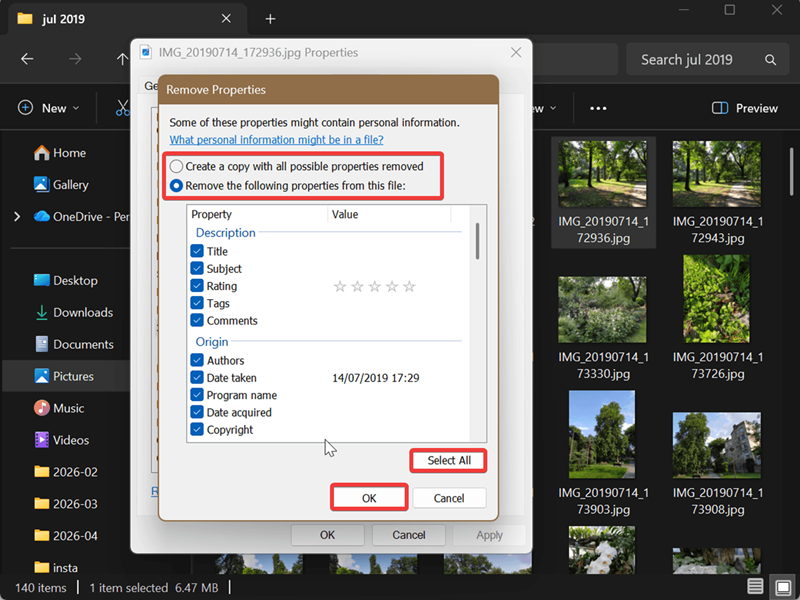
It's pretty simple! However, as we said before, it's not the most thorough option.
Via ExifTool
Alternatively, you can use ExifTool. It's much more detailed, but it does involve more steps than the first method. Here's what you need to do:
- Download the 32-bit or 64-bit executable, right-click the downloaded zip, and select Extract All. Confirm by clicking Extract.
- This will open the extracted folder for ExifTool. Select exiftool(-k).exe and rename it exiftool.exe. Select and move the exiftool.exe and exiftool_files to an easy-to-find location - for example, the Downloads folder, or a folder where you keep your pictures.
- Now, open Command Prompt: press Win + R, type cmd, and press Enter.
- In the terminal, navigate to the folder where you've moved exiftool.exe. For example, if you moved it to the Downloads folder, type cd and then the address. In my case, it's cd C:\Users\Anselma\Downloads.
- If the photos you want to edit aren't in the same folder as exiftool.exe, move them now.
- Now, if you want to view the metadata of a specific pic, type exiftool file.jpg and hit Enter. Replace file.jpg with the actual file name. You should see a long list of metadata.
- If you want to remove all metadata from a specific picture, type exiftool -all= file.jpg. Again, replace the placeholder file name. This will create a "clean" copy and keep the original feel, but rename it and add "_original" to the file name.
- To remove metadata from all files within a directory, type exiftool -all= /path/to/directory/. Right-click the directory, select Copy as path, and paste it into the command instead of the placeholder.
- To remove only GPS metadata from a photo, type exiftool -gps:all= file.jpg. Replace file.jpg with the real file name.
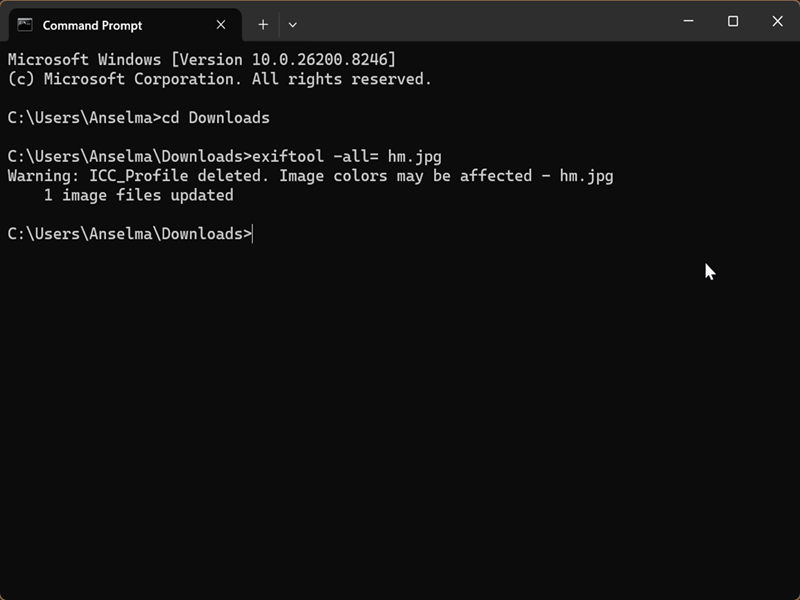
You can't completely strip all metadata even with ExifTool. Some of it is required, but it can't be used to identify you. Still, you can check what info remained with the exiftool file.jpg command. It should be very minimal!
For example, here's the metadata for the original picture I used during my tests:
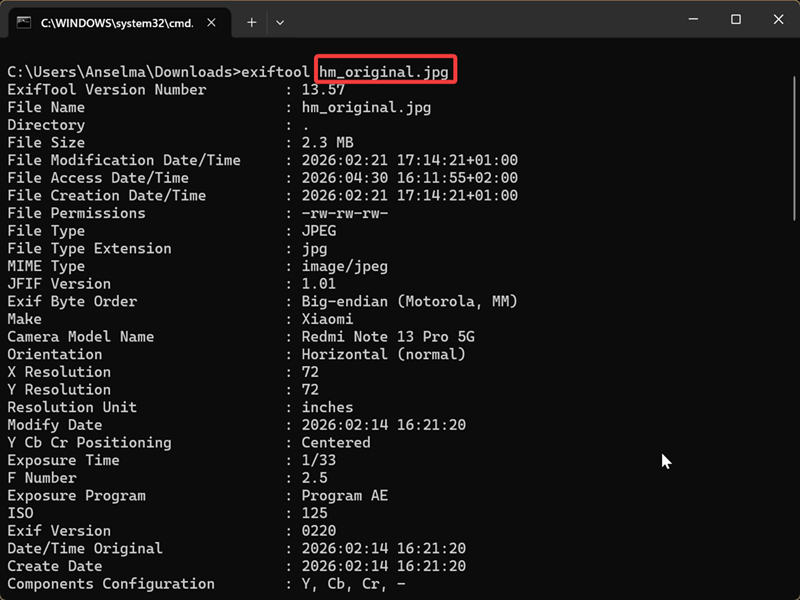
It's quite extensive, and I have to scroll down to read it all.
Now, look at the cleaned-up version of the same file:
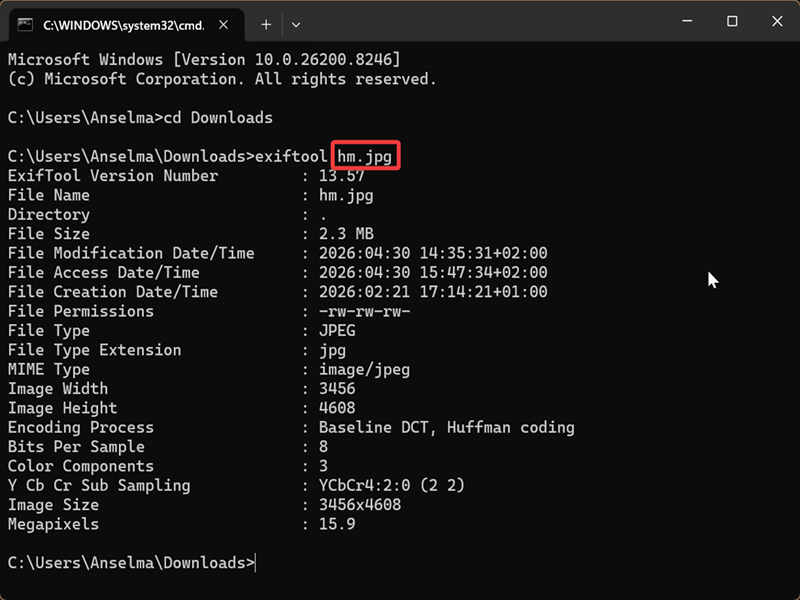
That's the complete metadata, all captured in one screenshot.

|
selma citakovic
Selma is a gamer, geek and gremlin hunter with a passion for cyber security and smashing Windows bugs before they bite. She’s IBM-certified, loves real freeware, despises bloatware, and powers most of her troubleshooting with an unhealthy amount of coffee. |
comments powered by Disqus
