


How To Reset and Fix the Settings App in Windows 11
By selma čitakovićon 04/19/2026 |
![{$insert['content_title']](/content/file/5875_image1.png
)
If the Settings app won't open or keeps crashing, a reset might be just the thing to fix it. This will delete its data and any remembered preferences, but the rest of your system data and files will remain unchanged.
Funnily enough, you can find a reset option right in the Settings. But if you can't normally open the app, you'll have to use a workaround. I'll show you three easy ways to reset and re-register the Settings in Windows 11.
Via Start menu
First, you should know that this method won't work if Settings keeps crashing. If you can't open the app at all, skip to the next one.
Here are the steps:
- Open the Windows Start menu.
- It's time to find the Settings app. If you have it pinned in your Start menu, it should be easy to find. If you haven't pinned it and you still have the "old" menu, click the All apps button and look for it.
- Right-click the Settings app and select App settings. You might have to mouse over/click on More to find App settings.
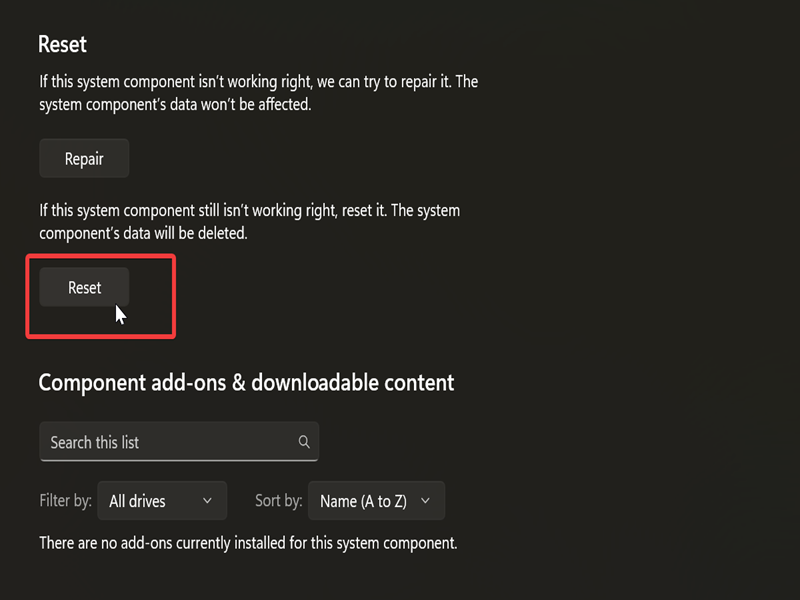
- This will take you to System > System components > Settings. Scroll down and hit the Reset button.
- Again, click Reset to confirm your decision.
Via Command Prompt
Alternatively, you can use Command Prompt (or PowerShell in the next method) to reset Settings via commands. However, for this to work, the Capability Access Manager Service (camsvc) must be running. It should be enabled by default, but you can quickly check it here:
- Press Win + R, type services.msc, and press Enter.
- Scroll down the list and look for Capability Access Manager Service. You should see Running under Status.
- If it's not running, right-click the service and select Start.
Now, you can proceed to Command Prompt:
- Press Win + R, type cmd, and press Enter.
- Paste the following command and press Enter: PowerShell -ExecutionPolicy Unrestricted -Command "& {$manifest = (Get-AppxPackage *immersivecontrolpanel*).InstallLocation + '\AppxManifest.xml' ; Add-AppxPackage -DisableDevelopmentMode -Register $manifest}"
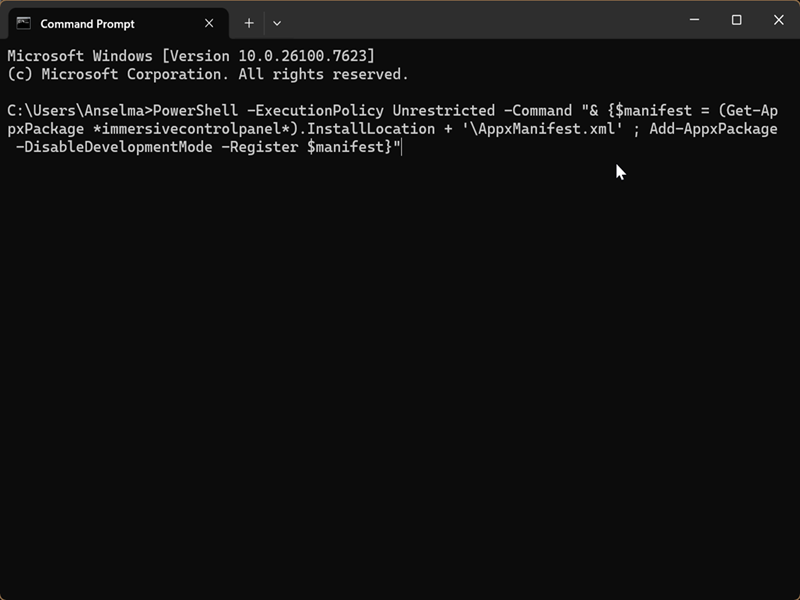
You can then close the terminal.
Via PowerShell
Or, you can use PowerShell instead. It's a different command, but the results are the same. Just like in the previous method, the Capability Access Manager Service has to be running.
Follow these steps:
- Press Win + R, type powershell, and press Enter.
- Paste the following command and press Enter: Get-AppxPackage *windows.immersivecontrolpanel* | Reset-AppxPackage
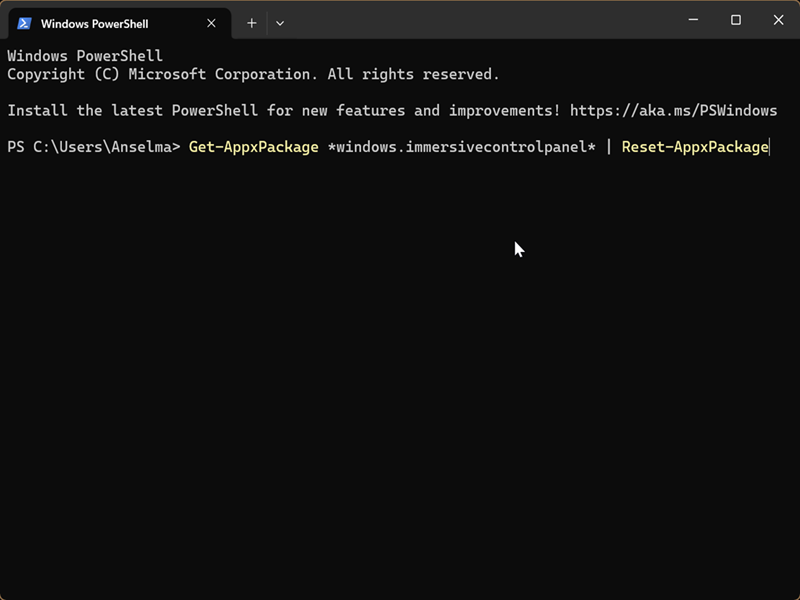
And that's it!
If a reset doesn't help, you can try doing a repair install. This will fix the underlying problems and preserve your apps, files, and settings. No clean install needed.

|
selma citakovic
Selma is a gamer, geek and gremlin hunter with a passion for cyber security and smashing Windows bugs before they bite. She’s IBM-certified, loves real freeware, despises bloatware, and powers most of her troubleshooting with an unhealthy amount of coffee. |
comments powered by Disqus
