


How To Reset Local Security Policy Settings in Windows 11
By selma čitakovićon 05/30/2026 |
![{$insert['content_title']](/content/file/6037_image2.png
)
Local Security Policy (secpol.msc) is a built-in administrative tool that allows you to manage and modify security rules on a local computer. This includes controlling user access to resources and devices, password rules, audit policies, firewall settings, and more. Like the Local Group Policy Editor, it's only available in the Pro, Enterprise, and Education editions. (Still, there's a workaround if you own Home edition.)
If you changed any policies previously, you can easily reset everything back to the default. But first, you'll have to sign in as an administrator.
You can use either Command Prompt or PowerShell for this:
- Type Command Prompt or PowerShell in Windows Search, and select Run as Administrator.
- In Command Prompt, type the following and press Enter: secedit /configure /cfg %windir%\inf\defltbase.inf /db defltbase.sdb /verbose
- Alternatively, if you've opened PowerShell, try this command and press Enter: secedit /configure /cfg $Env:WINDIR\inf\defltbase.inf /db defltbase.sdb /verbose
- Restart the computer to complete the process.
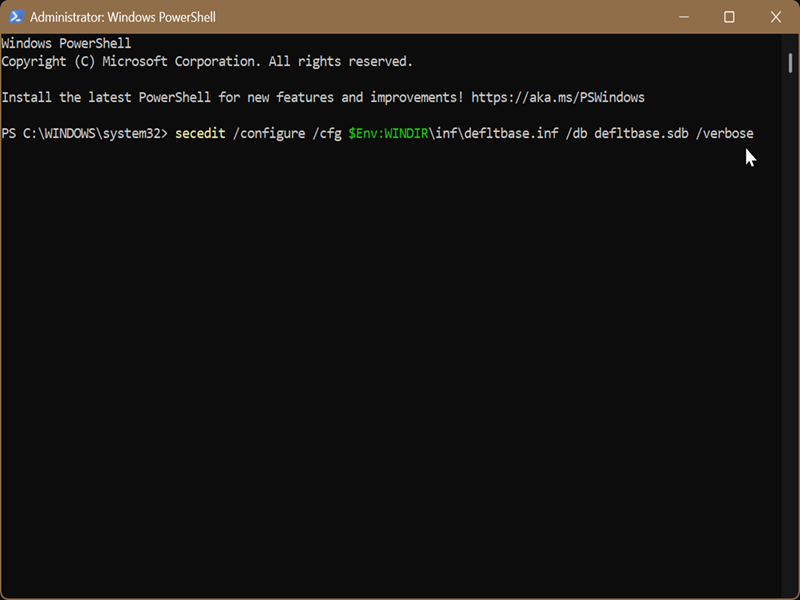
After using the command, you should see a message saying: "The task has completed."
You can also check out one of our older guides for resetting the local security policy. It includes commands for Windows Vista, XP, 7, 8, and 10.

|
selma citakovic
Selma is a gamer, geek and gremlin hunter with a passion for cyber security and smashing Windows bugs before they bite. She’s IBM-certified, loves real freeware, despises bloatware, and powers most of her troubleshooting with an unhealthy amount of coffee. |
comments powered by Disqus
