


How To Safely Enable or Disable Secure Boot
By selma čitakovićon 07/31/2026 |
![{$insert['content_title']](/content/file/6171_image1.jpg
)
Secure boot protects your system from especially insidious malware that targets your firmware and kernel. In most cases, you'll want to keep it on since it's an unobtrusive safety measure that doesn't impact your performance (despite what some Reddit stories say).
But there are certain situations where you may want to disable it instead. For example, some Linux distros won't boot unless Secure Boot is off. Additionally, users often turn it off for dual-boot configurations, specific drivers, or hardware.
Whether you want to enable or disable it, you'll have to access your BIOS/UEFI menu first. As always, be careful not to accidentally change something you shouldn't. Secure boot is usually clearly labeled in the BIOS settings, so as long as you follow our instructions, you'll be fine.
Here are the steps! Depending on your motherboard or PC manufacturer, there might be some slight differences, but the gist is the same:
- Turn off your PC.
- Turn it on again, but repeatedly press F1, F2, F12, or Delete as it starts booting. Each manufacturer has a different designated key, but these are the most common ones. You can Google your PC manufacturer's name plus BIOS to check.
- While in the BIOS menu, navigate to either the Security, Boot or Authentication tab, and look for the Secure Boot option. It might say Secure Boot State, Secure Boot Control, etc.
- Enable or disable it. Depending on your specific menu, you may have to select Install Default Secure Boot Keys (to enable it) or Clear Secure Boot Keys (to disable it).
- Look for an option to Save changes & exit. In some cases, you'll see a keyboard shortcut for it on your screen.
- Wait for your computer to reboot.
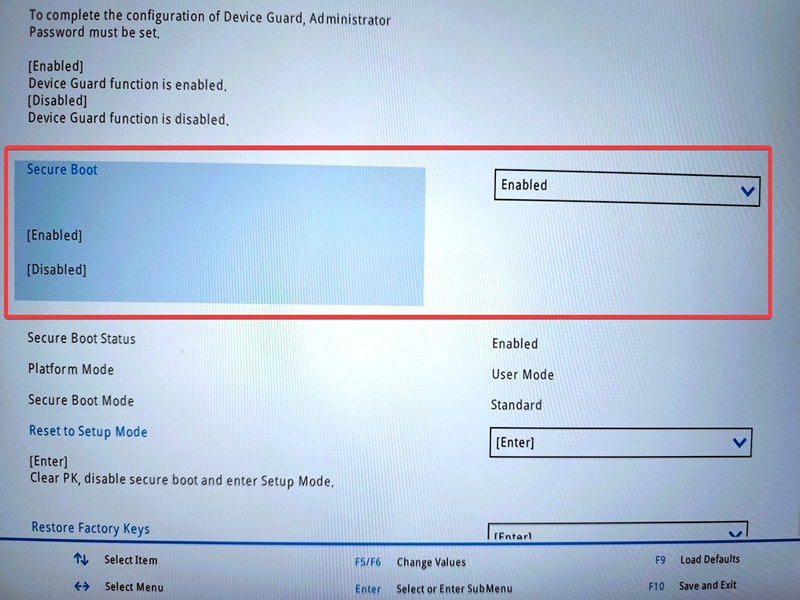
If you tried enabling Secure Boot but your PC can't turn on, enter BIOS, disable Secure Boot, and try booting your PC again. It's not a common occurrence, but now you know what to do if it happens. On the other hand, if your PC doesn't allow you to enable Secure Boot, try resetting the BIOS to the factory defaults.
One last thing, if you've disabled this feature or prefer to keep it that way:
With the Secure Boot security certificates expiring this month, now is your chance to enable it temporarily and get the new set of certificates automatically via Windows Update. You can then easily disable the feature right after. Who knows, you might need it someday, and Microsoft is annoyingly vague about what happens if you miss the deadline. Good luck!

|
selma citakovic
Selma is a gamer, geek and gremlin hunter with a passion for cyber security and smashing Windows bugs before they bite. She’s IBM-certified, loves real freeware, despises bloatware, and powers most of her troubleshooting with an unhealthy amount of coffee. |
comments powered by Disqus
