


How to Set a Different Default Shell in Windows Terminal
By selma čitakovićon 10/03/2026 |
![{$insert['content_title']](/content/file/6347_image1.jpg
)
By default, every time you open the Windows Terminal app, it uses PowerShell. If you're like me and prefer it over Command Prompt, that's perfect. Still, you can also change the default shell to be Command Prompt, Azure Cloud Shell, bash, or whatever you like. It will save you a couple of clicks every time you open Windows Terminal.
Here's how to switch to a different default shell profile:
- Press Win + X and select Terminal to open it.
- Click the down arrow on the top bar, and select Settings. Alternatively, you can use a shortcut: Ctrl + ,
- Go to Startup on the left.
- On the right side, choose the shell you want under Default Profile.
- Click the Save button in the bottom-right corner.
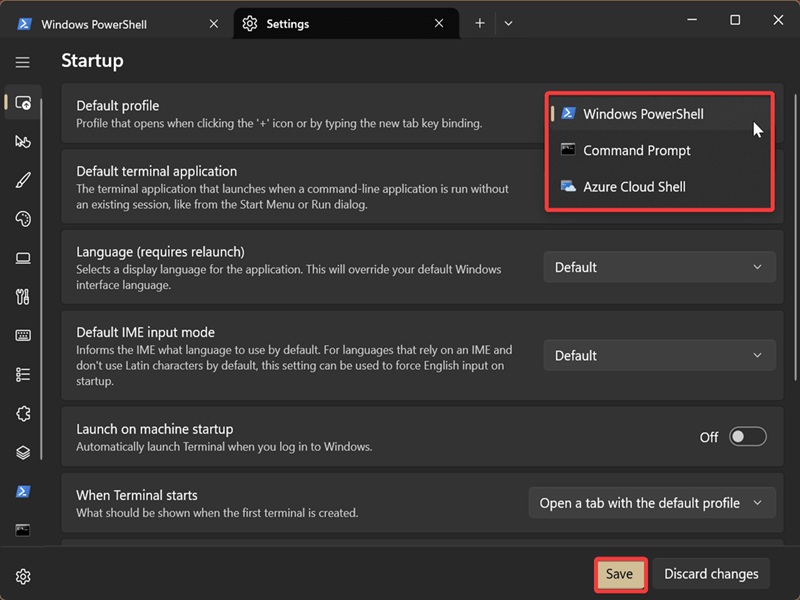
You can then close Windows Terminal and reopen it to check if it works.
If you're wondering about Windows Subsystem for Linux (WSL), the terminal app should automatically add a profile for the installed shell. You can simply select it from the same drop-down menu in step 4.
However, Windows Terminal doesn't auto-create profiles for certain third-party command-line tools. In that case, you'll have to add it yourself to the settings.json file. To do so, open Windows Terminal and click on Settings while holding Shift. This will open the settings.json file in your default text editor.
Scroll down until you find a section called "profiles" with code for PowerShell, Command Prompt, Azure Cloud Shell, and other tools you have installed. It looks like this:
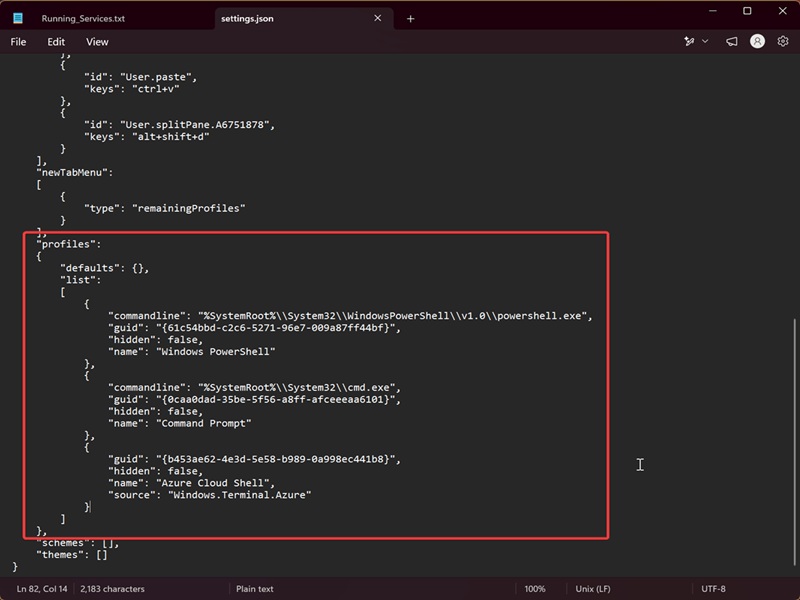
You can add your new profile here, right after the existing profiles.
So, for example, if you want to add cmder and you've installed it into %CMDER_ROOT%, here's what you'll need to paste:
{
"commandline": "cmd.exe /k %CMDER_ROOT%\vendor\init.bat",
"name": "cmder",
"icon": "%CMDER_ROOT%\icons\cmder.ico",
"startingDirectory": "%USERPROFILE%"
}
You can find more examples for similar command-line tools on Microsoft Learn. This includes Anaconda, Cygwin, Far Manager, Git Bash, Git Bash (WOW64), and MSYS2. Just don't forget to save your changes to the text file. If you want to undo them, you can restore the default settings.
Of course, even with a different default profile, you can still open new tabs in whichever shell you like, and even split them into separate windows. It's one of my favorite things about Windows Terminal.

|
selma citakovic
Selma is a gamer, geek and gremlin hunter with a passion for cyber security and smashing Windows bugs before they bite. She’s IBM-certified, loves real freeware, despises bloatware, and powers most of her troubleshooting with an unhealthy amount of coffee. |
comments powered by Disqus
