


6 Ways To Open Windows Terminal
By selma čitakovićon 08/09/2026 |
![{$insert['content_title']](/content/file/6222_image7.jpg
)
Are you familiar with Windows Terminal? It's the newest terminal added to Windows, or to be more precise, a host application that allows you to run multiple command-line shells in tabs. You can open Command Prompt, PowerShell, Azure Cloud Shell, bash, and more, all from one place. It comes in handy if you have to switch between shells.
Most of the time, I use Windows Terminal with PowerShell as the default profile. It's the most practical combo for me! But you can set it up differently, and even customize the terminal's look and color palette.
Anyway, here's how to open it.
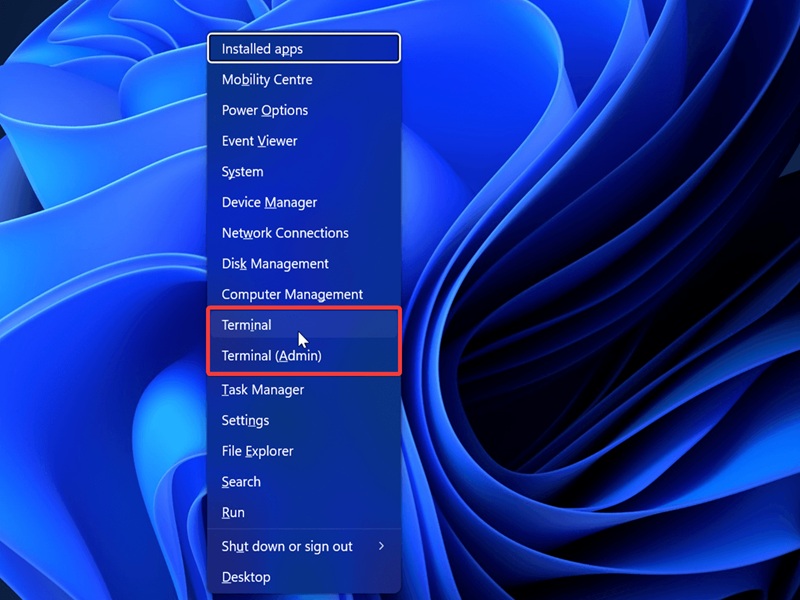
Via Win + X
This one is my personal go-to: Press Win + X to open the Power User menu, and select Terminal from the list. Alternatively, you can open Terminal (Admin) if you need elevated privileges.
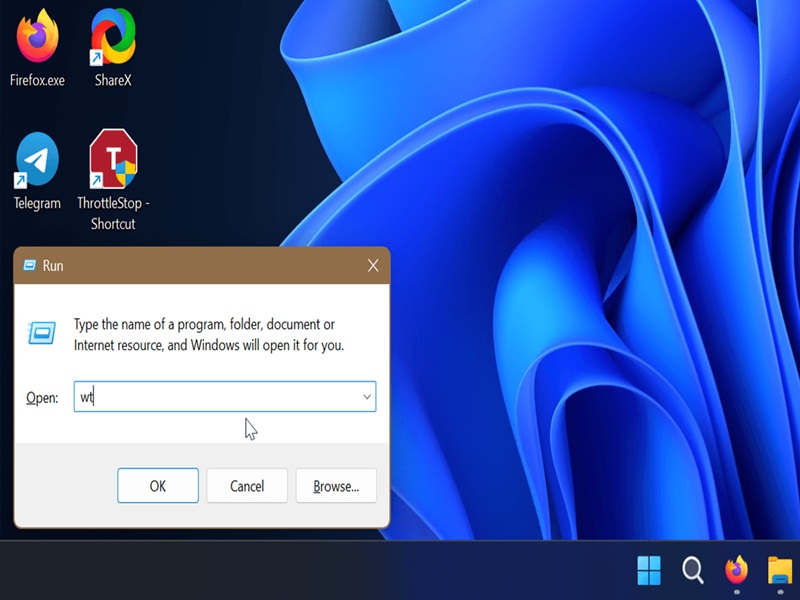
Via Win + R
You can also use the Run dialog. Press Win + R, type wt, and press Enter. To open it as an administrator, press Ctrl + Shift + Enter after you type in the command.
Via Windows Search
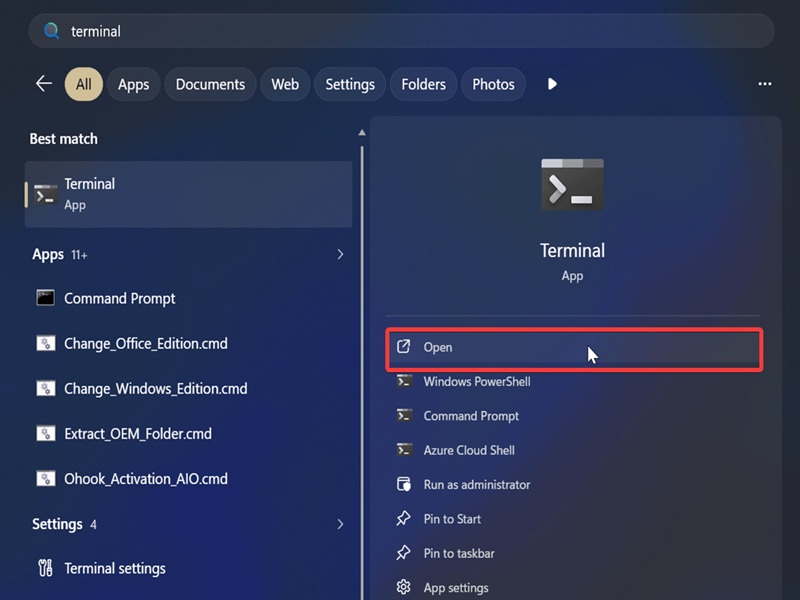
Or, if you prefer to use Search to open things:
- Press Win + S and type in Terminal.
- Click on Open for Windows Terminal, or select specific shells.
- If you want to open it as admin, click the drop-down arrow to show more options and select Run as administrator.
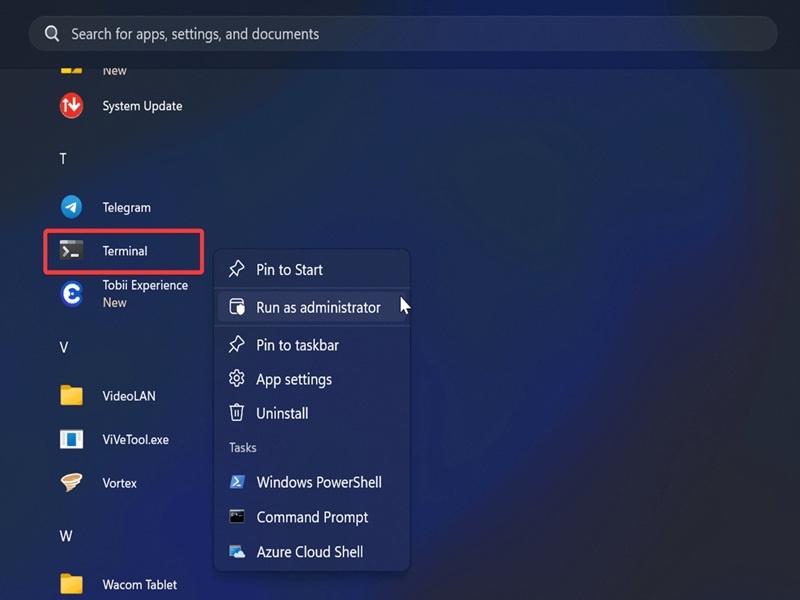
Via Start Menu
Similarly, you can find it in the Start menu. Scroll through the All apps section, and it should be there as Terminal or Windows Terminal. To open it, simply click on it or right-click it and select Run as administrator.
Via the right-click menu
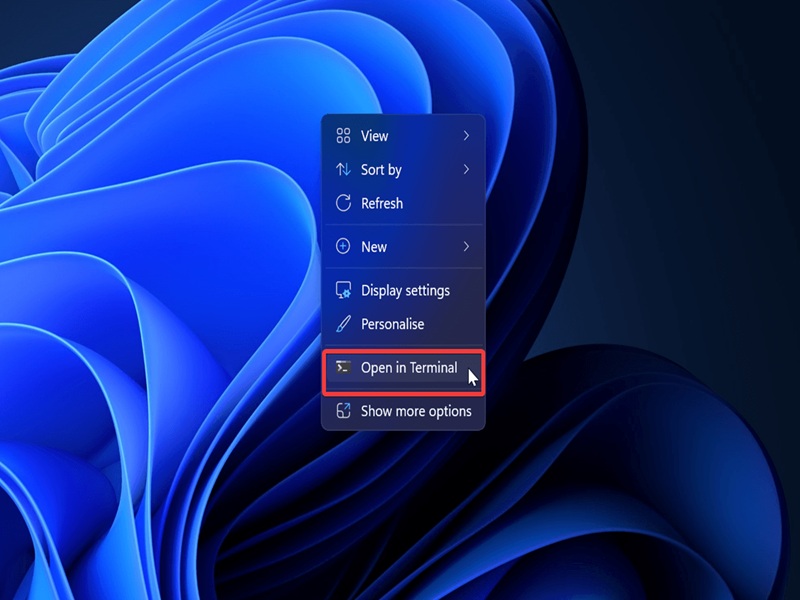
This is a really quick one: You can right-click on your desktop (or a folder) and select Open in Terminal. I always forget about this method, even though it's so convenient.
Via Task Manager
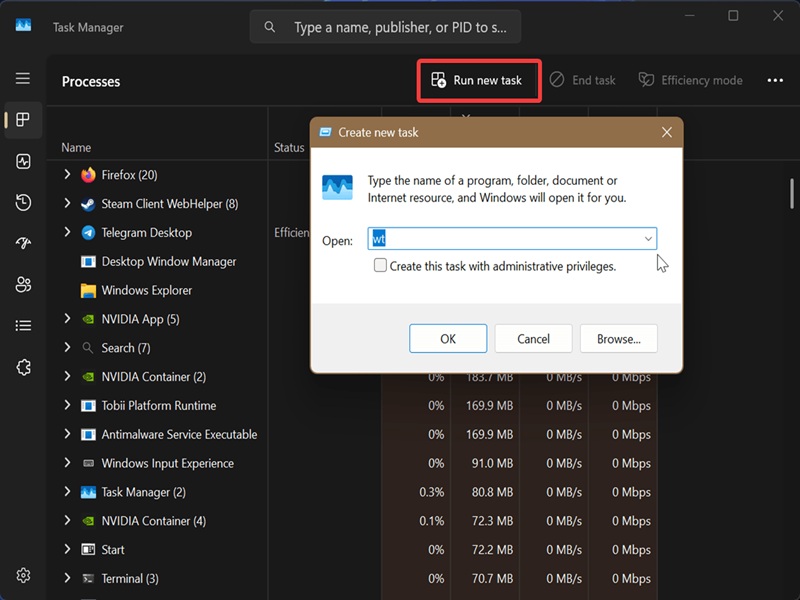
Finally, you can also run Windows Terminal as a task. To do so:
- Open Task Manager and click the Run new task button at the top.
- Type wt in the dialog box and click on OK.
- To run it as an administrator, also check the box for "Create this task with administrative privileges."
Basically, any method will do, as long as it works for you.

|
selma citakovic
Selma is a gamer, geek and gremlin hunter with a passion for cyber security and smashing Windows bugs before they bite. She’s IBM-certified, loves real freeware, despises bloatware, and powers most of her troubleshooting with an unhealthy amount of coffee. |
comments powered by Disqus
