


How To Use ViveTool To Activate Hidden Windows Features
By selma čitakovićon 02/01/2026 |
ViveTool is a free, open-source utility that lets you activate hidden features that are usually reserved for A/B testing and controlled rollouts in Insider builds. It runs on Windows 10 build 18963 or newer. Basically, it interacts with flags for features that are already present but have yet to be rolled out. You can take a sneak peek at upcoming UI changes, personalizations, and more.
In this guide, I'll show you how to install and use it, with example commands. It might look a bit intimidating at first, but it's not hard at all once you get into it.
How to install and use ViveTool
You must sign in as an administrator to be able to use ViveTool. Additionally, I recommend creating a system restore point just in case. Yes, you can reset all changes directly with ViveTool, but it can still cause system instability.
Anyway, here's how to download and install it:
- Download ViveTool from MajorGeeks (if you own an Intel or AMD CPU) or GitHub (if it's a Snapdragon or Microsoft SQ CPU). Make sure you pick the right version for your device: either IntelAMD.zip or SnapdragonARM64.zip.
- Find the downloaded ZIP file, right-click it, and select Extract All from the context menu. (If you can't do it, you might have to unblock the file first. Right-click it and select Properties. There, tick the box for Unblock near the bottom and hit OK.)
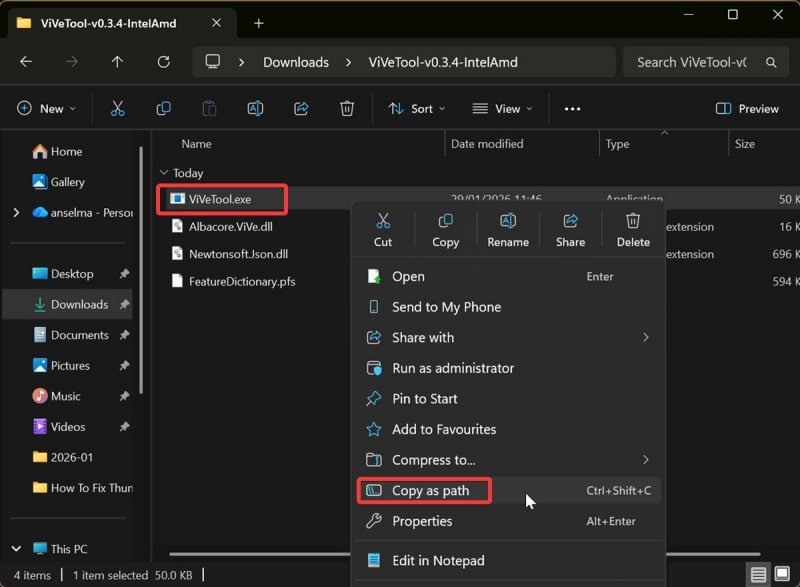
- Open the extracted folder, and find the ViveTool.exe file. Right-click it and select Copy as path from the context menu. You'll need it for all the following commands.
Now, let's actually use the tool:
- Type CMD in Windows Search and click on Run as administrator.
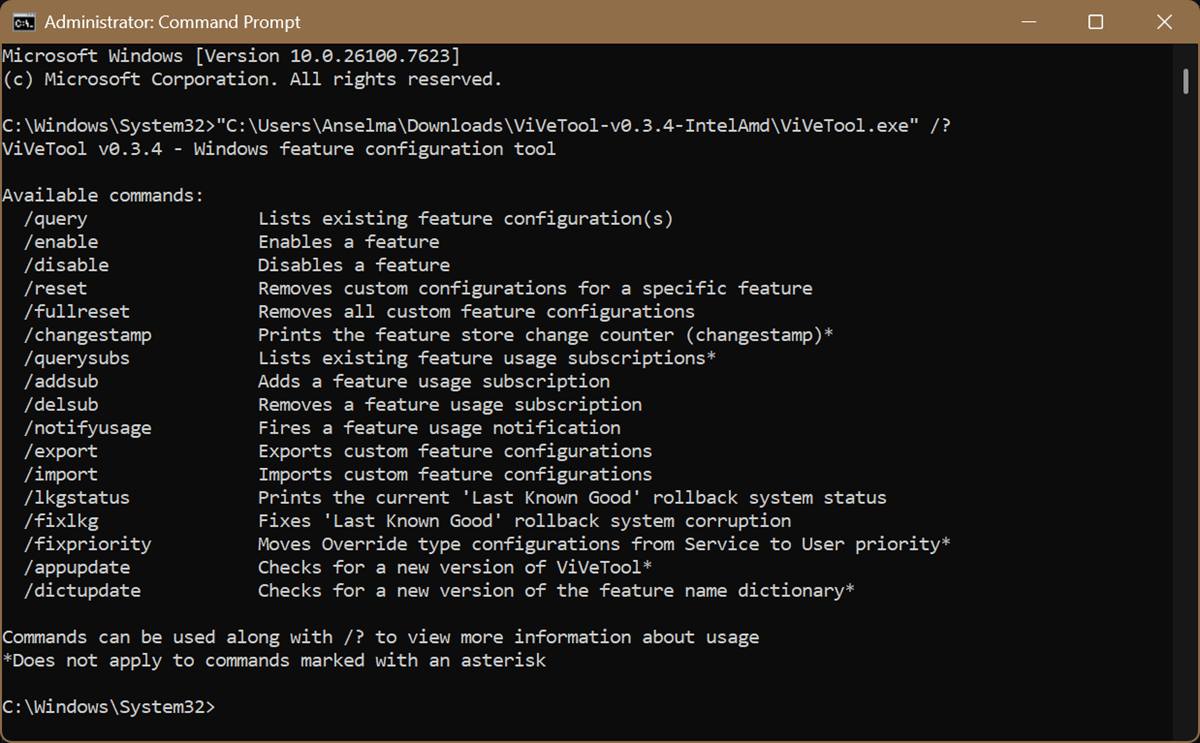
- To view a list of all the available commands, type: "full path for vivetool.exe" /? and press Enter. Replace the placeholder in the quote marks with the actual file path. For example, in my case, the command looked like this: "C:\Users\Anselma\Downloads\ViVeTool-v0.3.4-IntelAmd\ViVeTool.exe" /?
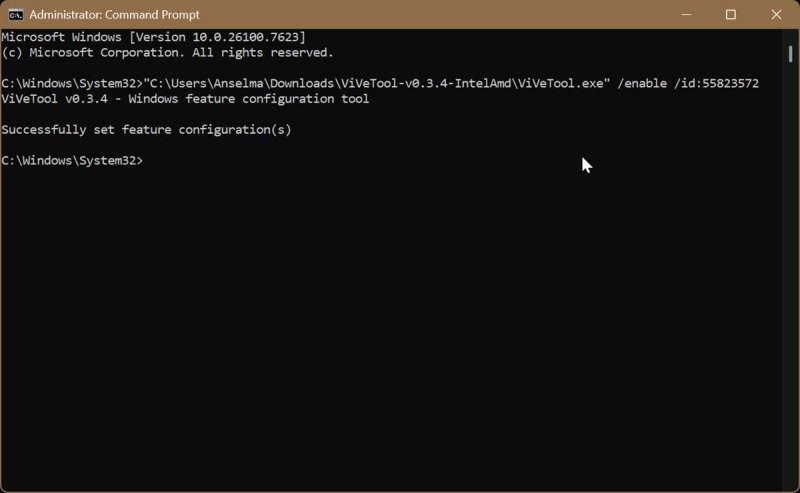
- If you want to enable a hidden feature, type this command: "full path for vivetool.exe" /enable /id:*feature ID* and press Enter. *feature ID* is a placeholder you should replace with the real ID number for the feature you want to enable. So, if I wanted to enable, for example, the Desktop Spotlight context menu (with the feature ID 55823572), the command should look like this: "C:\Users\Anselma\Downloads\ViVeTool-v0.3.4-IntelAmd\ViVeTool.exe" /enable /id:55823572
- To disable a hidden feature, use this command: "full path for vivetool.exe" /disable /id:*feature ID* and press Enter.
- To reset configurations for a specific feature, type "full path for vivetool.exe" /reset /id:*feature ID* and press Enter
- To remove all custom configurations, type "full path for vivetool.exe" /fullreset and press Enter. Press Y when prompted to confirm your decision.
- Restart to apply the changes.
But how do you find feature IDs for these commands?
In the Feature Dictionary included in the extracted ViveTool folder. It's a PFS file you can open with Notepad. Right-click it and select Open with > Notepad. You should see a long (and frankly, confusing) list of features and number IDs.
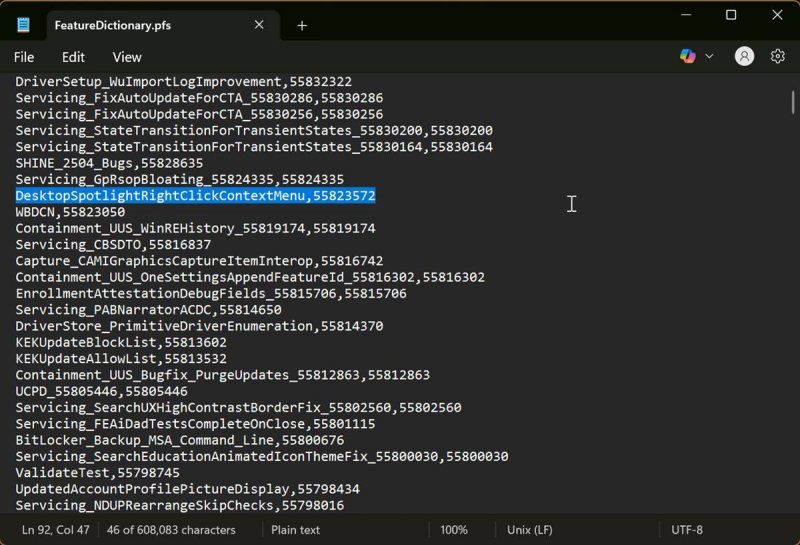
Now, the tricky part is that the list doesn't really tell you what these features do. Some names are self-explanatory, but the majority aren't. And to make things worse, there isn't (or at least, I couldn't find one) an updated list with all the current features, IDs, and clear descriptions.
You'll have to Google them and look up what they do. I don't recommend inputting IDs blindly and just trying them out.
Also, you should only enable the features you really want to use and keep track of their IDs. They might change. You can use the /appupdate and /dictupdate commands to update the app and feature ID dictionary, respectively.
Overall, ViveTool is really easy to use if you know exactly what you want to try out. If you're unsure, you'll have to do some investigative work first.

|
selma citakovic
Selma is a gamer, geek and gremlin hunter with a passion for cyber security and smashing Windows bugs before they bite. She’s IBM-certified, loves real freeware, despises bloatware, and powers most of her troubleshooting with an unhealthy amount of coffee. |
comments powered by Disqus
