


How to Fix Microsoft Store Error 0x8004e108
By Timothy Tibbettson 06/26/2023 |
When downloading or updating your apps from the Windows Store, you might encounter error code 0x8004e108. Here are some steps to fix the problem.
The most common error message reads:
Try that again
Something went wrong. The error code is 0x8004E108, in case you need it.
1: Microsoft Store Error 0x8004e108 - Run Troubleshooter
The Windows Store App Troubleshooter should fix the error as a known issue.
Click Start > Settings > Update & security > Troubleshoot.
Scroll down on the right and click on Windows Store Apps.
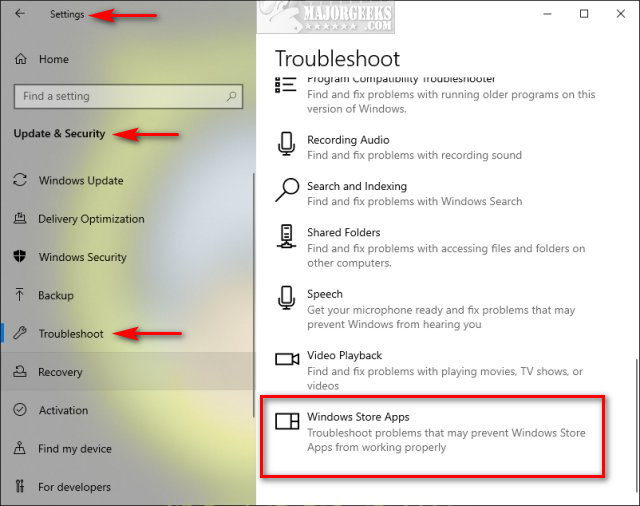
Click on Run the troubleshooter.
Wait while the troubleshooter looks for known problems.
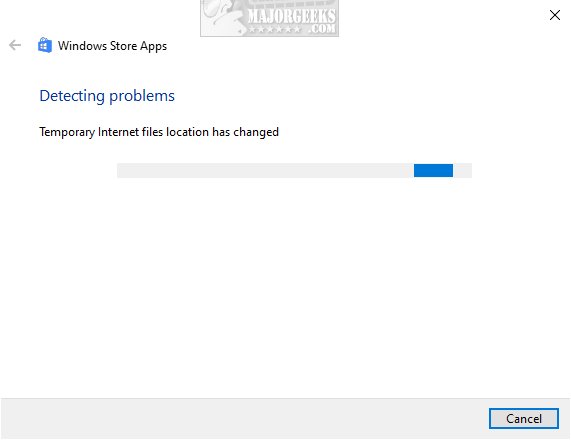
If any problems were discovered, they are almost always fixed automatically.
2: Microsoft Store Error 0x8004e108 - Reset Store
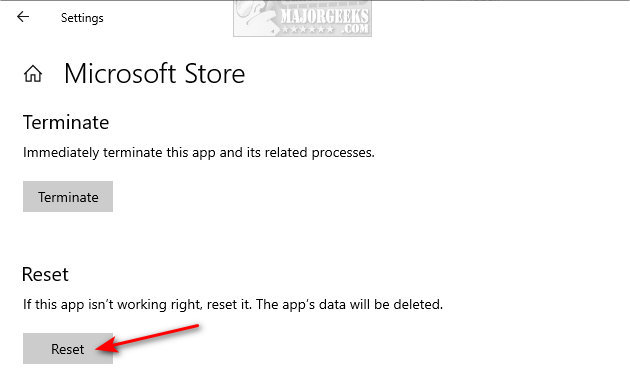
Click Start > Settings > Apps & features. Find, and click on Microsoft Store on the left. Click on Advanced options.
Scroll down and click on Reset.
3: Microsoft Store Error 0x8004e108 - Re-Register Store
Open Powershell and type in:
PowerShell -ExecutionPolicy Unrestricted -Command “& {$manifest = (Get-AppxPackage Microsoft.WindowsStore).InstallLocation + 'AppxManifest.xml' ; Add-AppxPackage -DisableDevelopmentMode -Register $manifest}”
Press enter, and reboot.
4: Microsoft Store Error 0x8004e108 - Clear Store Cache Manually
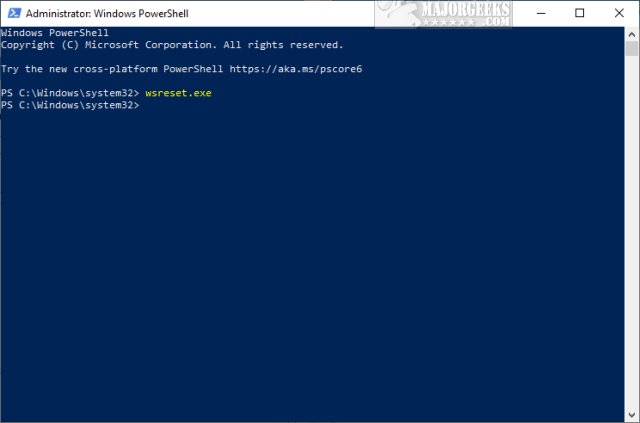
Press the Windows key + X and choose Windows PowerShell (Admin). Right click on that and Run as administrator.
Type in wsreset.exe. and press enter.
Be patient and wait until you see the flashing cursor again, so you know that the cache has been cleared.
5: Microsoft Store Error 0x8004e108 - Sign Out
Sign out of your Microsoft account and log back in.
6: Microsoft Store Error 0x8004e108 - Internet Connection or Time
While less likely, there are two other problems people reported that we assumed you already checked, so we'll cover them both as a last possible step.
Verify your internet connection is working correctly and that your date and time are correct.
Similar:
How to Find Your Microsoft Store Downloads & Temporary Files
How to Restore Windows Store on Windows 10
How to Make Your Computer Run Like New in 4 Easy Steps
Video: Windows 10 Problems You Can Fix Yourself With Included Troubleshooters
Should You Try and Fix Your Own Computer?
How-To Disable the Windows Store on Windows 10 (Video)
comments powered by Disqus
The most common error message reads:
Try that again
Something went wrong. The error code is 0x8004E108, in case you need it.
1: Microsoft Store Error 0x8004e108 - Run Troubleshooter
The Windows Store App Troubleshooter should fix the error as a known issue.
Click Start > Settings > Update & security > Troubleshoot.
Scroll down on the right and click on Windows Store Apps.
Click on Run the troubleshooter.
Wait while the troubleshooter looks for known problems.
If any problems were discovered, they are almost always fixed automatically.
2: Microsoft Store Error 0x8004e108 - Reset Store
Click Start > Settings > Apps & features. Find, and click on Microsoft Store on the left. Click on Advanced options.
Scroll down and click on Reset.
3: Microsoft Store Error 0x8004e108 - Re-Register Store
Open Powershell and type in:
PowerShell -ExecutionPolicy Unrestricted -Command “& {$manifest = (Get-AppxPackage Microsoft.WindowsStore).InstallLocation + 'AppxManifest.xml' ; Add-AppxPackage -DisableDevelopmentMode -Register $manifest}”
Press enter, and reboot.
4: Microsoft Store Error 0x8004e108 - Clear Store Cache Manually
Press the Windows key + X and choose Windows PowerShell (Admin). Right click on that and Run as administrator.
Type in wsreset.exe. and press enter.
Be patient and wait until you see the flashing cursor again, so you know that the cache has been cleared.
5: Microsoft Store Error 0x8004e108 - Sign Out
Sign out of your Microsoft account and log back in.
6: Microsoft Store Error 0x8004e108 - Internet Connection or Time
While less likely, there are two other problems people reported that we assumed you already checked, so we'll cover them both as a last possible step.
Verify your internet connection is working correctly and that your date and time are correct.
Similar:
comments powered by Disqus
