


Need a Device's Hardware ID? Here's How to Find It
By selma čitakovićon 08/04/2026 |
![{$insert['content_title']](/content/file/6292_image2.jpg
)
Each piece of hardware has its own unique identifier, or HWID. This ID is a vendor-defined alphanumeric string that's used for system and driver management, troubleshooting, and software licensing.
It's also not a random string; it has a defined structure.
For example, here's the HWID for my laptop's GPU: PCI\VEN_10DE&DEV_2860&SUBSYS_3CF317AA&REV_A1. And here's what it means:
- PCI - this describes how the device is connected, either via PCI or USB
- VEN_10DE - this is the vendor ID for the manufacturer
- DEV_2860 - this is the device ID for that specific model
- SUBSYS_3CF317AA - this is the subsystem ID
- REV_A1 - this is the revision number.
In this case, VEN_10DE refers to NVIDIA, while DEV_2860 identifies the GeForce RTX 4070 Mobile GPU.
Sometimes, PID_XXXX may also be sandwiched somewhere in between. That's the product ID. Still, in most cases, all the info you'll need is VEN_XXXX and DEV_XXXX.
Here's how to find it!
Via Device Manager
Obviously, you can get hardware IDs right from the Device Manager:
- Press Win + X and select Device Manager.
- Expand the device category, and double-click the one you want to check.
- This will open the Properties window for that specific device. Go to the Details tab.
- In the Property menu, select Hardware IDs.
- You should see several alphanumeric strings in the Value table. The one at the top is the hardware ID.
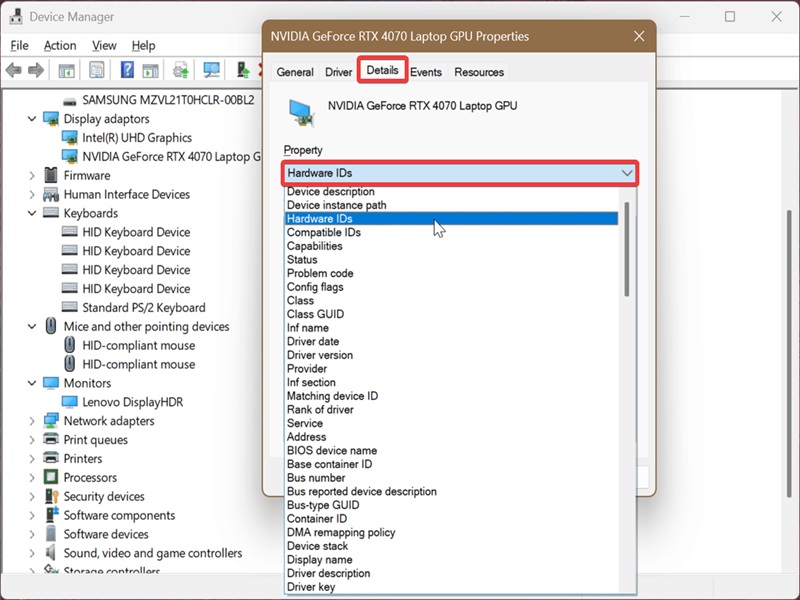
You can right-click it, select Copy, and then paste it wherever you need it.
Via PowerShell
Another way of finding hardware IDs is with a quick command. Here's how:
- Press Win + X, select Terminal, and open PowerShell.
- Paste the following command and hit Enter: Get-PnpDevice -PresentOnly | Select-Object Name, HardwareID | Format-Table -AutoSize
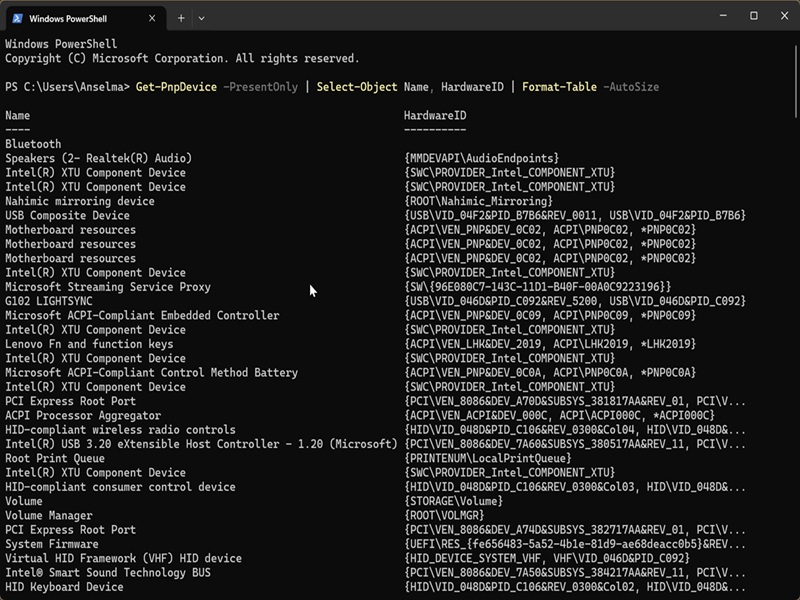
You'll see a nice, formatted table in the terminal, with device names on the left and hardware IDs on the right.
Alternatively, you can paste this command to output the table in a .txt file: Get-PnpDevice -PresentOnly | Select-Object Name, HardwareID | Format-Table -AutoSize > "$env:USERPROFILE\Desktop\HardwareID.txt"
If you need even more info about your hardware, you can use some of the free tools we've tested. Good luck!

|
selma citakovic
Selma is a gamer, geek and gremlin hunter with a passion for cyber security and smashing Windows bugs before they bite. She’s IBM-certified, loves real freeware, despises bloatware, and powers most of her troubleshooting with an unhealthy amount of coffee. |
comments powered by Disqus
