


Regain Your Privacy: Disable Gemini and Smart Features in Google Workspace
By selma čitakovićon 01/20/2026 |
Recently, I've noticed that Google Drive no longer loads instantly. Instead, it takes a while for the folders and files to sort. I saw people on Tumblr (of all places) complaining about the same thing and recommending I disable Gemini on Google Drive. Lo and behold, it actually helped! It was loading normally again.
I don't know about you, but I'm not too big on Gemini being crammed into every Google product. AI tracking aside (we'll get to that later!), I dislike how much it's pushed and often enabled by default. If you'd like more control over your Google Workspace, read on. I'll explain how to turn off Gemini on Google Drive, Gmail, and Chrome.
How to disable Gemini on Google Drive
It's surprisingly easy to find the problematic setting on the desktop:
- Open your Google Drive and click on the Settings cog in the upper right corner.
- From the Settings, go to Manage apps.
- Find Gemini on the list and uncheck Use by default.
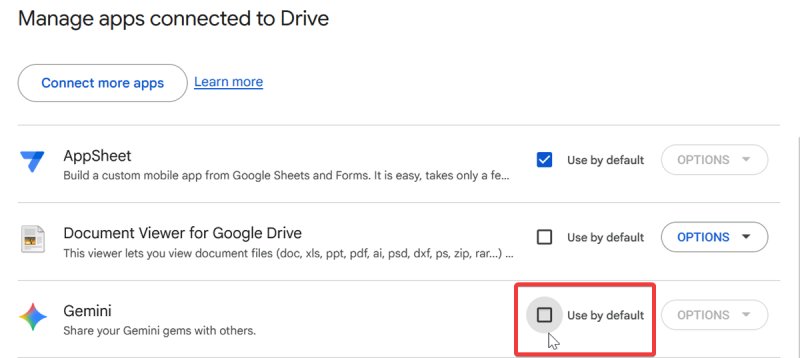
It's a bit trickier on your phone, since you can't access these settings in the mobile app. You'll have to open Google Drive on your browser:
- Search for Google Drive and open it in a new tab.
- Tap the three lines in the upper left corner, and select Desktop Version.
- Now, tap the Settings cog in the top right corner.
- Go to Manage apps, find Gemini, and uncheck Use by default.
It's a roundabout method, but it still works.
How to disable Gemini in Gmail, Chat, and Meet
Next up is Gmail! Toggling off this setting will also include Google Meet and Chat. Here's how:
- Open Gmail and click on the Settings cog in the top corner.
- Select See all settings.
- In General Settings, scroll down to Smart features.
- Uncheck Turn on smart features in Gmail, Chat and Meet.
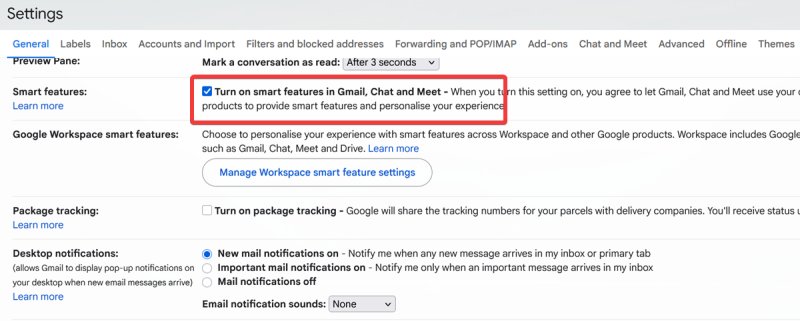
Next to the option, you'll see a disclaimer of sorts: "When you turn this setting on, you agree to let Gmail, Chat and Meet use your content and activity in these products to provide smart features and personalize your experience." Yeaaaah, I don't like the sound of that.
You can also uncheck Smart Compose, Smart Compose personalisation, and Smart Reply if you dislike these features.
How to disable smart features in Google Workspace and other products
Lastly, you'll find more options to turn off in the same section, right under Smart features in Gmail.
- Open Gmail settings and look for Google Workspace smart features.
- Click on the Manage Workspace smart feature settings button.
- Toggle off both Smart features in Google Workspace and Smart features in other Google products.
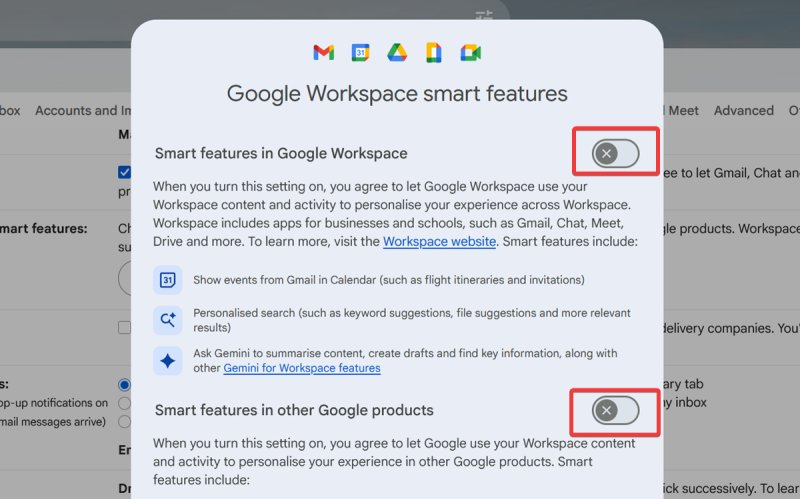
This should take care of everything, including Google Calendar, Maps, Wallet, etc.
Unfortunately, some useful features like Gmail events in Calendar are bundled with Gemini under the same settings. Since Google doesn't let you target specific features, you'll have to either disable or keep them all. It can be a tough choice to make, but I'll explain why keeping Gemini is a bad idea.
Why should you turn off Gemini?
You should disable Gemini because it's overly invasive and endangers your data privacy. Let me start from the beginning here. The first updates targeted Android and began rolling out in July this year. A Google email notification announced that the AI will gain access to your Phone, Messages, WhatsApp, and Utilities, regardless of whether your Gemini Apps Activity was on or off. So, it brazenly overrides your previous privacy settings and also replaces Google Assistant without asking.
But that's not all. Google has expanded Gemini's reach to Gmail, Drive, and other Workspace apps. It's unclear what exactly happens to your data if you allow AI and smart features to access your personal information on these platforms. Moreover, the smart features aren't globally enabled by default. They're off if you live in the European Economic Area, Japan, Switzerland, or the United Kingdom.
Of course, Google has denied that it uses data from Gmail, Chat, and Meet to train generative AI models. Meanwhile, a data privacy lawsuit alleges that Google is tracking consumers' communications without consent. You can make your own conclusions.
In short, I recommend you turn off these features and limit Gemini's access to your data as much as you can. You can remove it from your phone, too. The sneaky way it was implemented, vague wording, and ongoing lawsuit don't exactly instill confidence.

|
selma citakovic
Selma is a gamer, geek and gremlin hunter with a passion for cyber security and smashing Windows bugs before they bite. She’s IBM-certified, loves real freeware, despises bloatware, and powers most of her troubleshooting with an unhealthy amount of coffee. |
comments powered by Disqus
