


Save Your Favorite Searches in Windows 11 and Find Files Instantly
By selma čitakovićon 07/26/2026 |
![{$insert['content_title']](/content/file/6201_image2.jpg
)
As a rule, we use Everything Search on out PC's. It's one of our favorites. However, sometime it is not the most convenient.
If there are any searches you often use in File Explorer, you can save them and revisit them whenever you wish. This feature was also available in Windows 10, but it was easier to find. It was right there in the ribbon menu. You'll have to dig a bit deeper to use it in Windows 11, but thankfully, not too deep.
Here are the steps:
- Open File Explorer and search for what you want. For example, I often go through my docx files, so I'll enter "*.docx" to single them out.
- You can click on the three dots under the search bar ("See more"), select Search options, and narrow down your results.
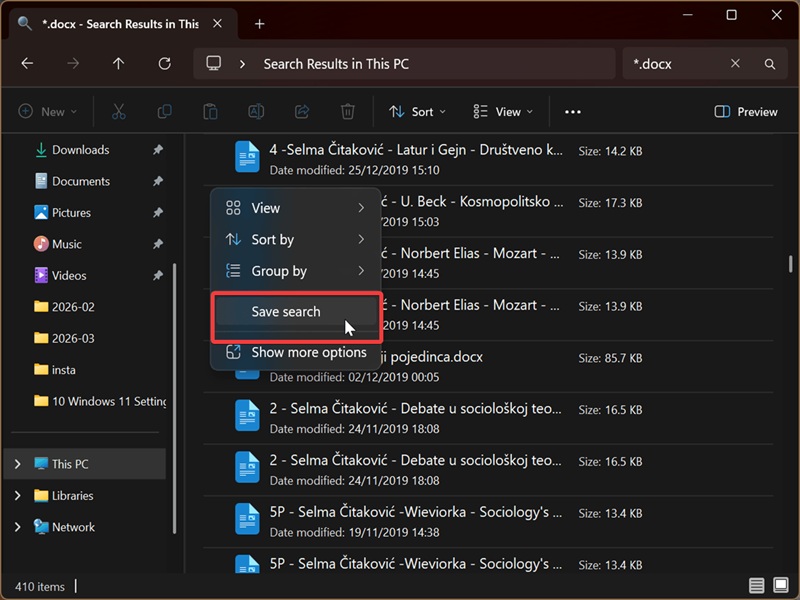
- Once you see the search results, right-click an empty spot in the window and select Save search.
- You can then rename the saved search query and add tags and details. Additionally, you can choose where to save it. The default location is the Searches folder ("C:\Users\Username\Searches").
- Click on Save when you're done.
Your query will be saved as a .search-ms file. You can also pin it to Start or add it to Favorites for convenience. Just right-click it and select Pin to Start or Add to Favorites.
If you'd like more tips on how to use File Explorer smarter, we've got you covered.

|
selma citakovic
Selma is a gamer, geek and gremlin hunter with a passion for cyber security and smashing Windows bugs before they bite. She’s IBM-certified, loves real freeware, despises bloatware, and powers most of her troubleshooting with an unhealthy amount of coffee. |
comments powered by Disqus
