


See Which Apps Have Used Your Passkeys in Windows 11
By selma čitakovićon 10/11/2026 |
![{$insert['content_title']](/content/file/6470_image2.jpg
)
If you use passkeys, you may want to check which apps recently requested them. You can review requests for passkey creation, usage, and enumeration (autofill) in the last seven days. Once you create and store a passkey with Windows Hello, you can sign in with your device's PIN and biometrics, and keep track of activity in Settings.
Here's how!
Via Settings
You can find your recent activity here:
- Go to Settings > Privacy & security.
- Under App permissions, scroll down to Passkeys and click it.
- Under Allow passkey access, click on Recent activity to expand the section. You'll see all passkey usage and creation requests in the past week.
- Under Allow passkey autofill, click on Recent activity again to expand it. This time, you'll see all passkey autofill requests in the last seven days.
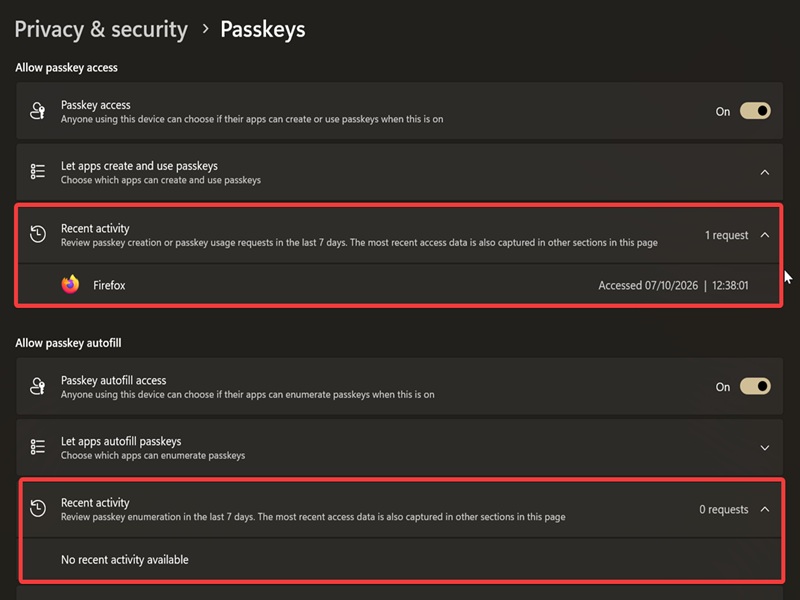
And that's it! Passkeys are generally super safe, but it doesn't hurt to know which apps have interacted with them lately.
As you can see from the screenshot, I don't really use passkeys. I once accidentally got locked out of an important account, and there was no way to recover it. So, now I have trust issues. I still prefer passwords, even though they are more vulnerable and easier to compromise.

|
selma citakovic
Selma is a gamer, geek and gremlin hunter with a passion for cyber security and smashing Windows bugs before they bite. She’s IBM-certified, loves real freeware, despises bloatware, and powers most of her troubleshooting with an unhealthy amount of coffee. |
comments powered by Disqus
