


Stop Accidentally Triggering Sticky Keys in Windows 11
By selma čitakovićon 11/10/2026 |
The default keyboard shortcut for Sticky Keys is pressing the Shift key five times in a row. Admittedly, it's an annoying shortcut if you don't use the feature. It's easy to trigger by accident, especially when you're playing games. It happened to me countless times until I figured out I could disable it.
Here's how!
Via Settings
You can find the option to turn off the shortcut here:
- Go to Settings > Accessibility > Keyboard (under Interaction) > Sticky keys.
- Toggle Keyboard shortcut for Sticky keys on or off.
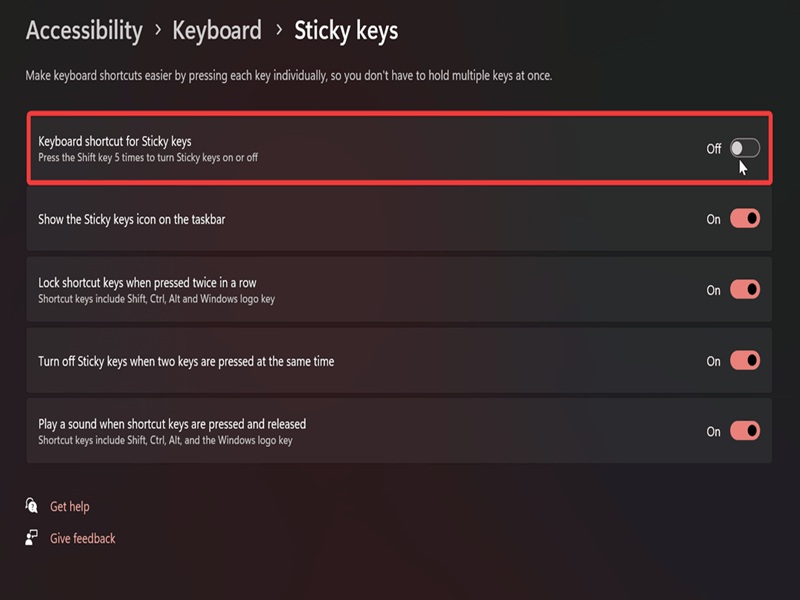
That's all there is to it! If you only turn off the feature without also disabling the shortcut here, you'll still trigger the Sticky Keys pop-up when you press the Shift key five times.
Via Control Panel
Alternatively, you can do the same with the legacy Control Panel settings. Here are the steps:
- Type Control Panel in Windows Search and open it.
- Make sure you open it in Small icons or Large icons view in the top-right corner.
- Select Ease of Access Center.
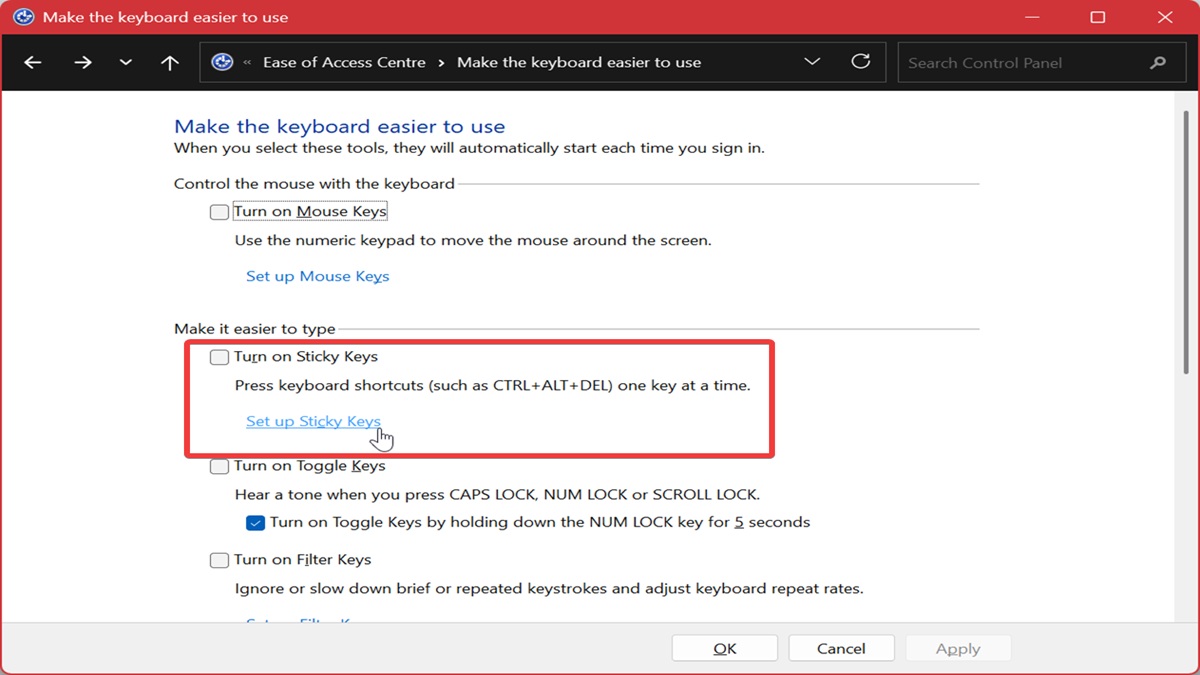
- Scroll down to Make the keyboard easier to use and click it.
- Click the link for Set up Sticky Keys.
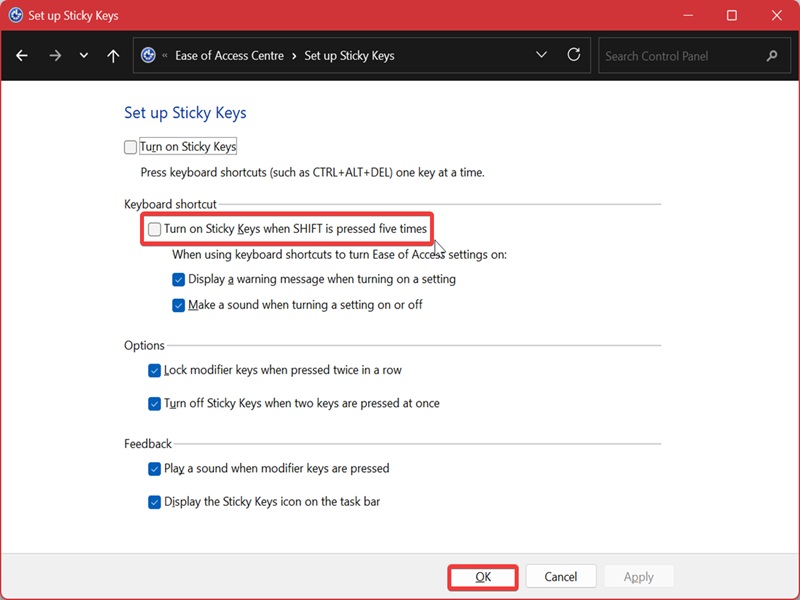
- Check or uncheck Turn on Sticky Keys when SHIFT is pressed five times.
- Click OK, then OK again.
In most cases, keyboard shortcuts are a great thing - they save you a lot of effort. But this one specifically can be a hit or miss. If you don't use Sticky Keys, the constant pop-ups can become irritating real quick.

|
selma citakovic
Selma is a gamer, geek and gremlin hunter with a passion for cyber security and smashing Windows bugs before they bite. She’s IBM-certified, loves real freeware, despises bloatware, and powers most of her troubleshooting with an unhealthy amount of coffee. |
comments powered by Disqus
