


Stop Print Screen From Opening the Snipping Tool in Windows 11
By selma čitakovićon 10/27/2026 |
![{$insert['content_title']](/content/file/6550_image1.jpg
)
You may have noticed that pressing the Print Screen key opens the built-in Snipping tool. This is actually the default setting in Windows 11, starting with build 22621.1928.
But if you just want it to save the entire screen to the clipboard, the way it used to work before, we can show you how. I prefer it that way myself!
Here are the steps.
Via Settings
You can control what the PrtSc key does here:
- Go to Settings > Bluetooth & devices > Keyboard.
- Under Shortcuts and hotkeys, toggle on or off Use the Print screen key to open screen capture.
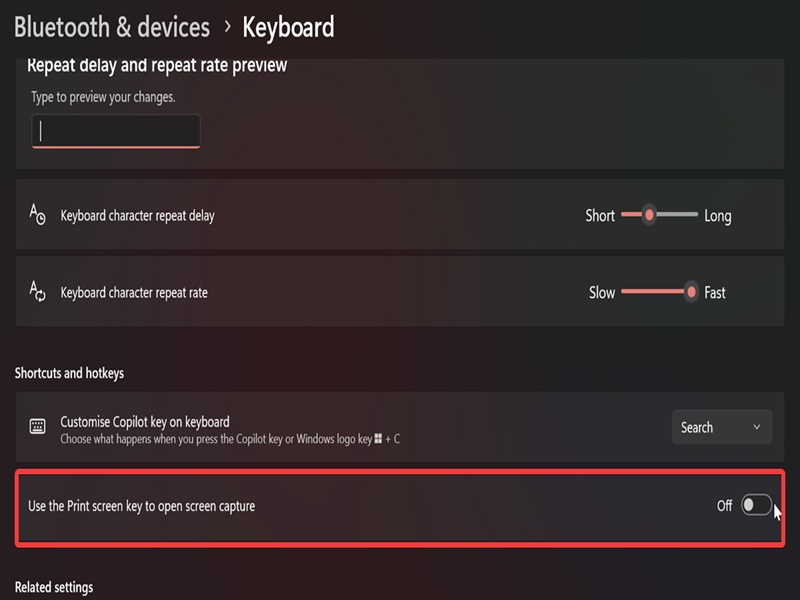
So, if you want to stop opening the Snipping tool every time you press the key, you'll want to toggle it off. Otherwise, keep it on.
Via Registry Editor
You can also change the same setting in the registry. It's a fairly quick edit, but as always, I recommend you create a system restore point first, just in case.
Anyway, here's how to configure it:
- Press Win + R, type regedit, and hit Enter.
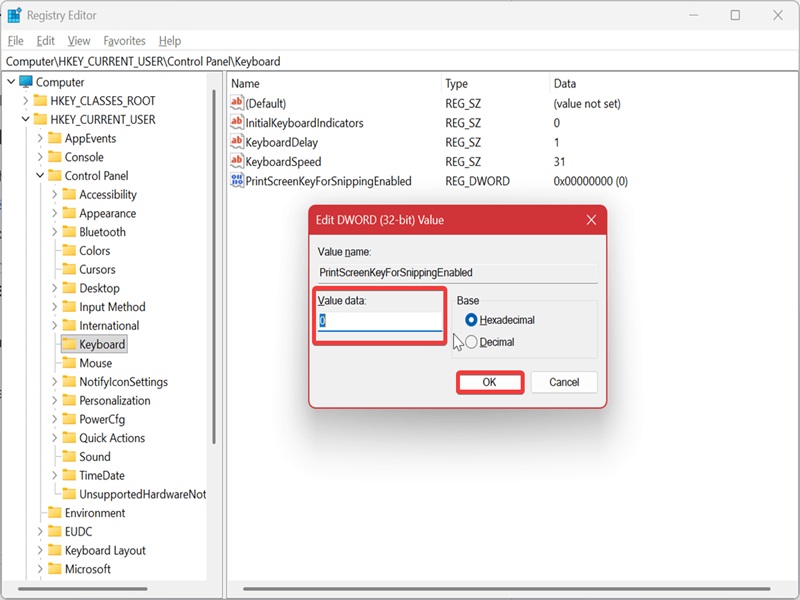
- Navigate to HKEY_CURRENT_USER\Control Panel\Keyboard on the left.
- Double-click the PrintScreenKeyForSnippingEnabled DWORD on the right.
- To disable automatically opening the Snipping tool when you press the PrtSc key, type 0 and click OK.
- To enable it, type 1 and click OK.
However, if you have any other screenshotting apps installed, they may override these settings and use the Print Screen key instead. In that case, you may need to adjust their settings first. Good luck!

|
selma citakovic
Selma is a gamer, geek and gremlin hunter with a passion for cyber security and smashing Windows bugs before they bite. She’s IBM-certified, loves real freeware, despises bloatware, and powers most of her troubleshooting with an unhealthy amount of coffee. |
comments powered by Disqus
