


Tired of Intrusive Phone Link Suggestions? Disable Them Now
By selma čitakovićon 10/20/2026 |
![{$insert['content_title']](/content/file/6519_image1.jpg
)
If you use the Phone Link app in Windows 11, you may have noticed its unfortunate tendency to offer suggestions. It can even recommend apps you should install, which seems way too close to advertising for my liking. And to make things worse, this setting is on by default.
Below, I'll show you how to disable annoying Phone Link suggestions once and for all.
Via Settings
You can find the toggle here:
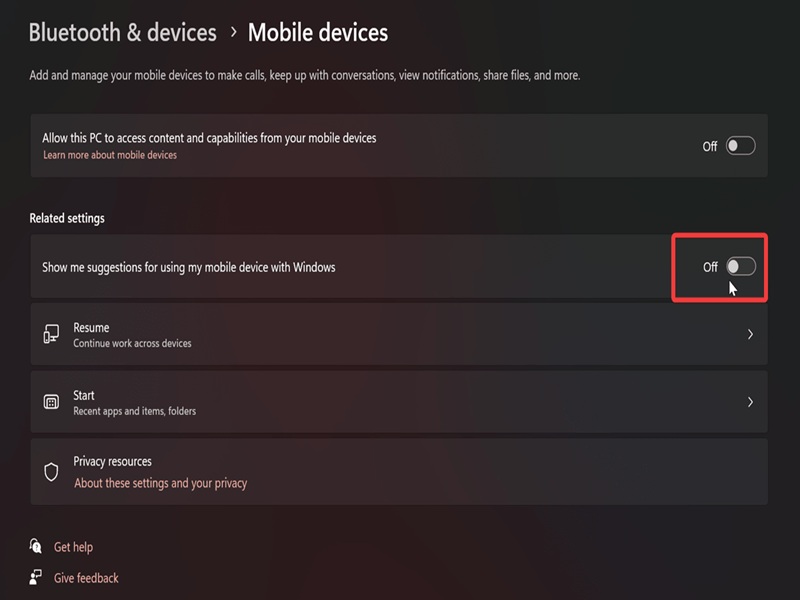
- Go to Settings > Bluetooth & devices > Mobile devices.
- Turn off Show me suggestions for using my mobile device with Windows.
Via Registry Editor
Alternatively, you could do it the hard(ish) way and disable it from the registry. If you feel a bit unsure about poking around the registry, I recommend you create a system restore point just in case.
Here are the steps:
- Press Win + R, type regedit, and hit Enter.
- Navigate to Computer\HKEY_CURRENT_USER\Software\Microsoft\Windows\CurrentVersion\Mobility on the left.
- While in the Mobility subkey, double-click a DWORD value called OptedIn.
- Type 0 in the Value data field, and click OK.
- You can now close the registry.
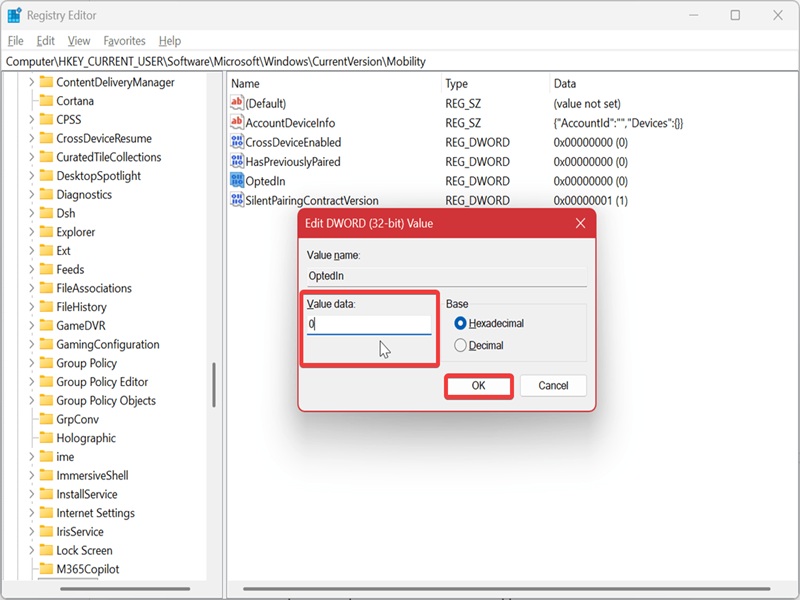
The default value for OptedIn, which also enables suggestions, is 1.
Additionally, if you're not a fan of the big mobile device pane in the Start menu, you can disable that as well. We hope these tips make the Phone Link app feel less intrusive!

|
selma citakovic
Selma is a gamer, geek and gremlin hunter with a passion for cyber security and smashing Windows bugs before they bite. She’s IBM-certified, loves real freeware, despises bloatware, and powers most of her troubleshooting with an unhealthy amount of coffee. |
comments powered by Disqus
