


4 Ways To Run a Manual Scan With Microsoft Defender
By selma čitakovićon 05/10/2026 |
![{$insert['content_title']](/content/file/5992_image2.png
)
If you rely on Microsoft Defender as your antivirus, real-time protection does most of the heavy lifting when it comes to everyday security. Still, it's good to know how to initiate scans on demand - for regular maintenance, or if you want to check potentially unsafe files, for example.
You can run quick, full, custom, and offline scans, and target files, folders, and drives. Let me show you how below!
Via right-click context menu
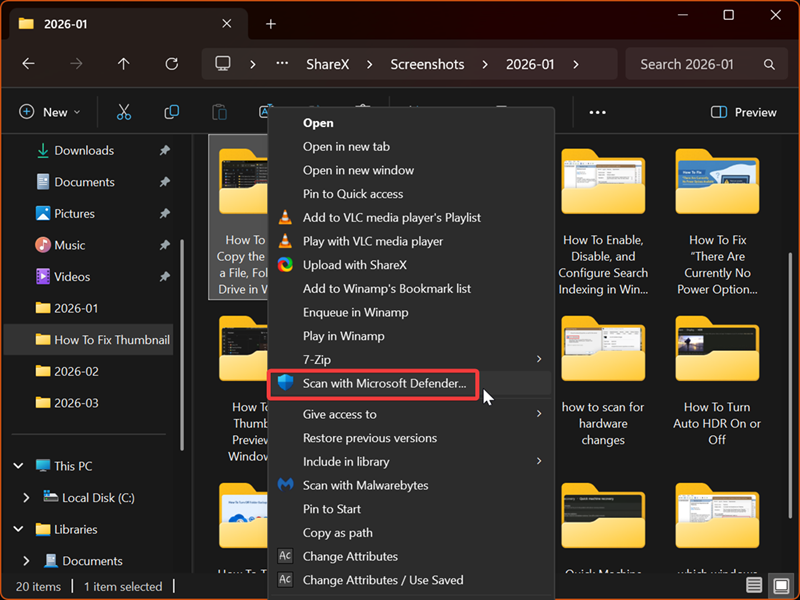
You can use the context menu to initiate targeted scans in File Explorer or on the desktop:
- Select the files/folders/drives you want to scan, right-click them, and then select Show more options > Scan with Microsoft Defender...
- The scan will start, and Windows Security will automatically open.
- If it doesn't find anything, you'll see "0 threats found."
- If it does, you'll be notified of the threat(s). Click on the arrow next to each threat to expand its options. You can then select Remove, Quarantine, or Allow on device (if it's a false positive).
- Once you make your choice, hit the Start actions button.
You can also click the See details link under each threat to read about its alert level, category, status, and other info.
Via Windows Security
Obviously, you can manually scan right from Windows Security. Here's how:
- Open Windows Security by clicking on its icon in the right corner of the taskbar.
- Go to Virus & threat protection > Scan options.
- You can select Quick scan, Full scan, Custom scan, or Microsoft Defender Offline scan. Click the Scan now button when you make your choice. If you picked a custom scan, you'll have to navigate to the folder you want to check and click Select Folder.
- If Defender detects anything, you'll be notified and able to take actions: Remove, Quarantine, or Allow on device.
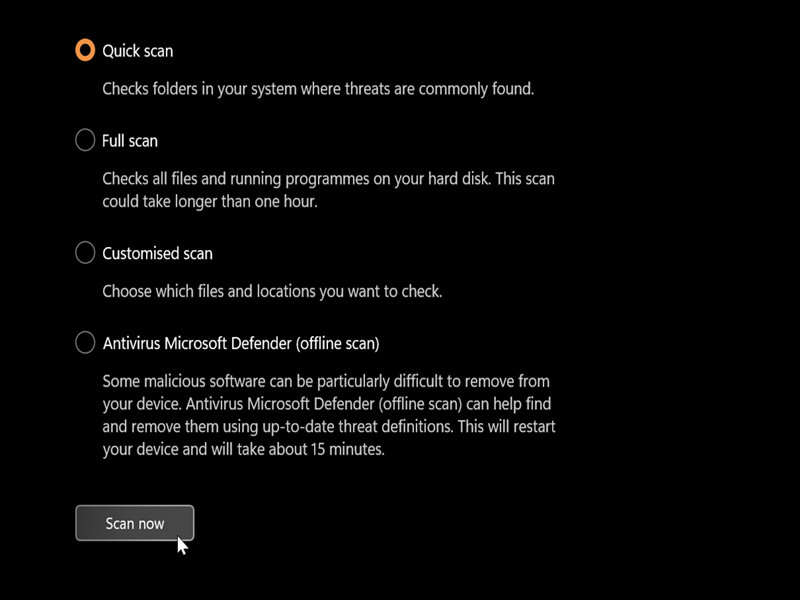
It works pretty much the same as in the first method.
Via PowerShell
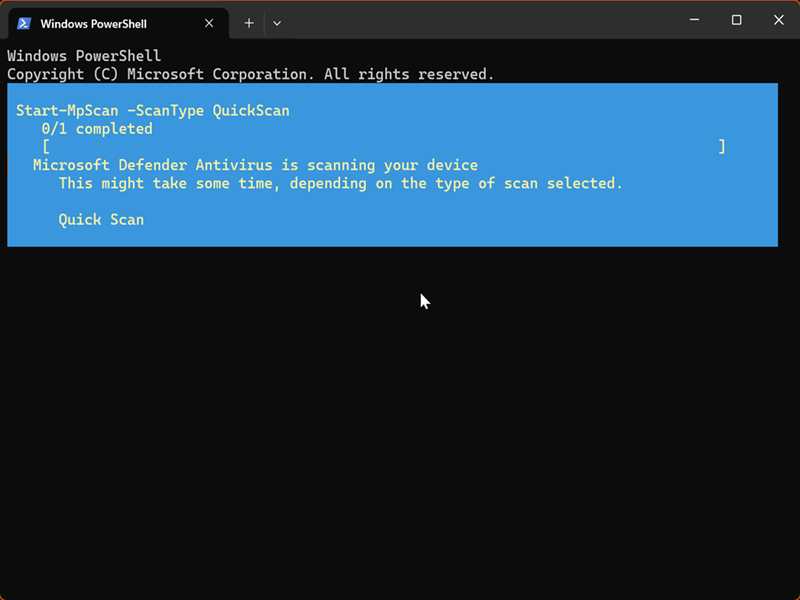
Or, you can try a command-based approach! There are different commands for each type of scan. Here are the steps:
- Press Win + R, type powershell, and press Enter.
- Type the following command(s) and press Enter.
- Quick scan: Start-MpScan -ScanType QuickScan
- Quick scan and update: Update-MpSignature; Start-MpScan -ScanType QuickScan
- Full scan: Start-MpScan -ScanType FullScan
- Custom scan: Start-MpScan -ScanType CustomScan -ScanPath "Full Path" (Replace "Full Path" with the actual path to the file, folder, or drive. You can get it by right-clicking your target and selecting Copy as path.)
- If Windows Security finds anything, you'll get a notification.
Via Command Prompt
Alternatively, you can do the same thing, but with Command Prompt this time:
- Press Win + R, type cmd, and press Enter.
- Type the following command(s) and press Enter.
- Quick scan: "%ProgramFiles%\Windows Defender\MpCmdRun.exe" -Scan -ScanType 1
- Quick scan and update: "%ProgramFiles%\Windows Defender\MpCmdRun.exe" -SignatureUpdate & "%ProgramFiles%\Windows Defender\MpCmdRun.exe" -Scan -ScanType 1
- Full scan: "%ProgramFiles%\Windows Defender\MpCmdRun.exe" -Scan -ScanType 2
- Custom scan: "%ProgramFiles%\Windows Defender\MpCmdRun.exe" -Scan -ScanType 3 -File "Full Path" (Replace "Full Path" with the actual path to the file, folder, or drive. You can get it by right-clicking your target and selecting Copy as path.)
- Again, if the scan detects any threats, you'll be notified.
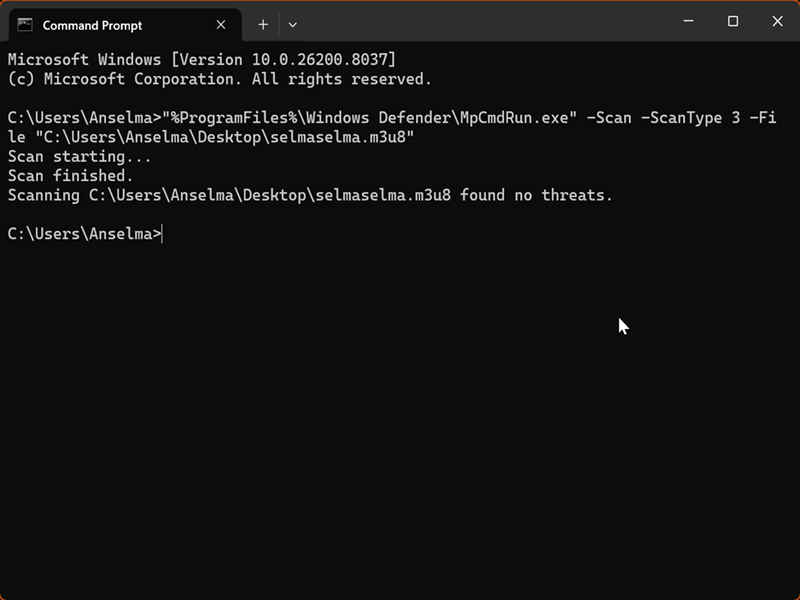
Still, during my tests, the quick scan and full scan commands sometimes wouldn't work. The scan would start, but the CmdTool would fail. However, I haven't encountered these problems while running custom scans in Command Prompt (or any PowerShell commands, for that matter), which is interesting.
Overall, Microsoft Defender does a solid job on its own, but I like to pair it with Malwarebytes for specific scans to double-check. Sure, it's convenient and free, but I don't want to put all of my eggs in one basket.
If you'd like to branch out as well, you can find various antiviruses on our website. Good luck!

|
selma citakovic
Selma is a gamer, geek and gremlin hunter with a passion for cyber security and smashing Windows bugs before they bite. She’s IBM-certified, loves real freeware, despises bloatware, and powers most of her troubleshooting with an unhealthy amount of coffee. |
comments powered by Disqus
