


What Fast Boot Does and How To Turn It On/Off in BIOS
By selma čitakovićon 07/31/2026 |
![{$insert['content_title']](/content/file/6194_image1.png
)
Fast boot is a BIOS/UEFI setting that reduces your boot time by minimizing the system initialization process. Basically, it skips some low-priority initialization steps and hardware checks for the sake of speed. And no, it's not the same as fast startup, even though they sound similar. Fast startup is a Control Panel power setting that combines normal startup mode and wake-from-hibernation mode. It's completely different.
However, some users have noticed that this feature makes their boot times too fast. Certain motherboards also have Ultra Fast Boot. It may be almost impossible to access BIOS/UEFI normally with it enabled. In that case, it's best to turn it off.
Anyway, I'll show you how to enable/disable it below. Still, some motherboards may not have fast boot available, so don't be too surprised if you can't find it in your BIOS.
How to enable/disable fast boot
Each motherboard/PC manufacturer has a different BIOS/UEFI interface, so there will be some slight differences in the steps:
- Turn off your PC.
- Turn it on again, but keep pressing F1, F2, F12, or Delete as it's booting. The exact key depends on your PC manufacturer, so you may want to look it up beforehand.
- Once you get to the BIOS menu, navigate to Boot/Boot Settings/Boot Configuration/Startup. (Again, the specific name depends on your motherboard.)
- Enable or disable fast boot. (Sometimes it's also called quick boot.)
- Save the changes and exit.
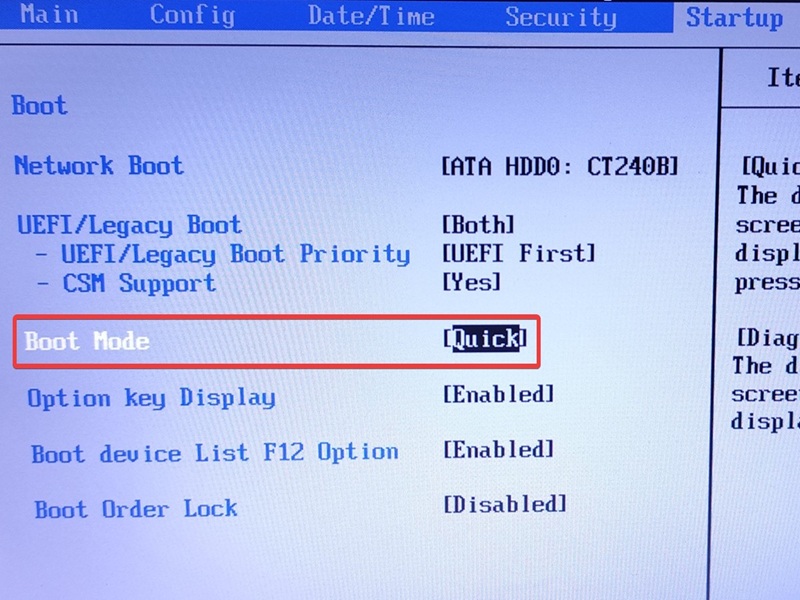
I had to dust off my ancient Thinkpad to get a picture, because I don't have this feature on my new one.
Alternatively, if you're struggling to even get to the BIOS/UEFI menu, try these steps:
- Go to Settings > System > Recovery.
- Click the Restart now button next to Advanced startup.
- Your PC will reboot into WinRE, the blue recovery menu.
- Go to Troubleshoot > Advanced options > UEFI Firmware Settings.
- Confirm you want to restart.
- Your PC will finally boot into BIOS.
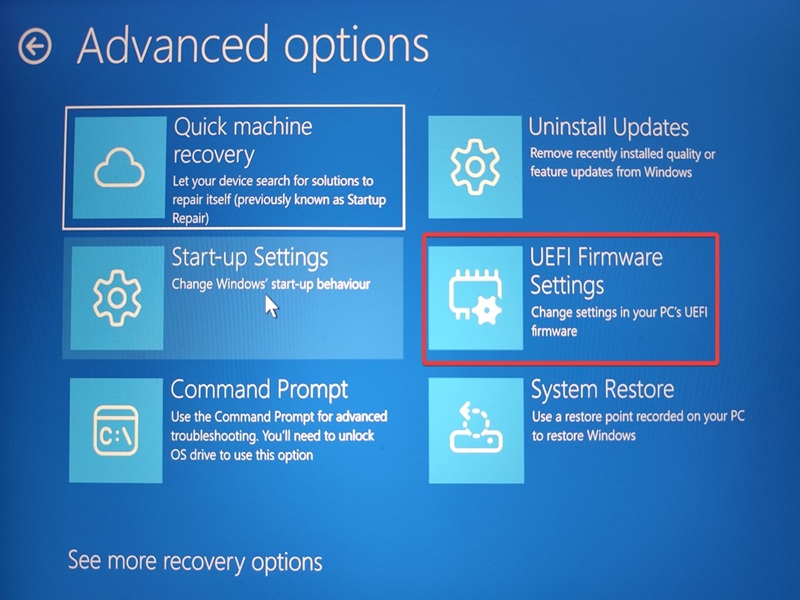
One last tip:
If you're ever curious about how long it takes your UEFI BIOS firmware to do all the prep work before booting Windows, you can check the time in Task Manager. Go to Start-up apps, and look in the top-right corner for Last BIOS time. You can then compare the difference with fast boot enabled or disabled.

|
selma citakovic
Selma is a gamer, geek and gremlin hunter with a passion for cyber security and smashing Windows bugs before they bite. She’s IBM-certified, loves real freeware, despises bloatware, and powers most of her troubleshooting with an unhealthy amount of coffee. |
comments powered by Disqus
