


Windows Search and Indexing Not Working? Here's How To Fix Them
By selma čitakovićon 07/25/2026 |
![{$insert['content_title']](/content/file/6158_image2.jpg
)
If Windows Search and search indexing are broken, you should try uninstalling and reinstalling the Search Engine feature. It's a fairly simple process - the only slightly annoying thing is that it requires two restarts. It should help if the buttons in Indexing Options are unresponsive, if the Search policy is missing, or if other search-related settings are broken.
First, make sure you've signed in as an administrator, since you'll need elevated privileges for the following steps:
- Press Win + X, select Terminal (Admin), and open either PowerShell or Command Prompt.
- Paste this command and hit Enter: dism /Online /Disable-Feature /FeatureName:"SearchEngine-Client-Package"
- When the operation completes, you'll be asked to restart the computer. Type Y when you're ready to restart.
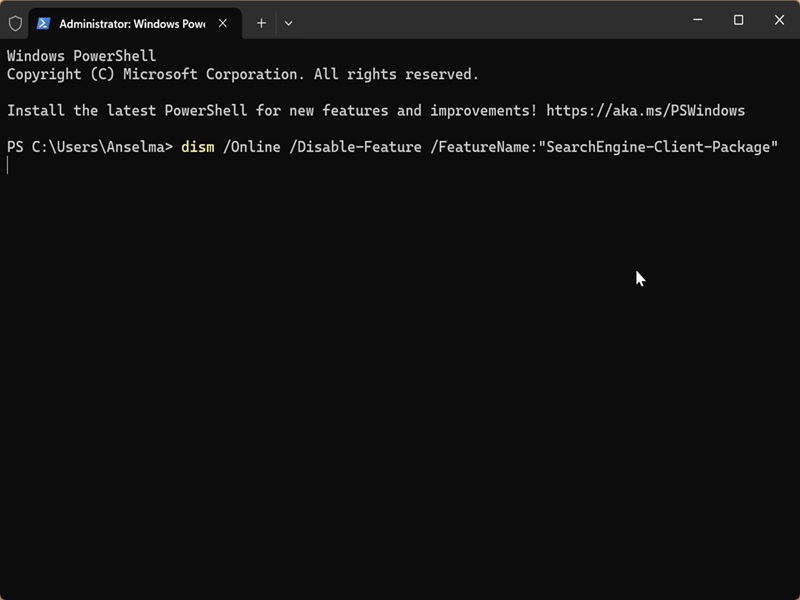
This will uninstall the Search Engine feature.
When your PC boots, open elevated PowerShell or Command Prompt again (just like in the first step). This time, paste the following command to reinstall the feature: dism /Online /Enable-Feature /FeatureName:"SearchEngine-Client-Package"
If prompted to restart again, type Y. When you sign back in, Windows Search should be back to normal. If it's somehow missing, it's likely because of your taskbar settings. You can fix that easily in a few clicks.

|
selma citakovic
Selma is a gamer, geek and gremlin hunter with a passion for cyber security and smashing Windows bugs before they bite. She’s IBM-certified, loves real freeware, despises bloatware, and powers most of her troubleshooting with an unhealthy amount of coffee. |
comments powered by Disqus
