


Windows Spotlight Lock Screen is Stuck on the Same Picture
By Timothy Tibbettson 06/15/2023 |
If your lock screen is always showing the same picture even though you are using Windows Spotlight, even after you've logged in, it should be a simple fix. Here's how.
Go to Start, Personalization, Lock Screen. Alternatively, you can press the Windows Key + S and type in personalization until you see Change your picture on the lock screen.
Under the Background drop-down menu, change this to Picture.
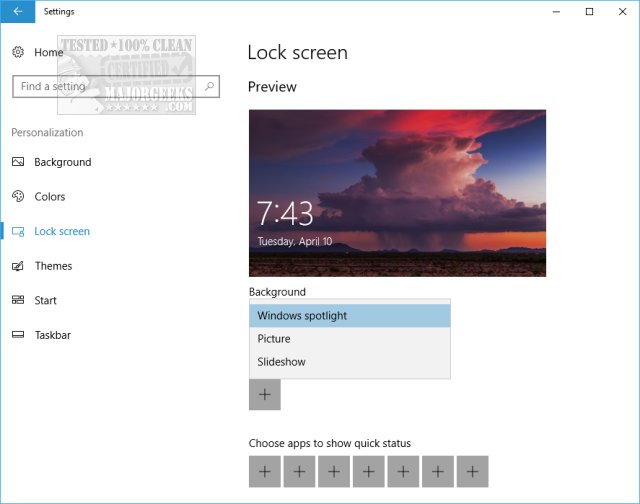
Leave the Lock Screen settings open.
In File Explorer go to C:\Users > YourUsername > AppData > Local > Packages > Microsoft.Windows.ContentDeliveryManager_random letter > Settings
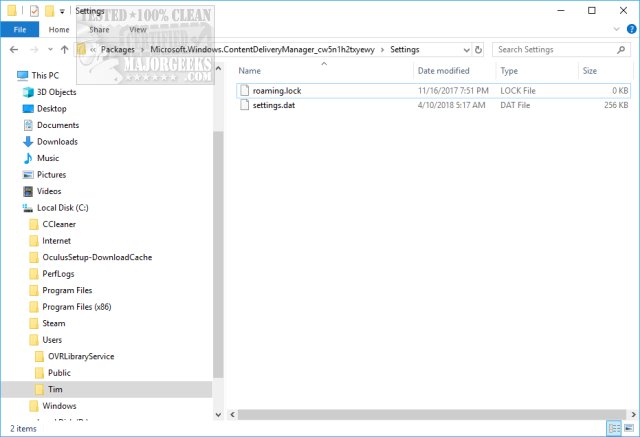
Note: If you don't see AppData, make sure you can see Hidden Files, Folders, or Drives.
Delete any files in this folder. If the files can't be deleted, boot into safe mode and delete them. Odds are you'll see a couple of .lock and .dat files.
Now delete any files in C:\Users > YourUsername > AppData > Local > Packages > Microsoft.Windows.ContentDeliveryManager_random letter > LocalState > Assets
Now go back to the Lock Screen settings and change the picture back to Spotlight. Spotlight should now be working correctly.
comments powered by Disqus
Go to Start, Personalization, Lock Screen. Alternatively, you can press the Windows Key + S and type in personalization until you see Change your picture on the lock screen.
Under the Background drop-down menu, change this to Picture.
Leave the Lock Screen settings open.
In File Explorer go to C:\Users > YourUsername > AppData > Local > Packages > Microsoft.Windows.ContentDeliveryManager_random letter > Settings
Note: If you don't see AppData, make sure you can see Hidden Files, Folders, or Drives.
Delete any files in this folder. If the files can't be deleted, boot into safe mode and delete them. Odds are you'll see a couple of .lock and .dat files.
Now delete any files in C:\Users > YourUsername > AppData > Local > Packages > Microsoft.Windows.ContentDeliveryManager_random letter > LocalState > Assets
Now go back to the Lock Screen settings and change the picture back to Spotlight. Spotlight should now be working correctly.
comments powered by Disqus
