


PowerShell Data Execution Policies Explained
By Timothy Tibbettson 06/15/2023 |
PowerShell Data Execution Policies determine what, and how, PowerShell scripts can be executed. It can be as simple as allowing or blocking all PowerShell scripts, or you can go as far as determining what can be run for a particular computer, group, or even the current session. Here's what you need to know.
It should be noted that Data Execution Policies are not a security feature. The settings are stored in the registry, and session only is stored in memory. Any user with the same knowledge you find here can execute the same commands. The idea behind Data Execution Policies is to either avoid accidental execution or allow someone to run a script that does not fit into the default mode, Restricted.
The first thing you'll want to do is see what your current Policy is. Open PowerShell and type in Get-ExecutionPolicy. As this screenshot shows, we're currently the default Restricted.
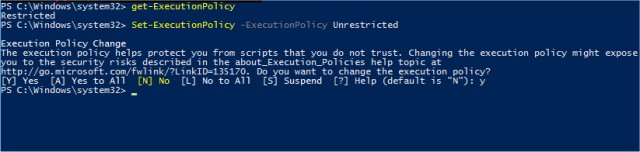
The next necessary command is called Set-ExecutionPolicy. If you're in a hurry and want to run a PowerShell script you know is safe simply type in Set-ExecutionPolicy Unrestricted. Unrestricted allows you to run any PowerShell script and should only be used if you know the script is safe. If all you came here for was to execute a PowerShell script you know is safe, you're good to go. From here, we will look at other possible commands. Be sure to change the Policy back to Restricted by typing in Set-ExecutionPolicy Restricted when you're finished.
As discussed, there's a lot of options for those who want to change the default Policy permanently or temporarily. The following commands can be used after typing in Set-ExecutionPolicy. AllSigned and RemoteSigned are worth noting because it adds an extra layer of security that Unrestricted does not.
Restricted
Default execution policy in Windows 8, Windows Server 2012, and Windows 8.1.
Permits individual commands, but will not run scripts.
Prevents running of all script files, including formatting and configuration files (.ps1xml), module script files (.psm1), and Windows PowerShell profiles (.ps1).
AllSigned
Scripts can run.
Requires that all scripts and configuration files be signed by a trusted publisher, including scripts that you write on the local computer.
Prompts you before running scripts from publishers that you have not yet classified as trusted or untrusted.
Risks running signed, but malicious, scripts.
RemoteSigned
Scripts can run. This is the default execution policy in Windows Server 2012 R2.
Requires a digital signature from a trusted publisher on scripts and configuration files that are downloaded from the Internet (including e-mail and instant messaging programs).
Does not require digital signatures on scripts that you have written on the local computer (not downloaded from the Internet).
Runs scripts that are downloaded from the Internet and not signed, if the scripts are unblocked, such as by using the Unblock-File cmdlet.
Risks running unsigned scripts from sources other than the Internet and signed, but malicious, scripts.
Unrestricted
Unsigned scripts can run. (This risks running malicious scripts.)
Warns the user before running scripts and configuration files that are downloaded from the Internet.
Bypass
Nothing is blocked, and there are no warnings or prompts.
This execution policy is designed for configurations in which a Windows PowerShell script is built into a larger application or for configurations in which Windows PowerShell is the foundation for a program that has its security model.
Undefined
There is no execution policy set in the current scope.
If the execution policy in all scopes is Undefined, the effective execution policy is Restricted, which is the default execution policy.
As we often say here "but, wait, there's more. As we discussed, you can define groups, current sessions, and more. Let's look at some of those.
Apply the execution policy from a remote computer to the local computer:
Invoke-Command -ComputerName "Server01" -ScriptBlock {Get-ExecutionPolicy} | Set-ExecutionPolicy -Force
Remove the execution policy for the current user:
Set-ExecutionPolicy -Scope CurrentUser -ExecutionPolicy Undefined
Set the execution policy for the current session:
Set-ExecutionPolicy -Scope Process -ExecutionPolicy AllSigned
Hopefully, we've answered your questions. There is one other command including how to unblock a script to run it without changing the execution policy, but it was a bit more complicated and geared more towards IT and server admins. This guide should cover anything the end-user needs.
Similar:
The Ultimate List of Every Known Command Prompt and PowerShell Commands
Powershell Cannot Be Loaded Because Running Scripts Is Disabled on This System
PowerShell and Command Prompt 101
How to Get Command Prompt Back on the Windows 10 Power User Menu
comments powered by Disqus
It should be noted that Data Execution Policies are not a security feature. The settings are stored in the registry, and session only is stored in memory. Any user with the same knowledge you find here can execute the same commands. The idea behind Data Execution Policies is to either avoid accidental execution or allow someone to run a script that does not fit into the default mode, Restricted.
The first thing you'll want to do is see what your current Policy is. Open PowerShell and type in Get-ExecutionPolicy. As this screenshot shows, we're currently the default Restricted.
The next necessary command is called Set-ExecutionPolicy. If you're in a hurry and want to run a PowerShell script you know is safe simply type in Set-ExecutionPolicy Unrestricted. Unrestricted allows you to run any PowerShell script and should only be used if you know the script is safe. If all you came here for was to execute a PowerShell script you know is safe, you're good to go. From here, we will look at other possible commands. Be sure to change the Policy back to Restricted by typing in Set-ExecutionPolicy Restricted when you're finished.
As discussed, there's a lot of options for those who want to change the default Policy permanently or temporarily. The following commands can be used after typing in Set-ExecutionPolicy. AllSigned and RemoteSigned are worth noting because it adds an extra layer of security that Unrestricted does not.
Restricted
Default execution policy in Windows 8, Windows Server 2012, and Windows 8.1.
Permits individual commands, but will not run scripts.
Prevents running of all script files, including formatting and configuration files (.ps1xml), module script files (.psm1), and Windows PowerShell profiles (.ps1).
AllSigned
Scripts can run.
Requires that all scripts and configuration files be signed by a trusted publisher, including scripts that you write on the local computer.
Prompts you before running scripts from publishers that you have not yet classified as trusted or untrusted.
Risks running signed, but malicious, scripts.
RemoteSigned
Scripts can run. This is the default execution policy in Windows Server 2012 R2.
Requires a digital signature from a trusted publisher on scripts and configuration files that are downloaded from the Internet (including e-mail and instant messaging programs).
Does not require digital signatures on scripts that you have written on the local computer (not downloaded from the Internet).
Runs scripts that are downloaded from the Internet and not signed, if the scripts are unblocked, such as by using the Unblock-File cmdlet.
Risks running unsigned scripts from sources other than the Internet and signed, but malicious, scripts.
Unrestricted
Unsigned scripts can run. (This risks running malicious scripts.)
Warns the user before running scripts and configuration files that are downloaded from the Internet.
Bypass
Nothing is blocked, and there are no warnings or prompts.
This execution policy is designed for configurations in which a Windows PowerShell script is built into a larger application or for configurations in which Windows PowerShell is the foundation for a program that has its security model.
Undefined
There is no execution policy set in the current scope.
If the execution policy in all scopes is Undefined, the effective execution policy is Restricted, which is the default execution policy.
As we often say here "but, wait, there's more. As we discussed, you can define groups, current sessions, and more. Let's look at some of those.
Apply the execution policy from a remote computer to the local computer:
Invoke-Command -ComputerName "Server01" -ScriptBlock {Get-ExecutionPolicy} | Set-ExecutionPolicy -Force
Remove the execution policy for the current user:
Set-ExecutionPolicy -Scope CurrentUser -ExecutionPolicy Undefined
Set the execution policy for the current session:
Set-ExecutionPolicy -Scope Process -ExecutionPolicy AllSigned
Hopefully, we've answered your questions. There is one other command including how to unblock a script to run it without changing the execution policy, but it was a bit more complicated and geared more towards IT and server admins. This guide should cover anything the end-user needs.
Similar:
The Ultimate List of Every Known Command Prompt and PowerShell Commands
Powershell Cannot Be Loaded Because Running Scripts Is Disabled on This System
PowerShell and Command Prompt 101
How to Get Command Prompt Back on the Windows 10 Power User Menu
comments powered by Disqus
