


Sleep, Hibernate or Shut Down Your PC?
By Timothy Tibbettson 06/15/2023 |
Windows offer three ways to 'turn off' your computer depending on your needs. Here we explain all three so you can select the best one for you.
1: Sleep
Sleep uses little power and starts up faster than the other two options. All of your work is saved. Sleep is the best bet when you're shutting off your computer for a short time.
To put your computer to sleep, you can close the laptop lid, press the power button, or change the Sleep times in Power settings.
To access Sleep settings, press the Windows Key + S, type in Power and click on Power and sleep settings.
2: Hibernate
Hibernate isn't much different from Sleep although it uses even less power. All of your work is saved. It starts up a little slower than Sleep. Hibernate should be used if you're shutting off your computer for a longer period.
Press the Windows Key + S and type in Power and click on Power & Sleep Setting and then Additional power settings.
Click on Choose what the power buttons do.
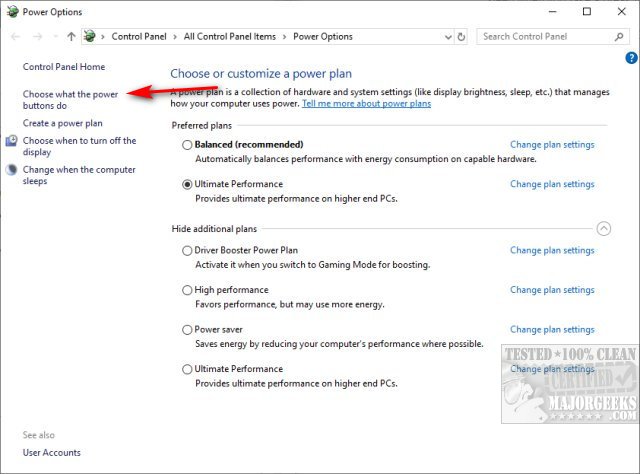
Click on Change settings that are currently unavailable.
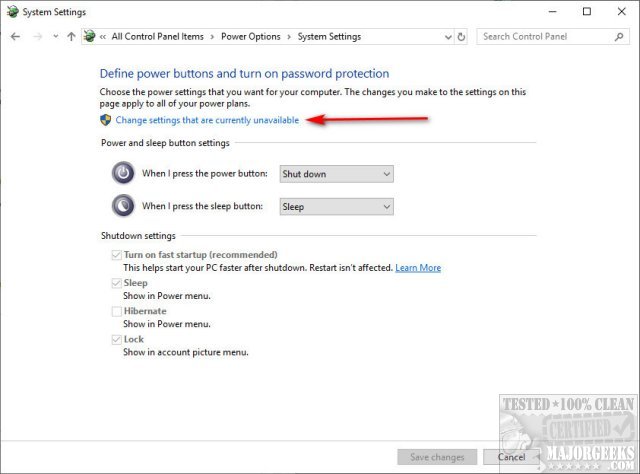
Now you can check or uncheck Hibernate. Be sure to check Save changes.
If you don't see a Hibernate option then at some point it was disabled. Many tweaking apps and drive cleaners may disable Hibernation to save disk space. Close the Control Panel if open. Open a Command Prompt as Admin and type in powercfg /hibernate on. You don't need to reboot.
3: Shut Down
Shut down is the option we are all familiar with. Your computer will be off, and all your work will be lost. Click on Start, Power, Shut down
Final Thoughts
While Sleep and Hibernate will save your work, we suggest you always save your work as often as possible. A hardware failure or a power outage or power surge could cause you to lose your work.
We are often asked which mode we prefer. Because we're power users and at our computer frequently except to go to sleep, we're set to Sleep after two hours.
Similar:
How to Add or Remove Sleep, Hibernate or Lock to the Start Menu in Windows 10.
Microsoft Surface or Laptop Won't Turn on
Windows 10 Computer Won’t Boot After Power Outage
comments powered by Disqus
1: Sleep
Sleep uses little power and starts up faster than the other two options. All of your work is saved. Sleep is the best bet when you're shutting off your computer for a short time.
To put your computer to sleep, you can close the laptop lid, press the power button, or change the Sleep times in Power settings.
To access Sleep settings, press the Windows Key + S, type in Power and click on Power and sleep settings.
2: Hibernate
Hibernate isn't much different from Sleep although it uses even less power. All of your work is saved. It starts up a little slower than Sleep. Hibernate should be used if you're shutting off your computer for a longer period.
Press the Windows Key + S and type in Power and click on Power & Sleep Setting and then Additional power settings.
Click on Choose what the power buttons do.
Click on Change settings that are currently unavailable.
Now you can check or uncheck Hibernate. Be sure to check Save changes.
If you don't see a Hibernate option then at some point it was disabled. Many tweaking apps and drive cleaners may disable Hibernation to save disk space. Close the Control Panel if open. Open a Command Prompt as Admin and type in powercfg /hibernate on. You don't need to reboot.
3: Shut Down
Shut down is the option we are all familiar with. Your computer will be off, and all your work will be lost. Click on Start, Power, Shut down
Final Thoughts
While Sleep and Hibernate will save your work, we suggest you always save your work as often as possible. A hardware failure or a power outage or power surge could cause you to lose your work.
We are often asked which mode we prefer. Because we're power users and at our computer frequently except to go to sleep, we're set to Sleep after two hours.
Similar:
comments powered by Disqus
