


Windows 10 Activation Error Code 0xC004F012
By Timothy Tibbettson 07/05/2023 |
There's a handful of known Windows activation errors so let's look at error code 0xC004F012. There are two possible messages you are seeing. "Windows can’t activate right now. Try activating again later. If that doesn’t work, contact support. Error code: 0xC004F012" or "The Software Licensing Service reported that the call has failed because the value for the input key was not found." Here are some solutions.
1: Rebuild Tokens.Dat
One of the most common problems with this particular error code requires rebuilding your activation. You can find Tokens.Dat at C:\Windows\System32\SPPStore2.0. Rename tokens.dat to tokens.old.
Open Powershell or Command Prompt as admin and type in the following two lines pressing enter after each:
net start sppsvc
cscript.exe slmgr.vbs /rilc
Reboot your computer twice and go to your Control Panel, Settings, Activation, and run the Activation Troubleshooter. Optionally, use the Windows Key + S, begin typing and click on Activation.
2: Run System File Checker
Microsoft System File Checker is a useful, built-in utility that can scan for, and restore, corrupted files in Windows. Here are step-by-step instructions and video from How-To Use Microsoft System File Checker or Sfc /Scannow.
Windows 10, Windows 8.1, or Windows 8 users will need to first run the Deployment Image Servicing and Management (DISM) tool before running the System File Checker. DISM will use Windows Update to provide any files that are needed to fix corruption. If you skip this step, System File Checker might not work. Windows 7 and Vista users can skip this step.
You will need to first open the Command Prompt or PowerShell as administrator.
Type in DISM.exe /Online /Cleanup-image /Restorehealth and press enter. This may take a few minutes.
All you need to do is type in sfc /scannow followed by Enter.
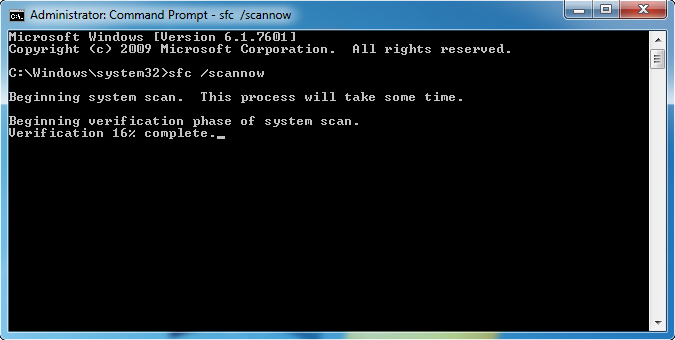
System File Checker will now scan for and replace files from the Windows cache, typically located at C:\Windows\System32\dllcache.
3: Reenter and Activate your Product Key
Solving this problem could be as easy as reentering and validating your key. We saved this for last because step 2 might have fixed the problem if there was a corrupted file.
Open Powershell or Command Prompt as admin and type in the following two lines pressing enter after each:
slmgr.vbs.ipk
slmgr.vbs/ato
Similar:
Retrieve Your Windows and Office Product Keys with These Free Apps
How-To Retrieve an Embedded Windows Key
Windows 10 Setup Has Failed to Validate the Product Key
How to Reactivate Windows 10
Can I Have Multiple Windows 10 or Microsoft Office Keys One One Account?
comments powered by Disqus
1: Rebuild Tokens.Dat
One of the most common problems with this particular error code requires rebuilding your activation. You can find Tokens.Dat at C:\Windows\System32\SPPStore2.0. Rename tokens.dat to tokens.old.
Open Powershell or Command Prompt as admin and type in the following two lines pressing enter after each:
net start sppsvc
cscript.exe slmgr.vbs /rilc
Reboot your computer twice and go to your Control Panel, Settings, Activation, and run the Activation Troubleshooter. Optionally, use the Windows Key + S, begin typing and click on Activation.
2: Run System File Checker
Microsoft System File Checker is a useful, built-in utility that can scan for, and restore, corrupted files in Windows. Here are step-by-step instructions and video from How-To Use Microsoft System File Checker or Sfc /Scannow.
Windows 10, Windows 8.1, or Windows 8 users will need to first run the Deployment Image Servicing and Management (DISM) tool before running the System File Checker. DISM will use Windows Update to provide any files that are needed to fix corruption. If you skip this step, System File Checker might not work. Windows 7 and Vista users can skip this step.
You will need to first open the Command Prompt or PowerShell as administrator.
Type in DISM.exe /Online /Cleanup-image /Restorehealth and press enter. This may take a few minutes.
All you need to do is type in sfc /scannow followed by Enter.
System File Checker will now scan for and replace files from the Windows cache, typically located at C:\Windows\System32\dllcache.
3: Reenter and Activate your Product Key
Solving this problem could be as easy as reentering and validating your key. We saved this for last because step 2 might have fixed the problem if there was a corrupted file.
Open Powershell or Command Prompt as admin and type in the following two lines pressing enter after each:
slmgr.vbs.ipk
slmgr.vbs/ato
Similar:
comments powered by Disqus
