


3 Ways To Boot Into UEFI/BIOS
By selma čitakovićon 07/19/2026 |
![{$insert['content_title']](/content/file/6203_image1.jpg
)
Need to enter the UEFI/BIOS menu, but it's proving to be harder than it should? We'll show you three different methods, so take your pick.
Once you're in, you can adjust various settings, including boot order, virtualization, how your hardware operates, and more. Still, if you're a novice geek, try to stick to options you're familiar with. You can't fully brick your PC with these settings (you can always reset the BIOS, thankfully), but you can cause other problems unless you know what you're doing.
Press the designated key to enter the BIOS
The easiest way to boot into UEFI/BIOS is to spam the key for it during startup. However, the exact key you need to press depends on your PC/motherboard manufacturer. You may see the prompt on startup, when the logo shows up.
You can Google your manufacturer's name plus BIOS key, or consult this handy list here:
- Acer: F2 or Delete
- ASRock: F2 or Delete
- ASUS: F2 or Delete
- Dell: F2 or F12
- Gigabyte: F2 or Delete
- HP: Esc, F10, or F1
- Lenovo: F2 or Fn + F2
- MSI: Delete
- Samsung: F2
- Toshiba: F2.
Basically, you need to turn off your computer, turn it on again, and as soon as it starts booting, keep pressing the key until you see the BIOS/UEFI menu.
Boot to Advanced Startup (WinRE)
Or you could enter the Windows Recovery Environment and navigate to the BIOS from there. This option is useful if your PC boots too fast (it's possible!) and you can't manage to press the key in time.
Here's how:
- Go to Settings > System > Recovery.
- Click the Restart now button next to Advanced startup, under Recovery options.
- Select Restart now to confirm.
- Your PC will boot to Advanced Startup, a blue menu screen.
- Select Troubleshoot > Advanced options > UEFI Firmware Settings.
- Confirm by clicking Restart.
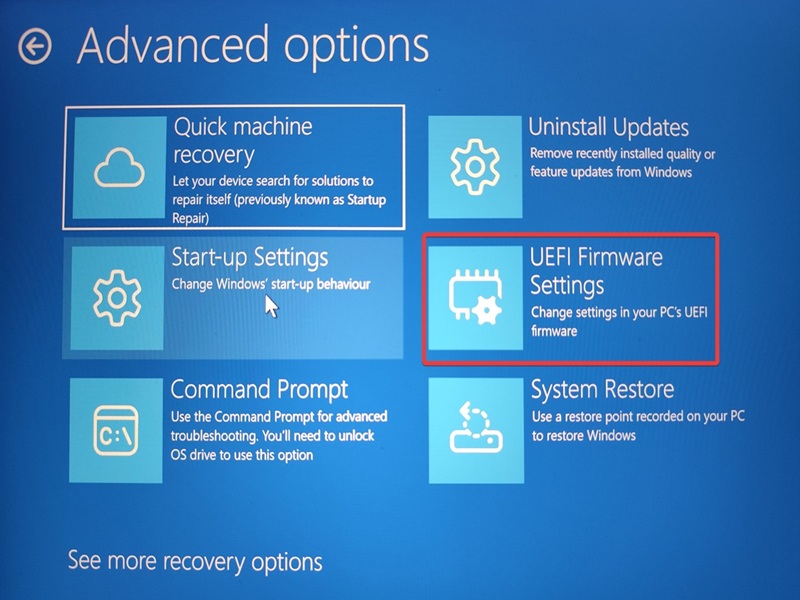
This will boot you into the UEFI/BIOS.
Use a command
Here's one last alternative: you can open elevated Command Prompt or PowerShell and run a command to enter the BIOS.
To do so:
- Press Win + X, select Terminal (Admin), and open either PowerShell or Command Prompt.
- Paste the following command and press Enter: shutdown /r /fw
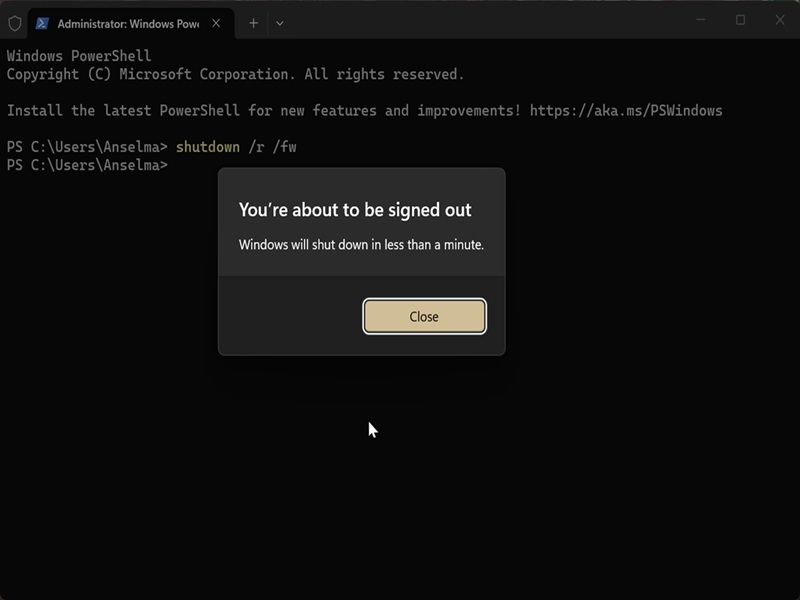
You'll be notified that your PC is about to shut down. You can also use shutdown /r /fw /t 0 to immediately reboot, without a message.

|
selma citakovic
Selma is a gamer, geek and gremlin hunter with a passion for cyber security and smashing Windows bugs before they bite. She’s IBM-certified, loves real freeware, despises bloatware, and powers most of her troubleshooting with an unhealthy amount of coffee. |
comments powered by Disqus
