


4 Ways to View Pictures as a Slideshow in Windows 10
By Timothy Tibbettson 06/29/2023 |
Many of us have hundreds or thousands of photos on their hard drive. In this tutorial, we show you how you can view your pictures in a slideshow.
Video tutorial:
1: View Pictures as a Slide Show in File Explorer
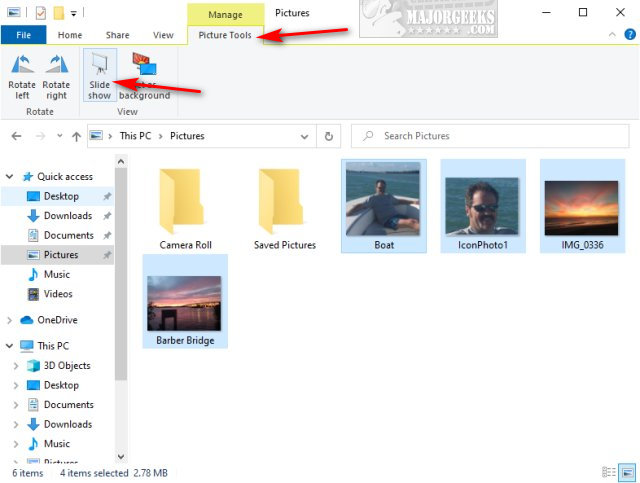
Open File Explorer and click on the folder with your photos.
Click on Picture Tools below Manage.
Click on Slide Show to begin. Click ESC to exit.
2: View Pictures as a Slide Show on Your Desktop
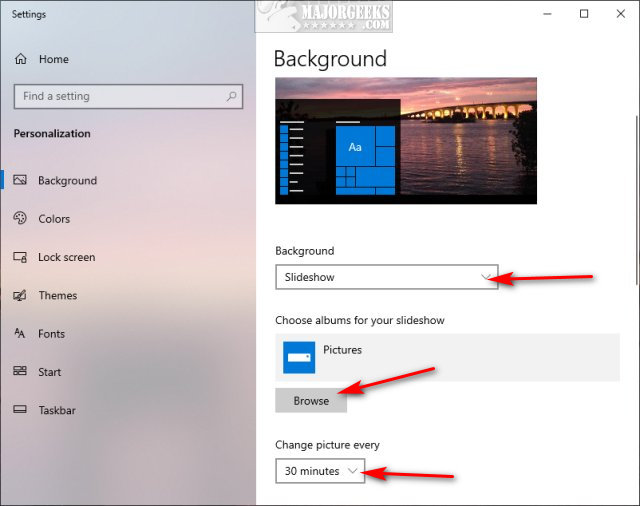
Right-click on your Desktop and click on Personalize.
On the right, under Background, click and select Slideshow.
The default folder is Pictures, but you can click on Browse to select a different folder.
Finally, under Change picture every, you can select from one minute to one day to change to decide how frequently a new photo is displayed on your Desktop.
3: View Pictures as a Slide Show in Windows Photos App
The Photos App will automatically load everything in Pictures.
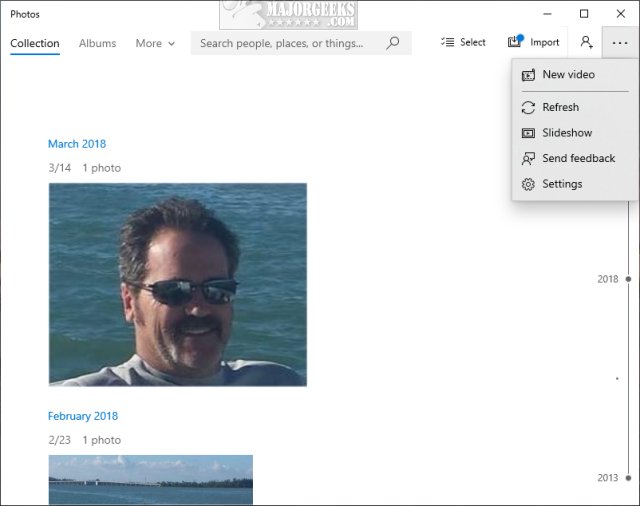
Click on Start > Photos.
Click the three dots in the top-right corner and click on Slideshow.
Click ESC or click with your mouse to stop.
4: View Pictures as a Slide Show in Windows Photo Viewer
Windows Photo Viewer has been replaced with Photos, but you can restore Windows Photo Viewer.
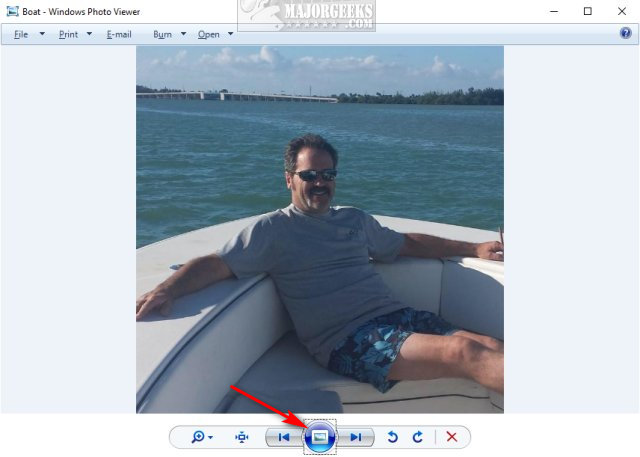
Open Windows Photo Viewer, or click on any picture.
Click on the round icon found at the bottom center.
Click ESC to exit.
Similar:
Restore the Windows Photo Viewer on Windows 10 Method 1
Restore Windows Photo Viewer Method 2
Stop ‘Your Weekend Recap’ Notifications in Windows 10 Photos App
How to Create Screen Snip Shortcut in Windows 10
How to Add or Remove 'Edit With Photos' Context Menu in Windows 10
How to Add or Remove 'Edit With Paint 3D' Context Menu in Windows 10
comments powered by Disqus
1: View Pictures as a Slide Show in File Explorer
Open File Explorer and click on the folder with your photos.
Click on Picture Tools below Manage.
Click on Slide Show to begin. Click ESC to exit.
2: View Pictures as a Slide Show on Your Desktop
Right-click on your Desktop and click on Personalize.
On the right, under Background, click and select Slideshow.
The default folder is Pictures, but you can click on Browse to select a different folder.
Finally, under Change picture every, you can select from one minute to one day to change to decide how frequently a new photo is displayed on your Desktop.
3: View Pictures as a Slide Show in Windows Photos App
The Photos App will automatically load everything in Pictures.
Click on Start > Photos.
Click the three dots in the top-right corner and click on Slideshow.
Click ESC or click with your mouse to stop.
4: View Pictures as a Slide Show in Windows Photo Viewer
Windows Photo Viewer has been replaced with Photos, but you can restore Windows Photo Viewer.
Open Windows Photo Viewer, or click on any picture.
Click on the round icon found at the bottom center.
Click ESC to exit.
Similar:
comments powered by Disqus
