


5 Ways To Uninstall Copilot
By selma čitakovićon 05/20/2026 |
![{$insert['content_title']](/content/file/6028_image3.png
)
If you're tired of seeing Copilot everywhere, we've got good news. You can uninstall it surprisingly easily, even on managed devices as of recently. Here are five tried-and-tested methods that work!
Via Start menu
To quickly get rid of Copilot:
- Click the Start button on your taskbar, and hit the All apps button in the upper-right corner. If you're using the updated "big" Start menu, you can immediately scroll through the All apps section, but I recommend you use list view.
- Find Copilot, right-click it, and select Uninstall.
- Click Uninstall again to confirm your decision.
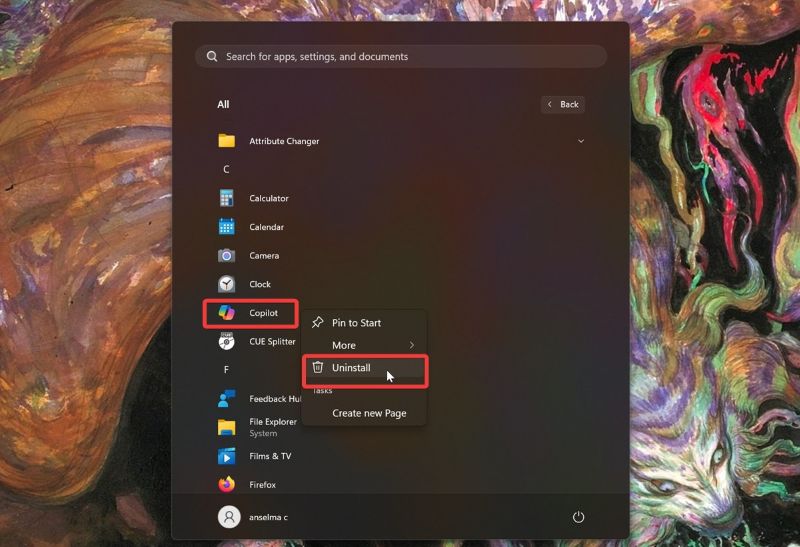
However, some users have reported that clicking Uninstall takes them to the Settings instead. In that case, simply follow the next method.
Via Settings
You can also find Copilot in the Installed apps section. Here are the steps:
- Go to Settings > Apps > Installed apps.
- Look for Copilot, and click the three dots next to it. Select Uninstall.
- Again, confirm by clicking Uninstall.
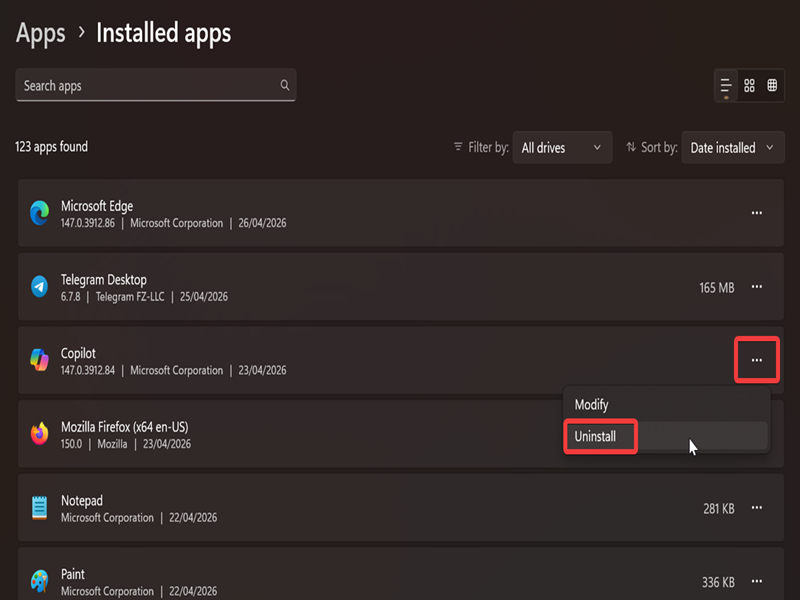
By the way, if you have a keyboard with a Copilot key, you can remap it in the Settings.
Via PowerShell
Additionally, you can use PowerShell commands for the same effect. Here's how to uninstall Copilot for the current user:
- Press Win + X, select Terminal, and open PowerShell.
- Type the following command and press Enter: Get-AppxPackage | Where-Object {$_.Name -Like '*Microsoft.Copilot*'} | Remove-AppxPackage -ErrorAction Continue
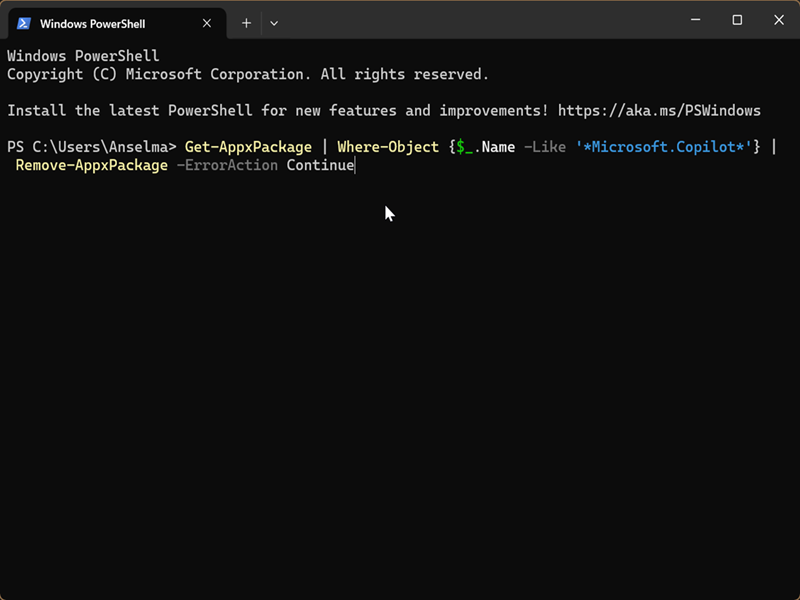
And here's how to do it for all user accounts! This time, we'll need elevated privileges, so you'll have to sign in as an administrator first:
- Press Win + X, select Terminal (Admin), and open PowerShell.
- Paste this command and press Enter: Get-AppxPackage -AllUsers | Where-Object {$_.Name -Like '*Microsoft.Copilot*'} | Remove-AppxPackage -AllUsers -ErrorAction Continue
Via Local Group Policy Editor
It's now possible for admins to uninstall Copilot on managed devices with a policy setting. However, for this to work, you'll have to fulfill several conditions:
- Microsoft 365 Copilot and Microsoft Copilot are both installed
- The app was not installed by the user
- The app was not launched in the last 28 days.
You'll also need to be able to use the Group Policy editor, obviously.
With all that out of the way, here are the steps:
- Press Win + R, type gpedit.msc, and press Enter.
- Go to User Configuration > Administrative Templates > Windows Components > Windows AI.
- Double-click the Remove Microsoft Copilot App policy.
- Select Enabled and click OK.
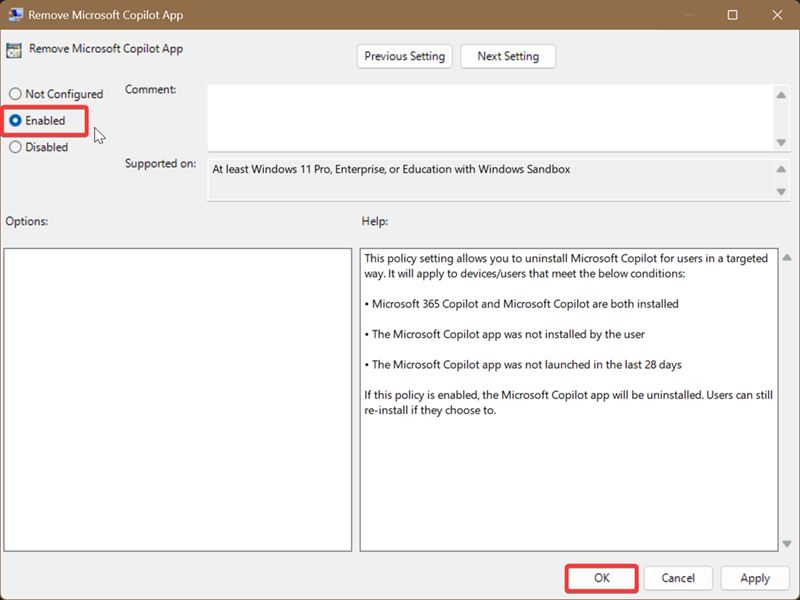
Users can still reinstall Copilot after this if they want to.
Via Microsoft Edge
Or if you actually use Microsoft Edge, you can uninstall Copilot from the browser:
- Open Edge, type edge://apps/ in the address bar, and press Enter.
- This will open the All apps page. Find Copilot, and click the three dots next to it.
- Select Uninstall. This will take you to the Copilot page in Installed apps, just like in the second method.
- Click on the Uninstall button, and then Uninstall again to finalize it.
Lastly, if you have a dedicated uninstaller, you can use it to remove Copilot. If you don't, you can try IObit Uninstaller (for an easy full removal) or other tools from our list.

|
selma citakovic
Selma is a gamer, geek and gremlin hunter with a passion for cyber security and smashing Windows bugs before they bite. She’s IBM-certified, loves real freeware, despises bloatware, and powers most of her troubleshooting with an unhealthy amount of coffee. |
comments powered by Disqus
