


6 Simple Methods To Check Your Windows Build Number
By selma čitakovićon 08/23/2026 |
![{$insert['content_title']](/content/file/6327_image5.jpg
)
If you need to quickly check your current build number, there are plenty of options to choose from. You may need this information as new features and bug fixes become available.
Below, we'll show you six simple methods, so you'll always know your build.
Via About Windows
One of my go-to methods is this one:
- Press Win + R, type winver.exe, and hit Enter.
- You should see the OS Build number right next to the version.
Via Settings
You can also find this info here:
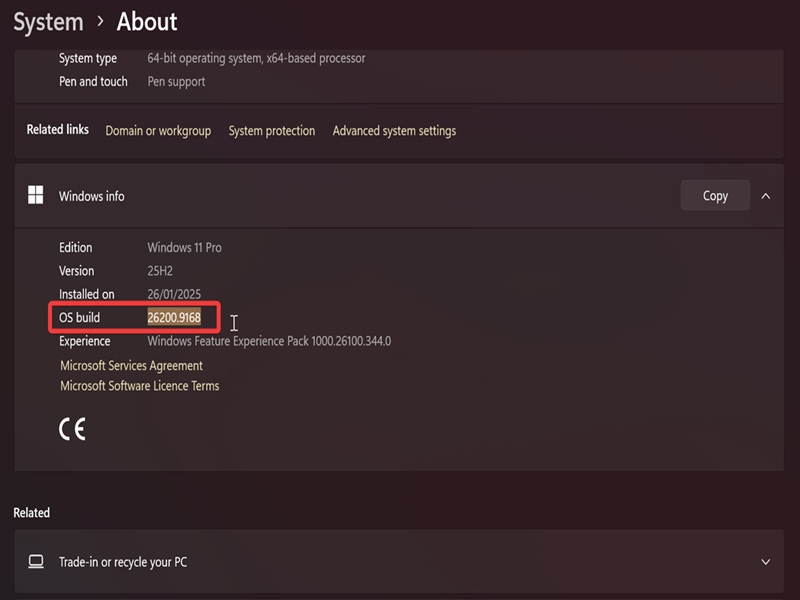
- Go to Settings > System > About (you'll have to scroll down to find it).
- Under Windows info or Windows specifications, look for OS build.
If you have the Pause key on your keyboard, you can press Win + Pause to instantly land on the same Settings page. It's a neat shortcut!
Via msinfo32
Alternatively, you can use the built-in System Information tool:
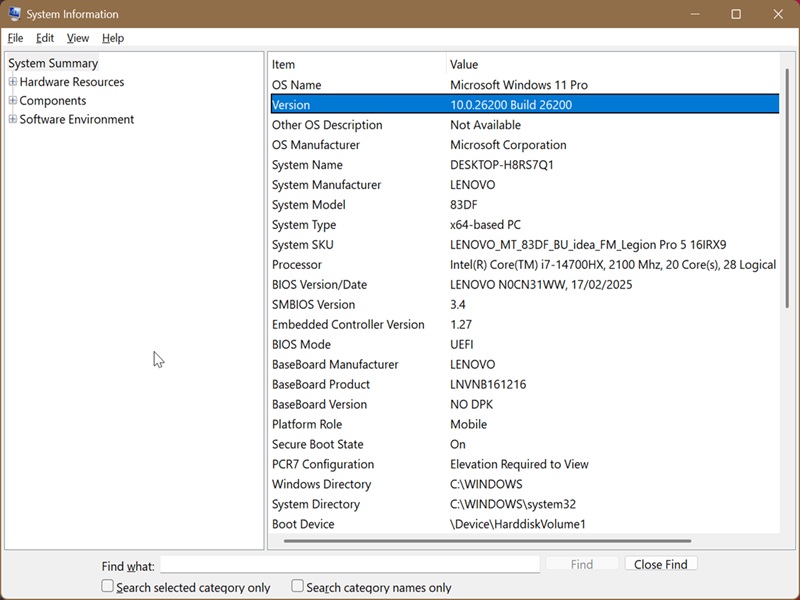
- Press Win + R, type msinfo32.exe, and hit Enter.
- On the left, go to System Summary.
- On the right, look for Version. Your current build number should be there.
Via desktop
If you've previously enabled the visible Windows version watermark on desktop, you'll be able to see your build number at all times. Still, this info doesn't always update immediately when you upgrade to a newer build. It's good to double-check it.
Via PowerShell
Or if you prefer using commands, try this:
- Press Win + X, select Terminal, and open PowerShell.
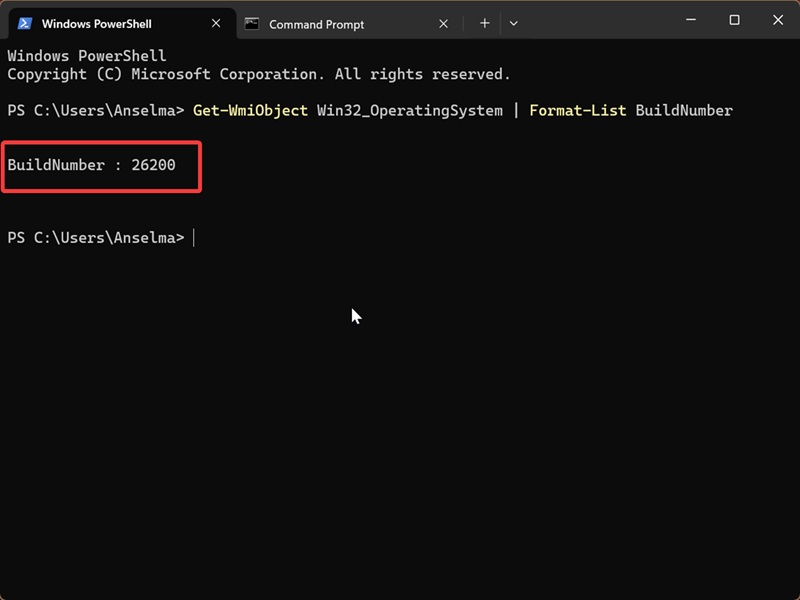
- Paste the following command and hit Enter: Get-WmiObject Win32_OperatingSystem | Format-List BuildNumber
- You'll see your Build Number in the terminal window.
Via Command Prompt
This one is even quicker:
- Press Win + X, select Terminal, and open Command Prompt.
- You can see your build number right at the start, next to Version.
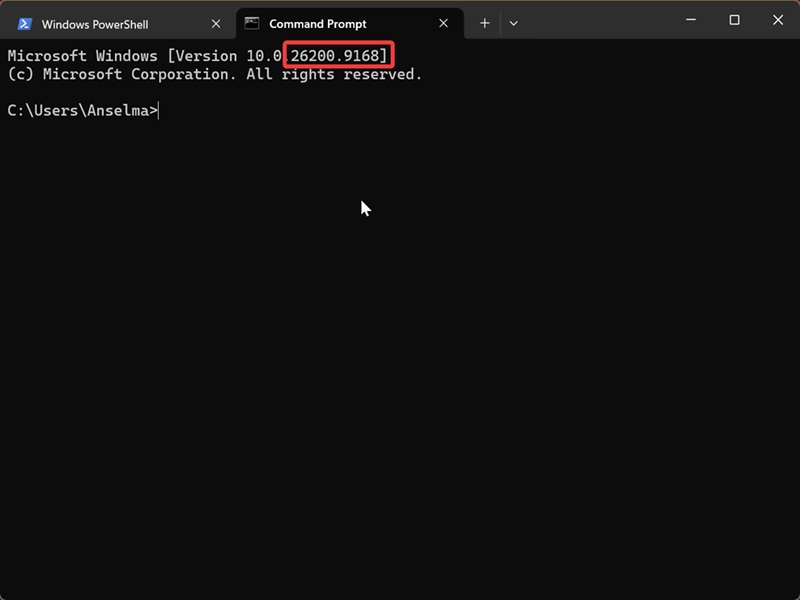
You don't have to type anything - just opening Command Prompt is enough.
Moreover, if you need more help with similar tasks, such as identifying your system type or PC serial number, we're here. We hope these tips prove useful!

|
selma citakovic
Selma is a gamer, geek and gremlin hunter with a passion for cyber security and smashing Windows bugs before they bite. She’s IBM-certified, loves real freeware, despises bloatware, and powers most of her troubleshooting with an unhealthy amount of coffee. |
comments powered by Disqus
