


All the New Features Landing in Windows 11 This December
By selma čitakovićon 12/09/2025 |
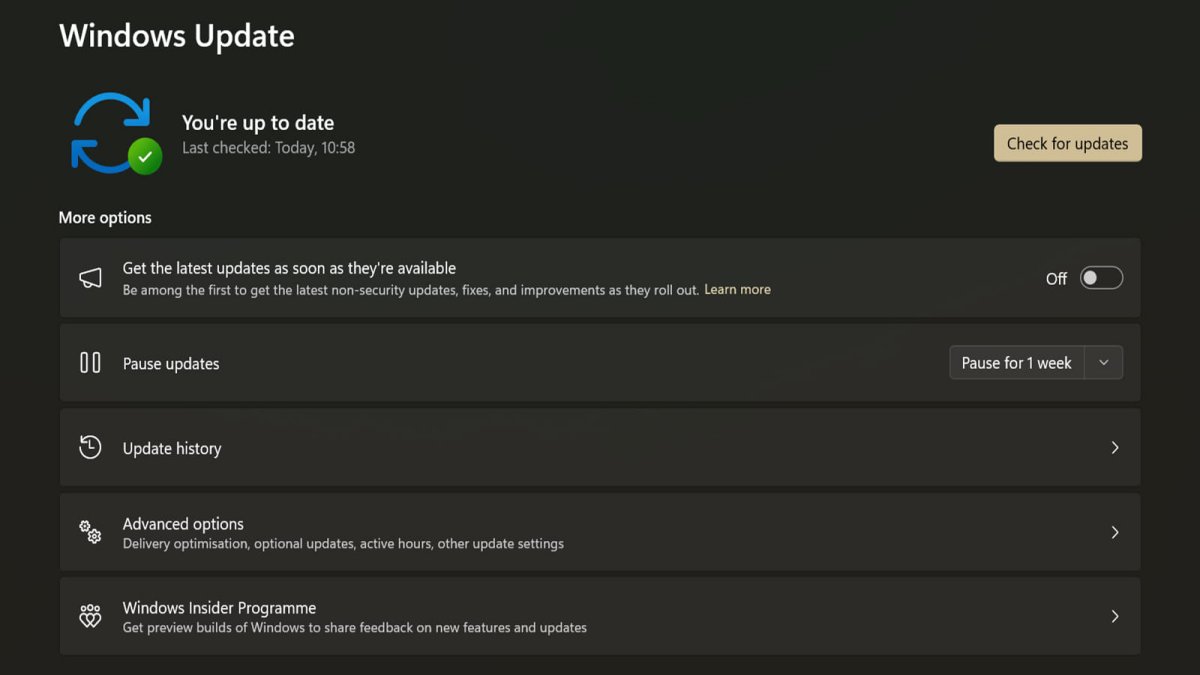
Below, I'll showcase 16 new features for Windows 11 24H2 and 25H2. It's a mixed bag, as usual. Some are pleasant surprises, some are just whatever, and some are clear downgrades. Moreover, this update isn't without issues. Some users reported Windows "flashbanging" them with a white screen while in dark mode, or the password icon missing from the sign-in screen.
Anyway, let's see what's in store for December!
Improved Dark Mode for File Explorer
File Explorer's dark mode tends to be inconsistent. Elements like confirmation dialogs are still the default white, for example. But the latest update will finally address that problem. It will improve the look for progress bars, chart views, error dialogs, confirmations for skip or override actions, and more.
As a big fan of dark mode in everything, I'm cautiously looking forward to this. As long as I'm not blinded by a random bright white screen, that is.
Virtual Workspaces in Advanced Settings
You can now access Virtual Workspaces from the Advanced Settings section (Settings > System > Advanced). From there, you can quickly enable and disable virtual environments, such as Windows Sandbox, WSL, Hyper-V, etc.
You can also manage virtualization features, including Containers, Guarded Host, Hyper-V GUI Management tools, and others.
Desktop Spotlight
If you ever get bored with the same static desktop background, you can randomize it with Windows Spotlight (Settings > Personalization > Background). It pulls curated images from Microsoft servers and automatically changes your background and lock screen. With the latest Windows update, the context menu will now include more options: Next desktop background and Learn more about this background.
File Explorer Context Menu
The context menu's separate bar for Cut, Copy, Rename, and other actions has received mixed reactions so far. With the December update, Windows is going back to a more simplified look, with all commands available from a single menu. It will initially only be available to a small number of devices to test the waters. We'll see if it turns out to be an improvement or another fumble.
Mobile Device Settings
You could previously access some mobile device features from the Bluetooth & devices section in the Settings. However, in the new expanded section, you can do much more, all from the same menu. For example, now you can:
- Show your phone's files in File Explorer
- Use it as a connected camera
- Get new photo notifications
- Access your PC's clipboard on the mobile device, and more.
It's a welcome change!
OneDrive Icon
You'll see the new redesigned OneDrive icon in Settings > Accounts > Homepage. Thank you, Windows, for this truly groundbreaking update.
QMR (Quick Machine Recovery)
QMR is a cloud-based recovery solution for Windows 11 that automatically applies fixes for critical boot errors. It has a new configuration with Automatically check for solutions and Look for solutions settings. If both are enabled, QMR will run a one-time scan, and if it doesn't find a fix, it will recommend the best available recovery options. The "one-time scan" part is supposed to prevent boot loops, which some users experienced previously.
Keyboard Settings
You could previously configure the character repeat delay and rate, and the cursor blink rate in the Control Panel. Admittedly, it was a bit of a hassle to find them. But now, Windows will move them to a new location. You can find these options in Settings > Accessibility > Keyboard and Settings > Accessibility > Text cursor.
Tactile Responses for Pens
Pens with haptic feedback will now vibrate when interacting with certain Windows elements, like when closing or resizing windows.
Keyboard Backlight
Compatible HID keyboards will have improved backlight performance in low-light conditions. The backlight will also adjust to conserve power.
About in System Settings
The About section's shiny new layout features a couple of changes. Instead of the card with key specs at the top, you'll see a thumbnail of your desktop and the option to rename your device. You'll still be able to see your specifications and Windows info if you scroll down, of course. However, the top cards with the most important specs were honestly more useful.
Taskbar Animations
December's Patch Tuesday will introduce smoother transitions when hovering and switching between app groups on the taskbar.
Share with Copilot on the Taskbar
Wow, more Copilot features, who could've guessed! You can now share open app windows with the chatbot right from the taskbar. It uses Copilot Vision to analyze the apps and files.
Widget Board
You can set a default dashboard to open up from the Widget Settings. The Widget navigation bar will also show alert numbers for dashboards. Honestly, I spend zero time on Widgets, so these changes don't mean anything to me.
Windows Share
If you're not a fan of the new drag tray feature, I've got good news for you. You can now easily disable it from Settings > System > Nearby sharing. That's how it should've been in the first place, but better late than never.
Moreover, the drag tray now supports multi-file sharing, and it will suggest more relevant apps for sharing.
FSE (Full Screen Experience)
FSE is a distraction-free console-like gaming interface, initially only available on ASUS ROG Ally and ROG Ally X. Windows will expand the feature to more handheld devices. You can enable it from Settings > Gaming > Full screen experience. You'll need to have the Xbox app installed and also need to enable Xbox as your home app.
So, what do you think?
As I said previously, it's a mixed assortment of features nobody asked for, and a few rare gems. For example, improvements to dark mode, virtual workspaces, and mobile device settings are very much welcome.
But I'm not so sure about more Copilot features or changes to the Widget Board. The more Windows tries to make me care about them, the less I want to do anything with them. What are some of your top picks from the list?

|
selma citakovic
Selma is a gamer, geek and gremlin hunter with a passion for cyber security and smashing Windows bugs before they bite. She’s IBM-certified, loves real freeware, despises bloatware, and powers most of her troubleshooting with an unhealthy amount of coffee. |
comments powered by Disqus
