


Change Voice Activation Permissions in Windows 11
By selma čitakovićon 10/23/2026 |
![{$insert['content_title']](/content/file/6532_image3.jpg
)
Windows 11 has a whole lot of privacy settings you may not know about, including one for voice activation. Basically, you can control whether certain apps can respond to spoken keywords. But first, they'll need your permission to access the microphone. When the app is listening for keywords, you'll see a little mic indicator on the taskbar.
As for privacy, each third-party app manages your data based on its own privacy policy. Microsoft promises not to collect your voice recordings for them, but the apps decide what to do with your vocal data.
Oh, and voice activation access is turned on by default, which I'm not a fan of.
Here's how you can turn it off or on!
Via Settings
You can find the option right here:
- Go to Settings > Privacy & security > Voice activation.
- Turn on or off Let apps access voice activation services.
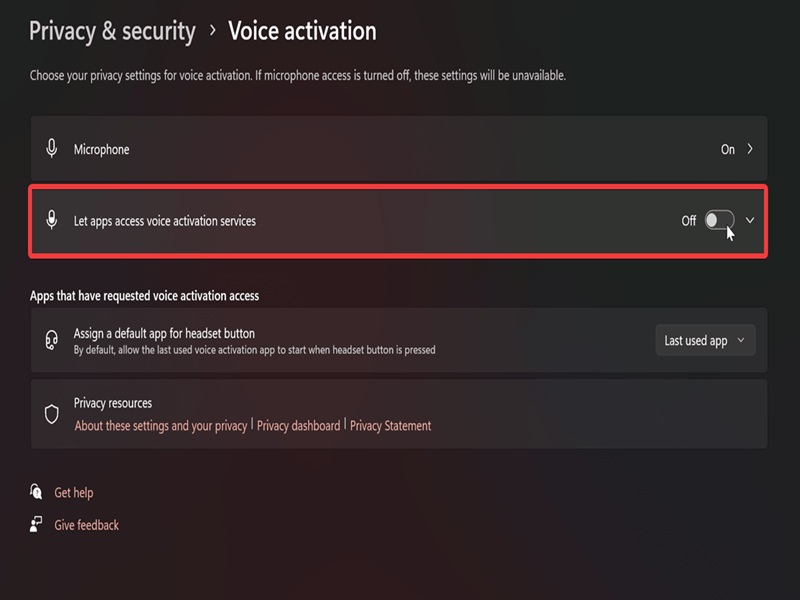
This applies to the current user only.
Via Local Group Policy Editor
Or, if you want to force enable or disable voice activation access for all users, try the Local Group Policy Editor. This way, the toggle from the first method will be greyed out until you undo the policy change.
This tool is available by default in Windows Pro, Education, and Enterprise editions, but Home edition owners may have to use a workaround.
You'll also have to sign in as an administrator for it, since you'll need elevated privileges.
Anyway, here are the steps:
- Press Win + R, type gpedit.msc, and hit Enter.
- Navigate to Computer Configuration > Administrative Templates > Windows Components > App Privacy on the left.
- While in the App Privacy subfolder, double-click Let Windows apps activate with voice on the right to edit it.
- To force enable voice activation for everyone, select Enabled and Force Allow in the drop-down menu under it. Click OK.
- To force disable it for every user, select Enabled and Force Deny in the drop-down menu under it. Click OK.
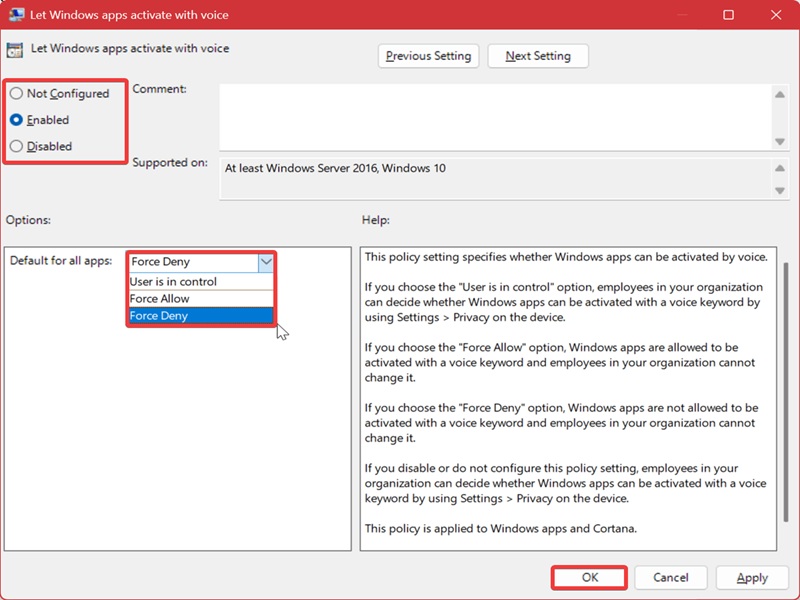
To undo these changes and apply the default settings for this policy, select Not Configured and click OK. If you do that, every user can decide whether they want the feature on or off in the Settings.
Personally, I've turned it off and never looked back. I don't need voice activation for the apps that I have installed. Even if I used it, I'd prefer to check out their privacy policies first, just to be safe.
You can also keep track of apps that have asked to access your mic if you have any doubts.

|
selma citakovic
Selma is a gamer, geek and gremlin hunter with a passion for cyber security and smashing Windows bugs before they bite. She’s IBM-certified, loves real freeware, despises bloatware, and powers most of her troubleshooting with an unhealthy amount of coffee. |
comments powered by Disqus
