


Check Which Apps Are Using Your Camera and Microphone in Windows 11
By selma čitakovićon 10/17/2026 |
![{$insert['content_title']](/content/file/6383_image2.jpg
)
Windows 11 lets you track which apps and services have requested access to your camera and microphone in the last seven days. You can see the timestamps for each app.
It's a handy privacy feature, especially if you already suspect certain apps of being too invasive for your liking or spying on you. It's not paranoia if you're right, and all that.
Here's how to check the timestamps!
Via Settings
Basically, all you need to do is visit your privacy settings:
- Go to Settings > Privacy & security.
- Under App permissions, first click on Camera.
- Under Let desktop apps access your camera, you'll see the time and date of all desktop apps that last accessed it.
- Right below it, click on Recent activity. This displays all apps that have used your camera in the last seven days, plus timestamps.
- Now, go back to Privacy & security and select Microphone.
- Under Let desktop apps access your microphone, you'll see the previous desktop apps that used your mic.
- Click on Recent activity to expand the section and look at all the apps that accessed your mic in the last week.
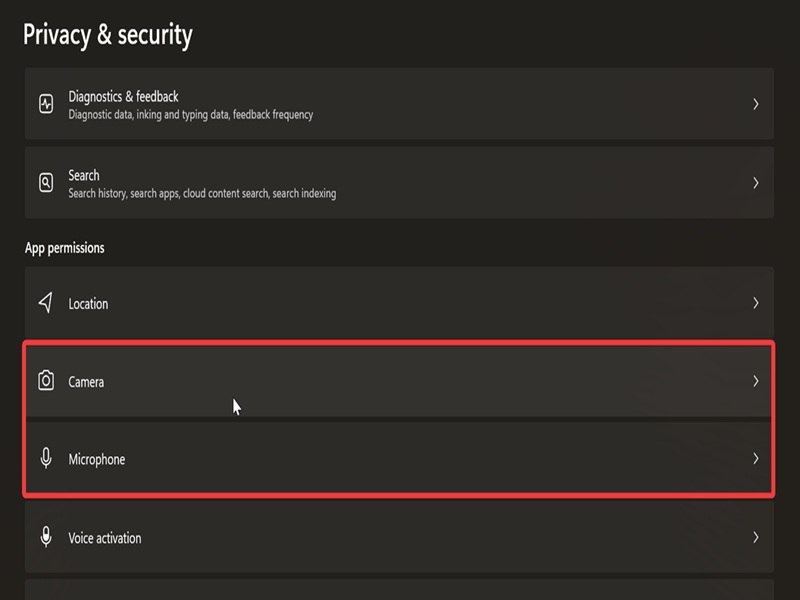
The settings are pretty much the same, as you can see. If you see an app you don't like, you can deny it access to your camera and microphone. We've covered the process in earlier guides; it should only take a couple of minutes.

|
selma citakovic
Selma is a gamer, geek and gremlin hunter with a passion for cyber security and smashing Windows bugs before they bite. She’s IBM-certified, loves real freeware, despises bloatware, and powers most of her troubleshooting with an unhealthy amount of coffee. |
comments powered by Disqus
