


Change What Closing the Laptop Lid Does
By selma čitakovićon 05/20/2026 |
![{$insert['content_title']](/content/file/6022_image3.png
)
Did you know you can customize what closing your laptop lid does? It's configured to enter sleep mode by default. But you can change it to hibernate, shutdown, or do nothing. If you configure it to do nothing, for example, your laptop will stay on even if you close the lid.
Additionally, you can specify different settings depending on whether your device is plugged in or on battery.
Let me show you how below!
Via Settings
You can change it directly from the Settings:
- Go to Settings > System > Power & battery.
- Click the Lid, power & sleep button controls section to expand it.
- Click on the dropdown menus next to "Closing the lid will make my PC" under both Plugged in and On battery.
- Choose either Do Nothing, Sleep, Hibernate, or Shutdown.
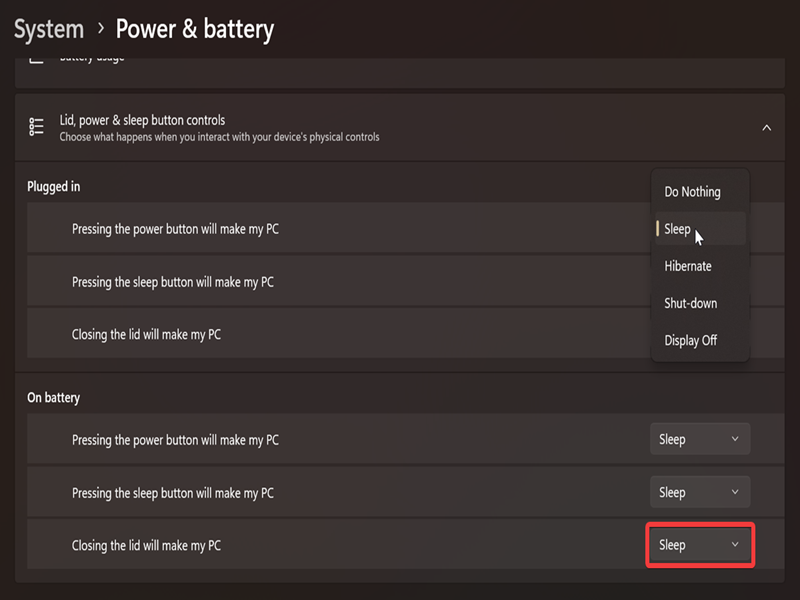
These changes will apply to your current power plan.
Via Power Options
Or, you can take a trip to the Control Panel:
- Type Control Panel in Windows Search and select Open.
- Choose Small icons or Large icons in View by: on the top right.
- Now, click on the Power Options icon.
- Select Choose what closing the lid does on the left side.
- Click the dropdown menu next to When I close the lid: and select either Do Nothing, Sleep, Hibernate, or Shutdown.
- Make sure you do this for both the On battery and Plugged in options.
- Click the Save changes button when you're done.
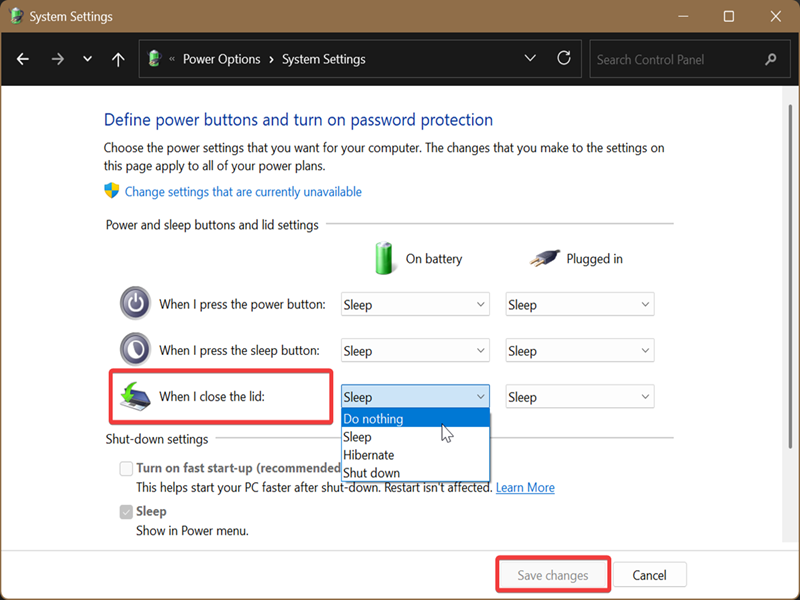
Via Advanced Power Options
If you want to target a specific power plan, try this method:
- Type Control Panel in Windows Search and select Open.
- Pick Small icons or Large icons view on the top right.
- Select Power Options.
- You'll see your currently available power plans in the middle. Click the Change plan settings link next to the one you want to configure.
- Next, click the Change advanced power settings link.
- In the new window that opens, expand Power buttons and lid, then Lid close action.
- Select Do nothing, Sleep, Hibernate, or Shut down for both On battery and Plugged in options.
- Click OK when you're done.
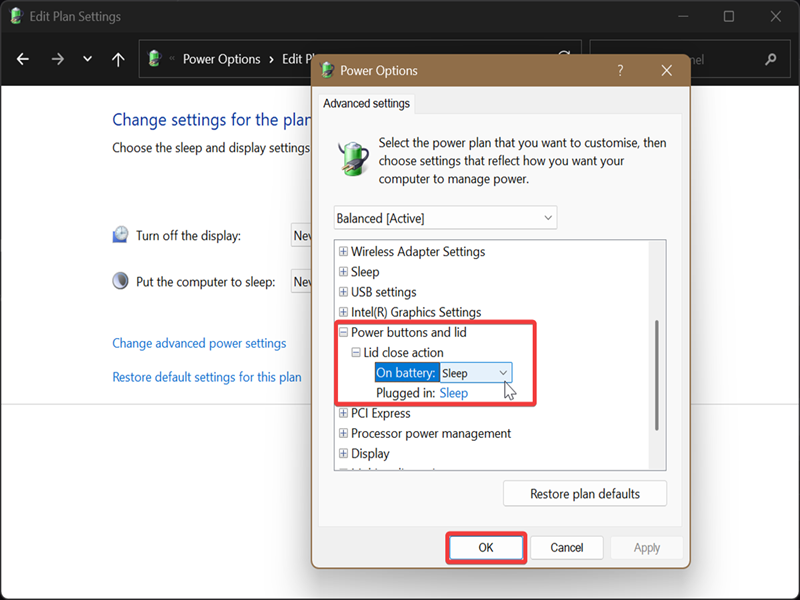
If you can't find the Power buttons and lid option, you can add it yourself.
Open elevated Command Prompt, paste this command and press Enter: REG ADD HKLM\SYSTEM\CurrentControlSet\Control\Power\PowerSettings\4f971e89-eebd-4455-a8de-9e59040e7347\5ca83367-6e45-459f-a27b-476b1d01c936 /v Attributes /t REG_DWORD /d 2 /f
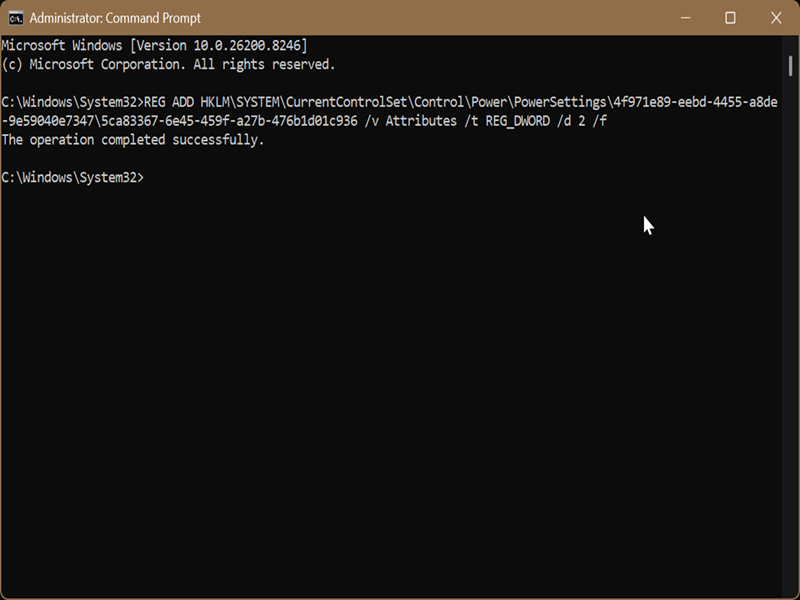
I also had to add it manually, and I can confirm this worked.
Via Local Group Policy Editor
Lastly, you can change what closing the lid does for all power plans with the Local Group Policy Editor. Still, only certain Windows editions include this tool, such as Pro, Enterprise, and Education.
To use it, sign in as an administrator first, and follow these steps:
- Press Win + R, type gpedit.msc, and press Enter.
- Navigate to Computer Configuration > Administrative Templates > System > Power Management > Button Settings on the left side.
- You should see both Select the lid switch action (plugged in) and Select the lid switch action (on battery) on the right.
- Double-click the policy you want to edit.
- Select Enabled and then choose one of the options from the dropdown menu next to Lid Switch Action.
- Click OK when you're done.
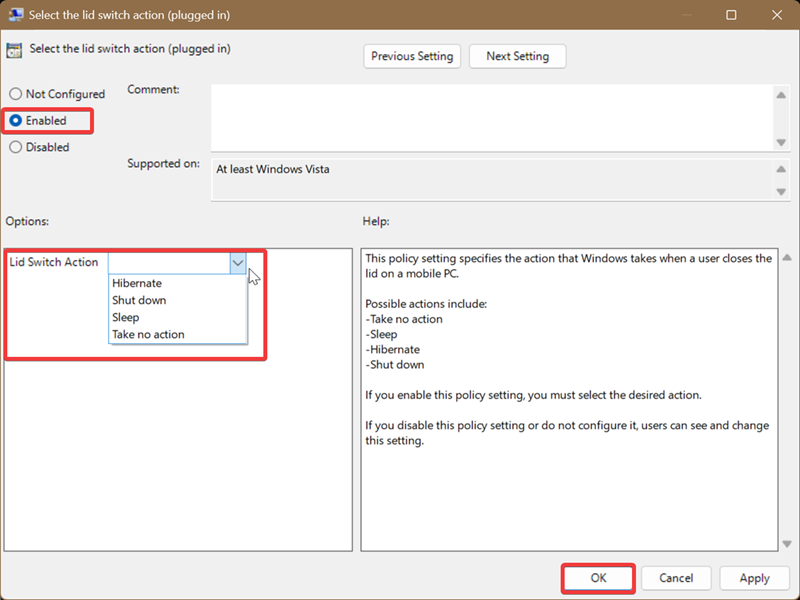
Don't forget to repeat the same steps for the second policy (plugged in or on battery) if you want to change it. To undo this change, select Not configured after double-clicking the policy, and hit OK.

|
selma citakovic
Selma is a gamer, geek and gremlin hunter with a passion for cyber security and smashing Windows bugs before they bite. She’s IBM-certified, loves real freeware, despises bloatware, and powers most of her troubleshooting with an unhealthy amount of coffee. |
comments powered by Disqus
