


Choose Which Windows 11 Feature Update Your PC Gets
By selma čitakovićon 10/19/2026 |
![{$insert['content_title']](/content/file/6515_image1.jpg
)
As you know, Windows 11 releases yearly feature updates. The one for this year, 26H2, came out pretty recently. However, I'll stick to version 25H2 for as long as I can. It works just fine, and I don't want to introduce any unnecessary problems just yet. You know how it is with Windows.
Anyway, if there's a newer feature update version you'd like to switch to, or one you'd like to stay with until it reaches end of service, read on. To target the specific version you want, you'll need to configure a policy.
Once it reaches end of service, it will automatically update after 60 days. So, this little trick won't last forever, but it will delay it and buy you lots of time until you're ready to move on.
Make sure you've signed in as an administrator first, and let's get into it.
Via Local Group Policy Editor
As easy as this method is, it won't work for everyone, unfortunately. Windows 11 Home edition doesn't include the Local Group Policy Editor by default, although you can try to work around it. But even if you manage to access the editor in Home, some users have reported that you can only specify newer versions than your current one.
It will work for all other editions (Pro, Education, and Enterprise) without any issues, though.
Here are the steps:
- Press Win + R, type gpedit.msc, and hit Enter.
- Navigate to Computer Configuration > Administrative Templates > Windows Components > Windows Update > Manage updates offered from Windows Update on the left.
- While in Manage updates offered from Windows Update, double-click Select the target Feature Update version on the right side.
- To specify the feature update version you want, select Enabled. In the table below, type Windows 11 for "Which Windows product version would you like to receive feature updates for?" In the box right underneath it, type the version you want (e.g., 25H2). You can check the handy release information table for more details.
- Click OK.
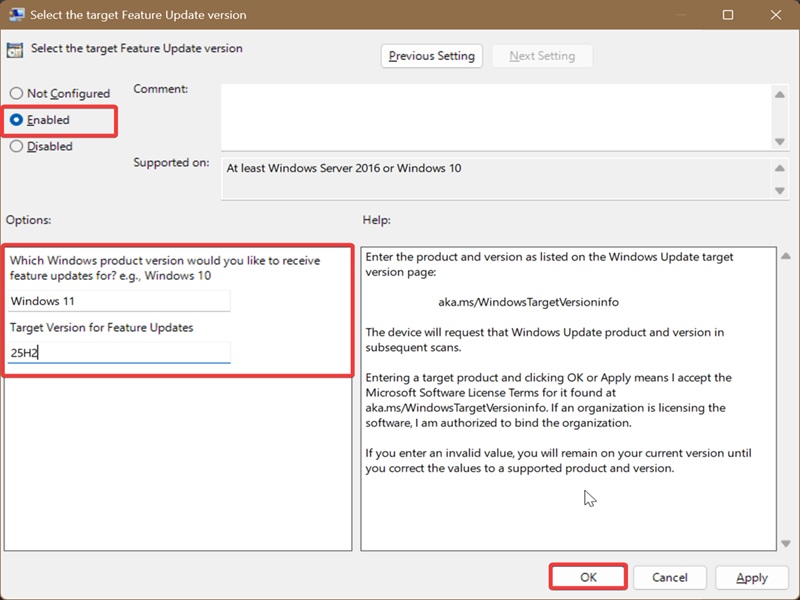
To undo this, simply select Not Configured in the same policy and click OK.
Again, this will only let you pick a specific feature update version, not a build number. Still, it's a neat trick if you want to avoid transitioning to 26H2 for as long as possible.

|
selma citakovic
Selma is a gamer, geek and gremlin hunter with a passion for cyber security and smashing Windows bugs before they bite. She’s IBM-certified, loves real freeware, despises bloatware, and powers most of her troubleshooting with an unhealthy amount of coffee. |
comments powered by Disqus
