


Disable Microsoft Store and Web Search Results in Windows Search
By selma čitakovićon 11/07/2026 |

You may have noticed that Windows Search looks a bit different now. It's not simply a design change, though. What's under the hood is much more important.
You can finally disable suggested search results from the Microsoft Store and Bing. This means you can cut all the bloat and useless suggestions and limit it to local results. It's a welcome change, given how Windows Search was practically useless before.
Here's an example.
If I look up "Panel" (thinking of Control Panel) with Microsoft Store and web search results enabled, Windows Search offers me the following:
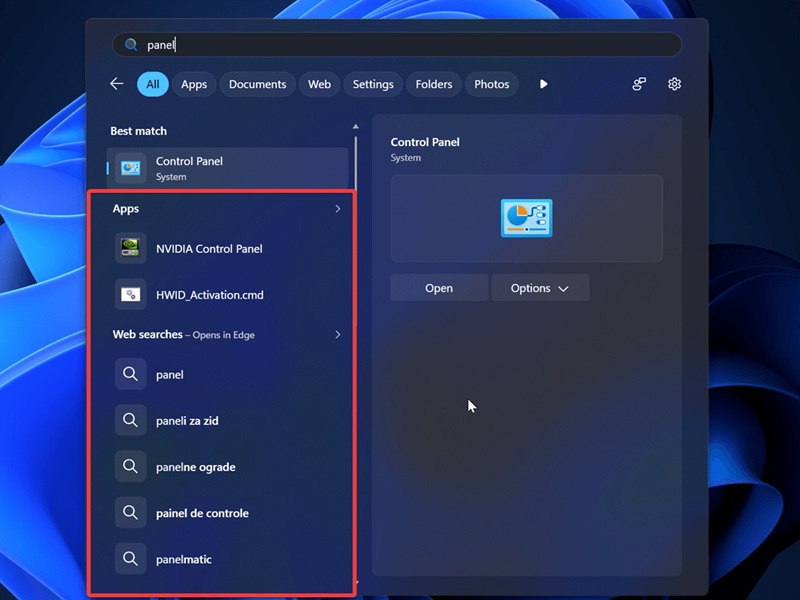
But if I disable them, I get this instead:
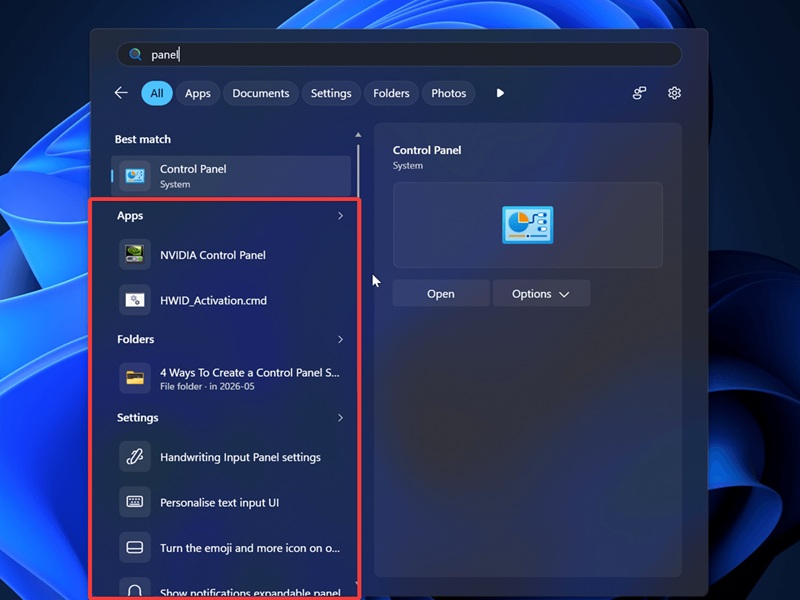
As you can see, the search results are limited to my PC and Settings, with no random web suggestions. As it should be!
Below, I'll show you how to disable them yourself.
Via Settings
This option is available starting with Windows 11 build 26100.9278 (24H2), build 26200.9278 (25H2), and build 2800.3086 (26H1). It was part of the September 2026 update and a gradual rollout to boot. I only got it recently - it was a looooong wait.
You can find it here:
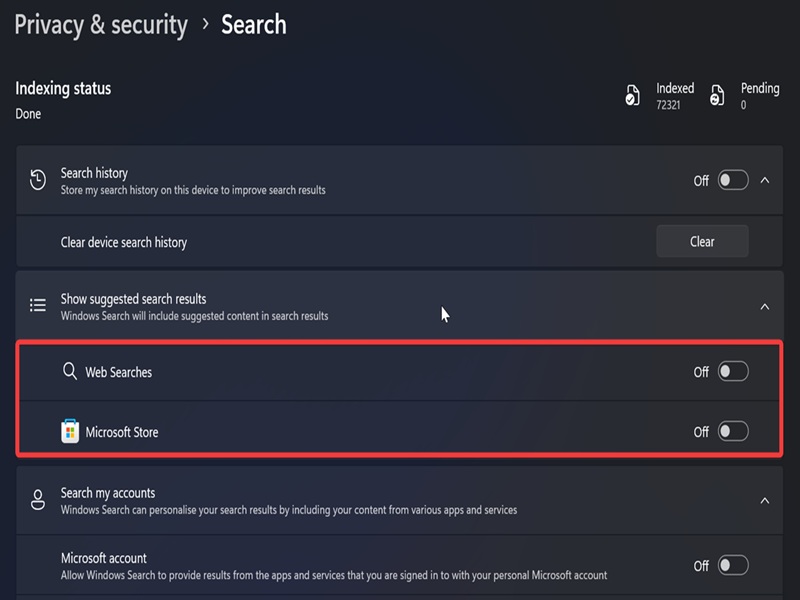
- Go to Settings > Privacy & security > Search (under Windows permissions).
- Under Show suggested search results, turn off Web Searches and Microsoft Store.
Via Registry Editor
Or, you can change a couple of values in the registry for the same results. If it's your first time poking around the Registry Editor, I recommend creating a system restore point first.
Anyway, here are the steps:
- Press Win + R, type regedit, and hit Enter.
- Navigate to HKEY_CURRENT_USER\Software\Microsoft\Windows\CurrentVersion\SearchSettings on the left.
- While in SearchSettings, double-click IsStoreSuggestionsEnabled.
- Type 0 in the Value data field and click OK.
- Now, double-click IsWebSuggestionsEnabled.
- Type 0 in the Value data field and click OK.
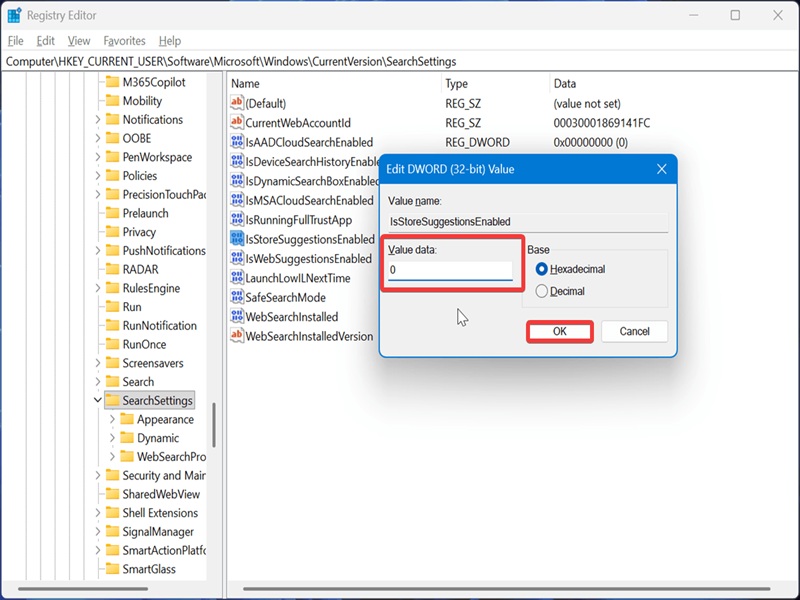
This will disable web and Microsoft Store suggestions.
If you ever want to undo these changes, type 1 for both DWORDs and click OK. That's the default value. Still, I recommend you keep them disabled - it makes Windows Search much more bearable.

|
selma citakovic
Selma is a gamer, geek and gremlin hunter with a passion for cyber security and smashing Windows bugs before they bite. She’s IBM-certified, loves real freeware, despises bloatware, and powers most of her troubleshooting with an unhealthy amount of coffee. |
comments powered by Disqus
