


Don't Lose Deleted Files: Enable the Recycle Bin on Removable Drives
By selma čitakovićon 10/15/2026 |
![{$insert['content_title']](/content/file/6357_image1.jpg
)
As you might know, deleting files from USB flash drives and other removable drives is permanent. By default, they won't go to the Recycle Bin as usual. It's good to remember this if you have any precious files on your USB stick.
However, you can change the default setting and enable the Recycle Bin even for removable drives. That way, even if you do accidentally delete something you shouldn't have, you'll have a safety net. It will require a couple of registry edits, but it's perfectly safe as long as you follow our instructions.
Let's get into it!
Enable Recycle Bin for removable drives for all users
First, you'll have to sign in as an administrator since you'll need elevated privileges for the following steps. As always, if you feel a bit unsure about making changes to the registry, you can create a system restore point to return to if things go awry.
So, here are the steps:
- Press Win + R, type regedit, and hit Enter.
- While in the registry, navigate to Computer\HKEY_CURRENT_USER\Software\Microsoft\Windows\CurrentVersion\Policies\Explorer on the left side.
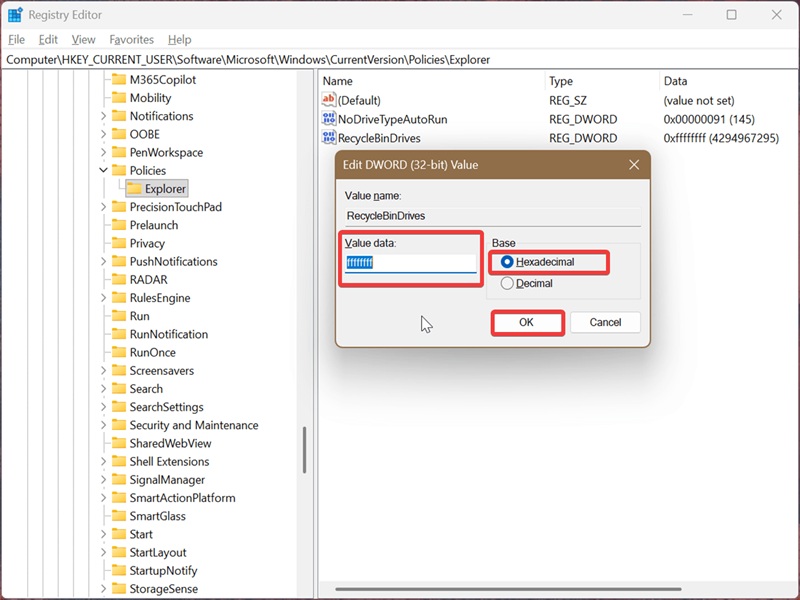
- In Explorer, right-click an empty spot on the right side, and select New > DWORD (32-bit) Value. Name it RecycleBinDrives.
- Double-click the newly created RecycleBinDrives. In the Value data field, type ffffffff (press the "f" key eight times). Select Hexadecimal and click on OK.
- Now, navigate to Computer\HKEY_LOCAL_MACHINE\SOFTWARE\Microsoft\Windows\CurrentVersion\Policies\Explorer on the left.
- In the Explorer key, repeat the same process from steps 3 and 4. Create a DWORD value, name it RecycleBinDrives, and input ffffffff in its Value data field.
- You can close the registry now and restart your computer to apply the changes.
You can also check if the operation worked by opening the Recycle Bin and pressing Alt + Enter to open its Properties. In the table under Recycle Bin Location, you should see your currently connected removable drive(s).
To undo these edits, right-click RecycleBinDrives (in both locations) and select Delete.
And that's it! Hopefully, this trick comes in handy if you ever miclick and delete something by mistake. You can simply restore the deleted item.

|
selma citakovic
Selma is a gamer, geek and gremlin hunter with a passion for cyber security and smashing Windows bugs before they bite. She’s IBM-certified, loves real freeware, despises bloatware, and powers most of her troubleshooting with an unhealthy amount of coffee. |
comments powered by Disqus
