


Dynamic Lighting - How To Enable/Disable and Customize It
By selma čitakovićon 06/06/2026 |
![{$insert['content_title']](/content/file/6071_image1.png
)
Dynamic Lighting lets you control your RGB devices in Windows Settings. This includes global settings for all connected compatible devices and adjusting each one individually. Microsoft has partnered with several manufacturers, including Acer, ASUS, Logitech, HP, Razer, and more. Basically, instead of relying on third-party apps and integrations, you can now manage your lights natively.
This feature was introduced back in 2023, but I only tried it out recently while messing around with G Hub. Here's how to enable and customize it!
Via Settings
You can enable/disable it here:
- Go to Settings > Personalization > Dynamic Lighting.
- Toggle on or off Use Dynamic Lighting on my devices. This is the global setting.
- You can then click on the cards with compatible RGB devices at the top, and toggle on/off Use Dynamic Lighting on this device.
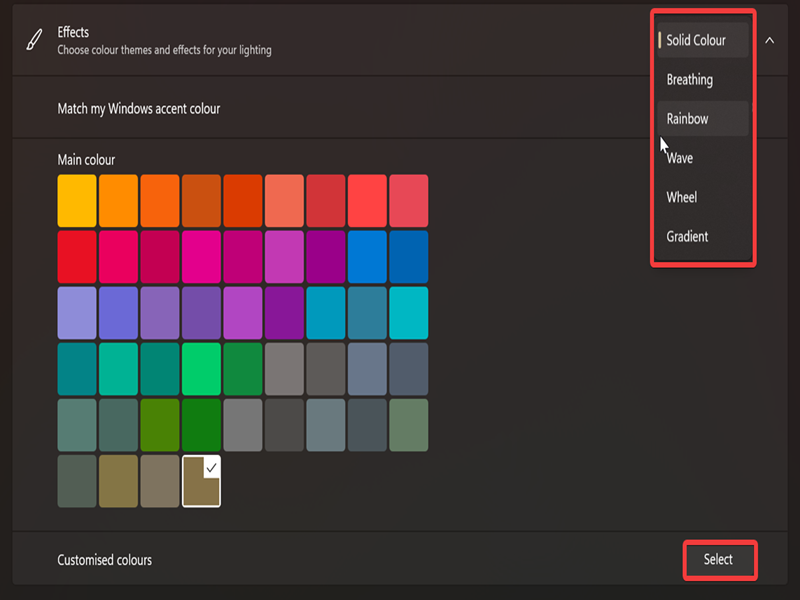
If you want to customize it, you can use the Brightness slider and Effects section under it. Click on it to expand it.
Check out the various effects in the dropdown menu: Solid Color, Breathing, Rainbow, Wave, Wheel, and Gradient. Depending on the effect, you'll also be able to configure its speed, lighting direction, and more.
Additionally, you can make it match your Windows accent color or choose from the default options. Lastly, you can click Select next to Custom colors and find the exact shade you need. Or paste the hex code, whatever suits you.
Via Registry Editor
Alternatively, you can make all these changes in the Registry Editor. It's less convenient than just doing it in the Settings. Still, here are the steps!
As always, if you want to play it extra safe, create a restore point before editing the registry.
- Press Win + R, type regedit, and hit Enter.
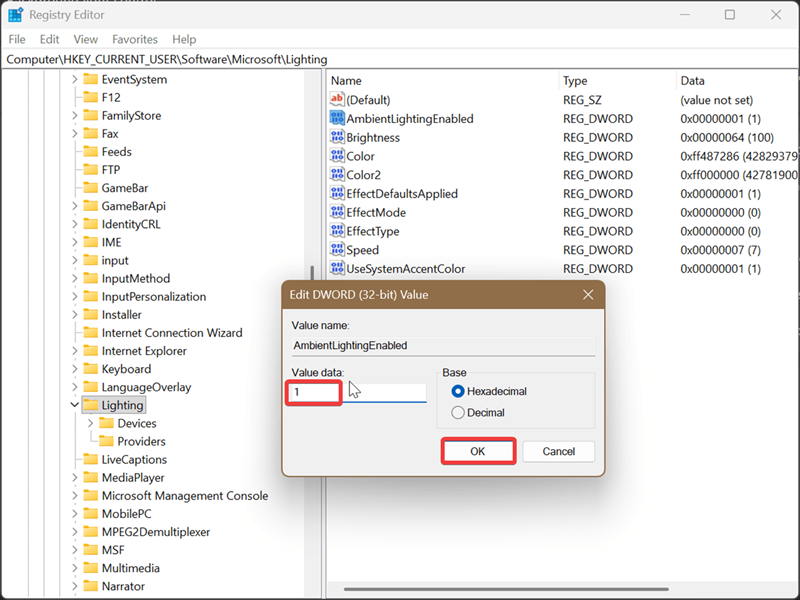
- Navigate to Computer\HKEY_CURRENT_USER\Software\Microsoft\Lighting on the left. Or just paste the address at the top.
- Double-click AmbientLightingEnabled on the right side.
- Type 1 to enable it or 0 to disable it, and hit OK.
- To apply different effects, double-click EffectType.
- Type 0 for Solid Color, 1 for Breathing, 2 for Rainbow, 4 for Wave, 5 for Wheel, or 6 for Gradient. Click OK.
If you don't like it, you can just disable it and go back to using third-party software for your RGB device. Or if you're not a fan of RGB in general, you can disable it altogether.

|
selma citakovic
Selma is a gamer, geek and gremlin hunter with a passion for cyber security and smashing Windows bugs before they bite. She’s IBM-certified, loves real freeware, despises bloatware, and powers most of her troubleshooting with an unhealthy amount of coffee. |
comments powered by Disqus
