


Easily Export Windows Services to a Text or CSV File
By selma čitakovićon 07/28/2026 |
![{$insert['content_title']](/content/file/6289_image1.jpg
)
Need a list of Windows services, running and/or stopped?
You can export a complete list right from the Services.msc console, but you can't specify based on their status. So, if you need only running services or only inactive ones, you'll have to use alternative methods. We'll show you how below!
Expect a whole lot of commands, though.
Via PowerShell
You can list services with PowerShell in a handy .txt or .csv file like this:
- Press Win + R, type powershell, and hit Enter.
- Export all services as a .txt file: Get-Service | Select StartType, Status, Name, DisplayName | Format-Table -AutoSize | Out-File -filepath "$Env:userprofile\Desktop\All_Services.txt"
- Export all services as a .csv file: Get-Service | Select StartType, Status, Name, DisplayName | Export-Csv -path "$Env:userprofile\Desktop\All_Services.csv"
- Export all services in PowerShell: Get-Service | Select StartType, Status, Name, DisplayName | Format-Table -AutoSize
- Export all running services as a .txt file: Get-Service | Select StartType, Status, Name, DisplayName | Where-Object {$_.Status -eq 'Running'} | Format-Table -AutoSize | Out-File -filepath "$Env:userprofile\Desktop\Running_Services.txt"
- Export all running services as a .csv file: Get-Service | Select StartType, Status, Name, DisplayName | Where-Object {$_.Status -eq 'Running'} | Export-Csv -path "$Env:userprofile\Desktop\Running_Services.csv"
- Export all running services in PowerShell: Get-Service | Select StartType, Status, Name, DisplayName | Where-Object {$_.Status -eq 'Running'} | Format-Table -AutoSize
- Export all stopped services as a .txt file: Get-Service | Select StartType, Status, Name, DisplayName | Where-Object {$_.Status -eq 'Stopped'} | Format-Table -AutoSize | Out-File -filepath "$Env:userprofile\Desktop\Stopped_Services.txt"
- Export all stopped services as a .csv file: Get-Service | Select StartType, Status, Name, DisplayName | Where-Object {$_.Status -eq 'Stopped'} | Export-Csv -path "$Env:userprofile\Desktop\Stopped_Services.csv"
- Export all stopped services in PowerShell: Get-Service | Select StartType, Status, Name, DisplayName | Where-Object {$_.Status -eq 'Stopped'} | Format-Table -AutoSize
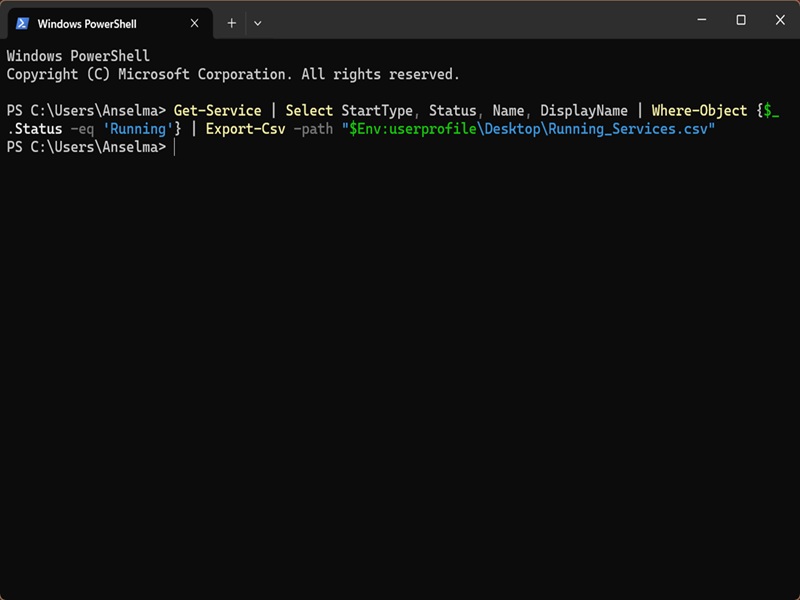
You'll find the saved file on your desktop.
Via Command Prompt
Otherwise, you can use Command Prompt:
- Press Win + R, type cmd, and hit Enter.
- Export all services as a .txt file: PowerShell Get-Service ^| Select StartType, Status, Name, DisplayName ^| Format-Table -AutoSize ^| Out-File -filepath "$Env:userprofile\Desktop\All_Services.txt"
- Export all services as a .csv file: PowerShell Get-Service ^| Select StartType, Status, Name, DisplayName ^| Export-Csv -path "$Env:userprofile\Desktop\All_Services.csv"
- Export all services in Command Prompt: PowerShell Get-Service ^| Select StartType, Status, Name, DisplayName^| Format-Table -AutoSize
- Export all running services as a .txt file: PowerShell Get-Service ^| Select StartType, Status, Name, DisplayName ^| Where-Object {$_.Status -eq 'Running'} ^| Format-Table -AutoSize ^| Out-File -filepath "$Env:userprofile\Desktop\Running_Services.txt"
- Export all running services as a .csv file: PowerShell Get-Service ^| Select StartType, Status, Name, DisplayName ^| Where-Object {$_.Status -eq 'Running'} ^| Export-Csv -path "$Env:userprofile\Desktop\Running_Services.csv"
- Export all running services in Command Prompt: PowerShell Get-Service ^| Select StartType, Status, Name, DisplayName ^| Where-Object {$_.Status -eq 'Running'} ^| Format-Table -AutoSize
- Export all stopped services as a .txt file: PowerShell Get-Service ^| Select StartType, Status, Name, DisplayName ^| Where-Object {$_.Status -eq 'Stopped'} ^| Format-Table -AutoSize ^| Out-File -filepath "$Env:userprofile\Desktop\Stopped_Services.txt"
- Export all stopped services as a .csv file: PowerShell Get-Service ^| Select StartType, Status, Name, DisplayName ^| Where-Object {$_.Status -eq 'Stopped'} ^| Export-Csv -path "$Env:userprofile\Desktop\Stopped_Services.csv"
- Export all stopped services in Command Prompt: PowerShell Get-Service ^| Select StartType, Status, Name, DisplayName ^| Where-Object {$_.Status -eq 'Stopped'} ^| Format-Table -AutoSize
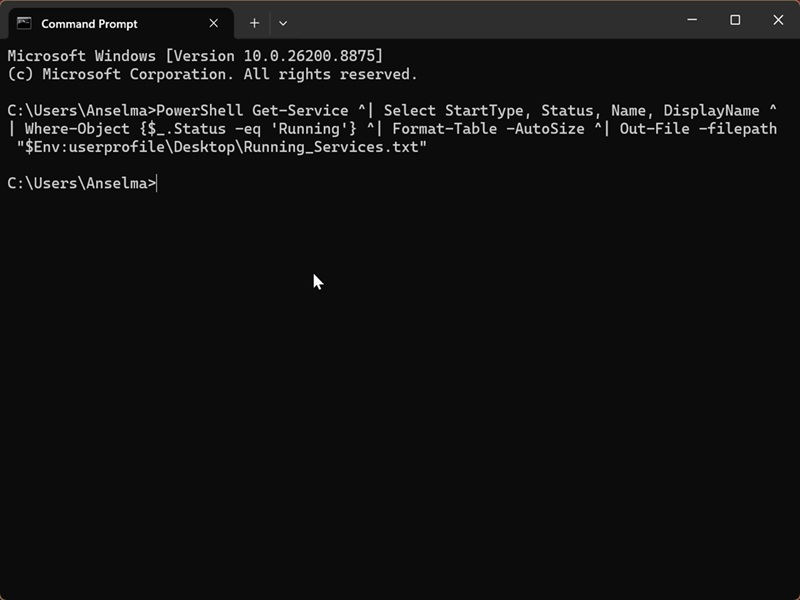
Just make sure to store your exported list(s) somewhere safe. Sensitive system configuration details like these are ripe for exploitation.

|
selma citakovic
Selma is a gamer, geek and gremlin hunter with a passion for cyber security and smashing Windows bugs before they bite. She’s IBM-certified, loves real freeware, despises bloatware, and powers most of her troubleshooting with an unhealthy amount of coffee. |
comments powered by Disqus
