


Explorer.Exe – System Call Failed Error
By Timothy Tibbettson 07/21/2023 |
When starting File Explorer, you may come across an error that reads Explorer.exe – System call failed. Here are the steps you can take to resolve this error.
1: Restart Explorer.exe Process
A simple way to restart the Explorer.exe process is to reboot. Often, a reboot or restarting Explorer.exe will solve the problem.
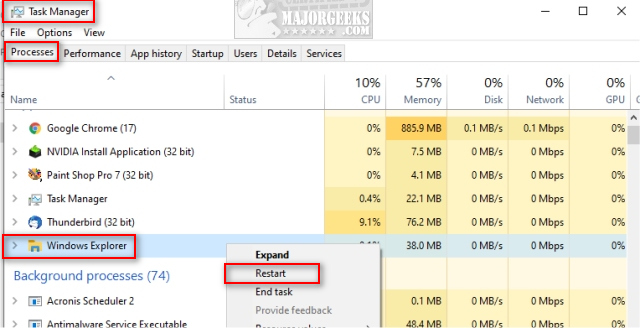
If rebooting isn't an option, right-click on the taskbar and select Task Manager. Click on the Processes tab. Right-click on Windows Explorer and click Restart.
2: Run DISM and System File Checker
Windows 10, Windows 8.1 or Windows 8 users will need to first run the Deployment Image Servicing and Management (DISM) tool before running the System File Checker. DISM will use Windows Update to provide any files that are needed to fix corruptions. If you skip this step, System File Checker might not work. Windows 7 and Vista users can skip this step.
You will need to first open the Command Prompt or PowerShell as administrator.
Type in DISM.exe /Online /Cleanup-image /Restorehealth and press enter. This may take a few minutes.
Running System File Checker
All you need to do is type in sfc /scannow and press the Enter key.
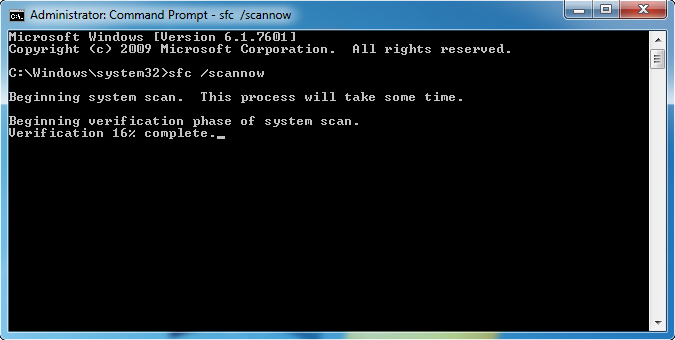
System File Checker will now scan for and replace files from the Windows cache.
3: Check Context Menu Items
Some years back we discovered a fix for File Explorer crashing, and it could apply here.
To solve this problem, we want to disable or remove Context Menu items. To do this, we want to download ShellExView. ShellExView is portable so extract it to a folder of your choice and double-click on shexview.exe.
You will see hundreds of extensions unless you click on Options and check Hide all Microsoft Extensions. Now you can see all the shell extensions added by programs you installed.
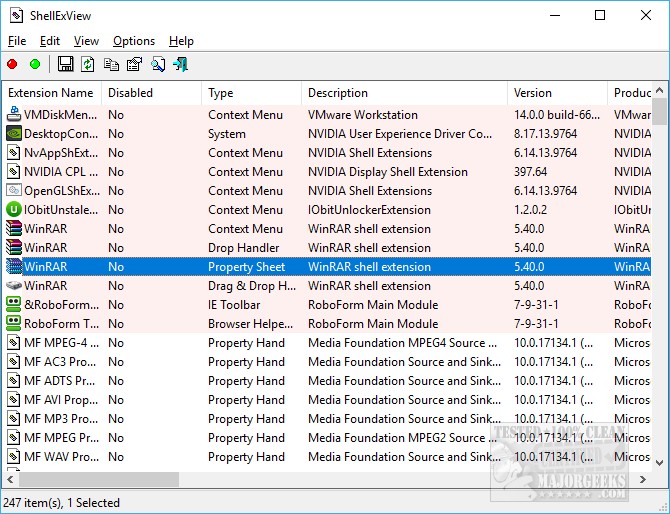
Right-click on any extension you don't need and select disable. Optionally, you can press CTRL+A to highlight everything, then press F7 to disable all.
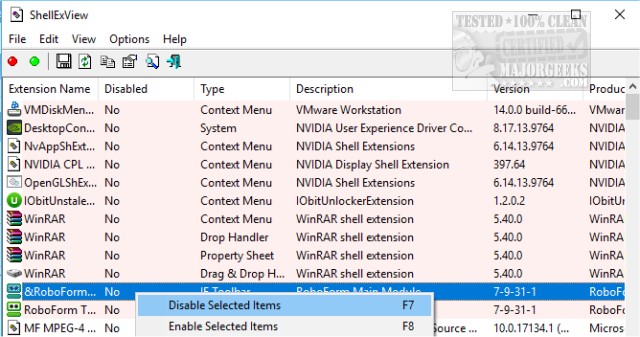
Because you need to reboot after any items are disabled, our recommendation is to disable as many of the newer items you don't use. For example, we had installed Acronis True Image recently so knowing that we recently added Acronis, we disabled that, rebooted and our problem was solved.
Here's a video on using ShellExView. It's getting old, but the app hasn't changed any.
4: Recently Installed Software
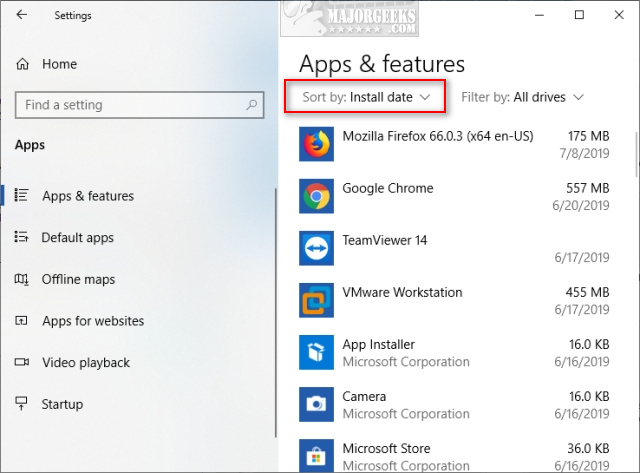
Open Start > Settings > Apps & Features to see if you recently installed any software that could cause the problem. Be sure to list by Date to see what was newly installed. There's some guesswork here on our end, but anything you installed since the problem started should be uninstalled.
Hopefully, your problem is solved. If not, we'd consider a full system scan with your favorite app to check for malware or other issues. Malwarebytes is an excellent place to start.
Similar:
The Ultimate List of Every Known File Explorer Keyboard Shortcut
Here Are All the Copy, Paste, General, File Explorer and Windows Logo Keyboard Shortcuts Available in Windows
Disable Quick Access, Recent Files, Favorite Folders, and Other File Explorer Tips
File Explorer or Windows Explorer Crashes or Freezes
comments powered by Disqus
1: Restart Explorer.exe Process
A simple way to restart the Explorer.exe process is to reboot. Often, a reboot or restarting Explorer.exe will solve the problem.
If rebooting isn't an option, right-click on the taskbar and select Task Manager. Click on the Processes tab. Right-click on Windows Explorer and click Restart.
2: Run DISM and System File Checker
Windows 10, Windows 8.1 or Windows 8 users will need to first run the Deployment Image Servicing and Management (DISM) tool before running the System File Checker. DISM will use Windows Update to provide any files that are needed to fix corruptions. If you skip this step, System File Checker might not work. Windows 7 and Vista users can skip this step.
You will need to first open the Command Prompt or PowerShell as administrator.
Type in DISM.exe /Online /Cleanup-image /Restorehealth and press enter. This may take a few minutes.
Running System File Checker
All you need to do is type in sfc /scannow and press the Enter key.
System File Checker will now scan for and replace files from the Windows cache.
3: Check Context Menu Items
Some years back we discovered a fix for File Explorer crashing, and it could apply here.
To solve this problem, we want to disable or remove Context Menu items. To do this, we want to download ShellExView. ShellExView is portable so extract it to a folder of your choice and double-click on shexview.exe.
You will see hundreds of extensions unless you click on Options and check Hide all Microsoft Extensions. Now you can see all the shell extensions added by programs you installed.
Right-click on any extension you don't need and select disable. Optionally, you can press CTRL+A to highlight everything, then press F7 to disable all.
Because you need to reboot after any items are disabled, our recommendation is to disable as many of the newer items you don't use. For example, we had installed Acronis True Image recently so knowing that we recently added Acronis, we disabled that, rebooted and our problem was solved.
Here's a video on using ShellExView. It's getting old, but the app hasn't changed any.
4: Recently Installed Software
Open Start > Settings > Apps & Features to see if you recently installed any software that could cause the problem. Be sure to list by Date to see what was newly installed. There's some guesswork here on our end, but anything you installed since the problem started should be uninstalled.
Hopefully, your problem is solved. If not, we'd consider a full system scan with your favorite app to check for malware or other issues. Malwarebytes is an excellent place to start.
Similar:
comments powered by Disqus
