


How To Add or Remove a PIN in Windows 11
By selma čitakovićon 07/25/2026 |
![{$insert['content_title']](/content/file/6160_image3.jpg
)
You can sign in with a PIN instead of a password as part of Windows Hello. Unlike a password, a PIN is tied to one specific device, and it's local to it. Overall, it's more secure and much harder to compromise, even if someone steals your device.
Personally, I sign in with just a PIN, without fingerprints or facial recognition (after previous bad experiences with my old laptop's fingerprint reader), and it works just fine. You can combine it with additional biometrics if you want to, though. I'll show you how to add or remove a PIN below, so read on!
Add PIN via Settings
You'll need to have an account password in order to add a PIN. The type of account doesn't matter; both Microsoft and local are fine.
Here are the steps:
- Go to Settings > Accounts > Sign-in options.
- Under Ways to sign in, expand PIN (Windows Hello).
- Click the Set up button next to Use a PIN to sign in to Windows, apps, and services.
- If you're using a Microsoft account, a PIN creation wizard window will open. Click Next.
- Type in your account password and click on Sign in (if it's a Microsoft account) or OK (if it's a local one).
- Now it's time to enter your new PIN (at least 4 characters long). Confirm it and click OK.
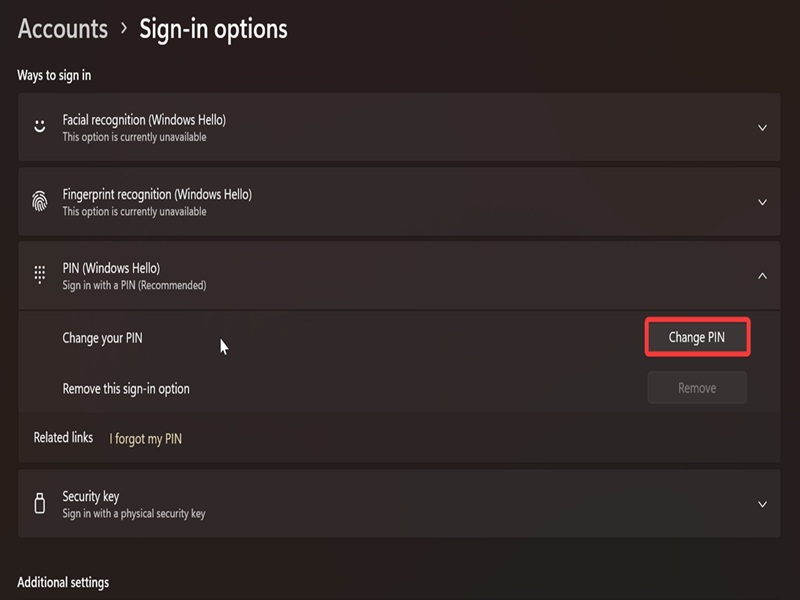
You can always change your PIN in this same section, after you've added it.
Add PIN via the sign-in screen
Alternatively, you can do it right from the sign-in screen like this:
- Click the Sign-in options link under I forgot my password.
- Select the PIN icon (the one that looks like a PIN keyboard).
- Type your account password and hit Enter.
- If you're using a Microsoft account, click Next on the window that opens.
- Enter your PIN and click OK.
Remove PIN via Settings
To remove the PIN, do this:
- Go to Settings > Accounts > Sign-in options.
- Under Ways to sign in, expand PIN (Windows Hello).
- Click the Remove button next to Remove this sign-in option.
- Again, click on Remove to confirm your decision.
- Enter your account password and click OK.
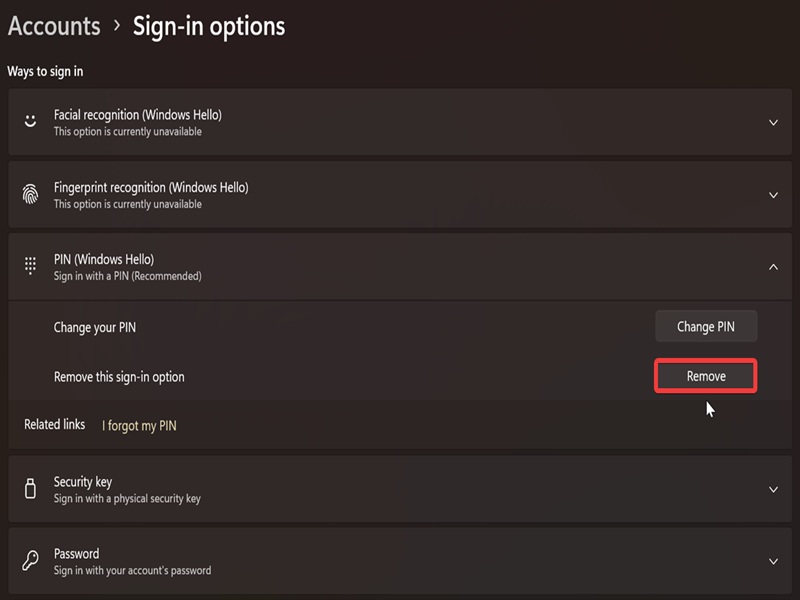
If the Remove option is grayed out, it's probably because you've enabled For improved security, only allow Windows Hello sign-in for Microsoft accounts on this device. You can find the option on the same page in Settings, right under Additional settings, and uncheck it.
Additionally, removing the PIN will also disable Account protection in Windows Security and any previously added fingerprint and face sign-in options.

|
selma citakovic
Selma is a gamer, geek and gremlin hunter with a passion for cyber security and smashing Windows bugs before they bite. She’s IBM-certified, loves real freeware, despises bloatware, and powers most of her troubleshooting with an unhealthy amount of coffee. |
comments powered by Disqus
